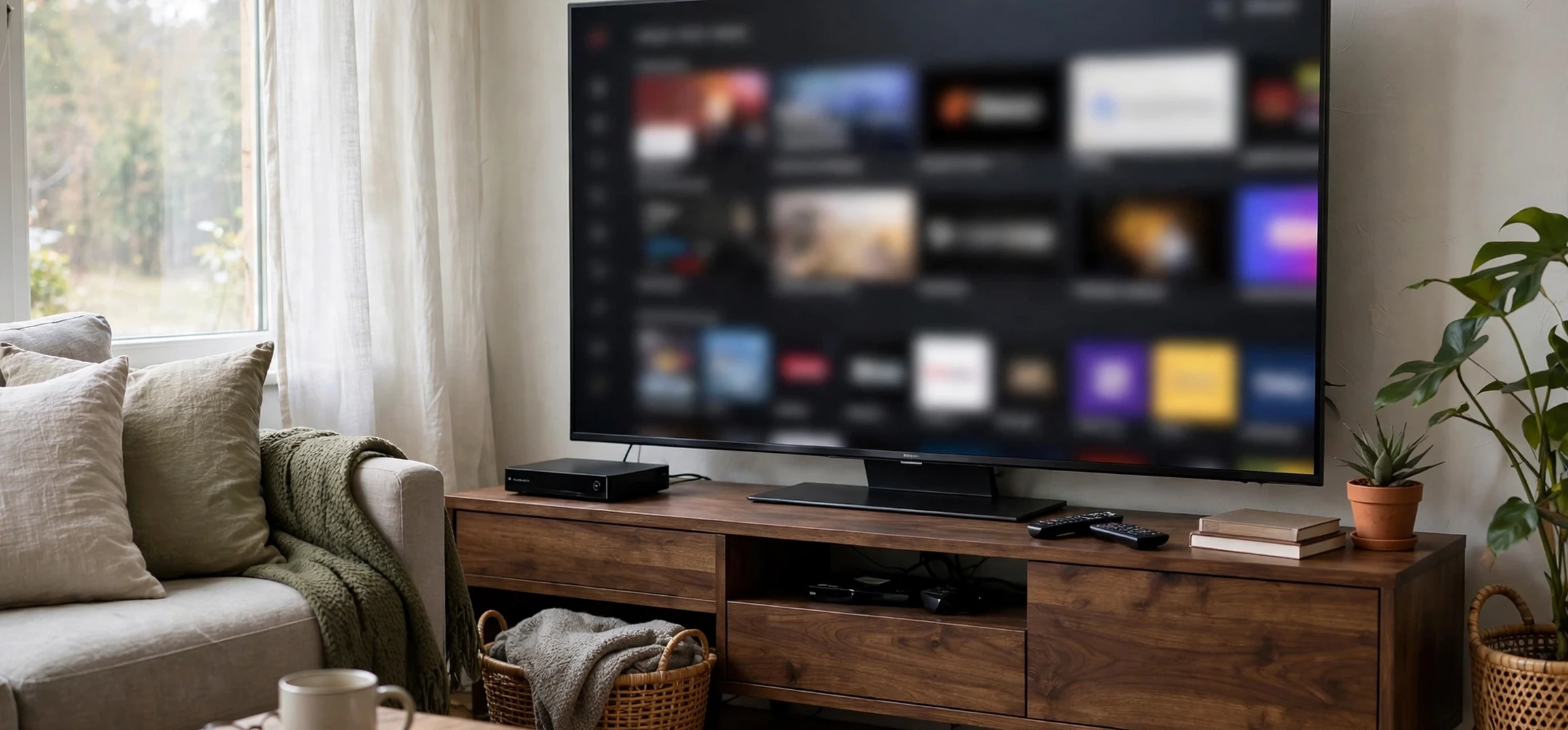
If you are trying to understand apple tv plus channels, the first thing to know is that the name covers two related but different ideas: the Apple TV app as a hub, and the channels and subscriptions you can add inside it. Apple tv plus channels can mean the subscription services available through the Apple TV app, the premium add-ons that bundle extra content, or simply the way shows and films are organised for viewing. This guide untangles those meanings, explains how channels work in general, and helps you decide which options suit your household, without making price claims or linking to streaming pages.
Streaming has changed how people think about channels. In traditional television, a channel was a fixed schedule on a numbered slot. In streaming, a channel is closer to a content library with its own app or section: a collection of shows, films, sports, or documentaries that you can watch on demand. The Apple TV app brings many of these libraries together in one place, so you can browse, search, and continue watching across services without switching between many separate apps. That convenience is the main appeal.
Apple TV Plus Channels Explained
Apple tv plus channels, in the broad sense, refers to the range of content sources accessible through the Apple TV app on compatible devices. Some of these are Apple’s own original programming, produced and presented under its streaming brand. Others are third-party subscription services that can be added and managed through the app, so billing and viewing sit in one place. Still others are free or ad-supported sections that offer a rotating selection of programmes without a subscription.
The distinction matters because availability varies by region, device, and subscription status. A channel that appears in one country may not appear in another, and a show available through one add-on may move to a different service over time. Licensing changes constantly in streaming, so the most reliable way to check current availability is inside the Apple TV app itself on your own device, where listings reflect your region and subscriptions.
Another point of confusion is the difference between the Apple TV device, the Apple TV app, and the streaming subscription. The device is hardware that connects to your television. The app is software that organises video content and works on many devices beyond Apple’s own hardware. The subscription is a paid service offering original shows and films. You can use the app without the subscription, and you can add third-party channels without owning Apple hardware, depending on your device. Keeping these three ideas separate clears up most confusion about apple tv plus channels.
Types of Channels You May Find
Channels inside a streaming hub generally fall into a few categories. Original programming channels feature shows and films made specifically for the service. Premium add-on channels offer libraries from established studios or networks, often focused on drama, film, or documentaries. Sports channels focus on live events and sports documentaries. Family and children’s sections curate age-appropriate content. News and factual sections offer documentaries and current-affairs programming.
Each type suits a different household. A household that loves prestige drama will value original and premium drama libraries. A sports household will prioritise live coverage and highlights. A family household will care most about children’s profiles, parental controls, and a safe browsing experience. There is no universally best combination, only the combination that matches what your household actually watches each week.
| Channel Type | Typical Content | Best For |
|---|---|---|
| Original programming | Exclusive series and films | Viewers who follow new releases |
| Premium add-ons | Studio and network libraries | Film and drama fans |
| Sports sections | Live events and documentaries | Sports households |
| Family and children | Age-rated shows and films | Households with children |
| Factual and documentary | Nature, history, and science | Curious viewers of all ages |
When exploring apple tv plus channels, browse by category rather than by hype. Open each channel’s library, check how much of it interests you, and note whether new content arrives regularly or the library rarely changes. A channel with a large catalogue but little you want to watch is worse value than a smaller one packed with programmes your household enjoys. Trial periods, where offered, are a useful way to test this before committing.
Setting Up and Organising Your Channels
Setting up channels usually begins in the Apple TV app, where you can browse available services, sign in to existing subscriptions, or add new ones. Managing subscriptions in one place has a practical benefit: it is easier to review what you pay for and cancel what you no longer use. Make a habit of reviewing your active channels every few months, since households often keep subscriptions they stopped watching long ago.
Organisation features make a real difference to daily viewing. Watchlists let you save shows across channels in one list. Continue-watching rows pick up where you left off, even if you switched devices. Search across channels saves time compared with opening each service separately. Profiles, where available, keep recommendations and watch history separate for different household members, which improves suggestions and keeps children’s viewing appropriately separated.
Parental controls deserve attention in any shared household. Most streaming hubs offer PIN protection, age ratings, and restricted profiles. Set these up before handing a remote to a child, and review them when children grow older or when new channels are added. A few minutes of setup prevents awkward surprises and keeps viewing appropriate for every member of the household. For broader viewing ideas, see our guide to new streaming movies and our classic TV channel guide.
Devices, Quality, and Viewing Experience
Apple tv plus channels can be watched on a wide range of devices, including smart televisions, streaming boxes, game consoles, computers, tablets, and phones, depending on app availability in your region. Picture quality depends on your device, your internet connection, and the content itself. Higher-resolution and high-dynamic-range content looks best on a compatible television with a stable, fast connection, while mobile viewing is more forgiving of slower speeds.
Audio matters too, especially for films and prestige drama. Many streaming titles offer surround sound or spatial audio on compatible devices and speakers. If dialogue sounds unclear, check audio settings in both the app and your television, and consider a soundbar for the main viewing room. Small settings changes often improve the experience more than any subscription change.
Offline viewing is another feature worth noting. Some services allow downloads on mobile devices for watching without an internet connection, which is useful for travel. Download availability varies by title and service, and downloaded content usually expires after a period or after playback begins. Check the rules for any service you rely on for travel viewing, so you are not caught out without access. Subscription management is equally important: our overview of streaming plan options explains how to think about choosing and reviewing plans in general terms.
How to Choose the Right Channels for Your Household
Choosing channels starts with an honest viewing audit. For two weeks, note what your household actually watches: which genres, which shows, and how many hours per week. Then match that pattern to channel libraries. If most viewing comes from one or two services, additional channels add cost without adding enjoyment. If viewing is spread widely, a hub approach that bundles several services in one app may simplify life.
Consider household size and viewing conflicts. A large household with varied tastes may benefit from several profiles and a broader mix, while a single viewer can usually manage with fewer services. Also consider seasonal viewing: sports fans may want a channel only during a season, and film fans may rotate services month by month, watching one library thoroughly before switching. Rotation is a legitimate strategy that keeps viewing fresh while controlling the number of active subscriptions.
Finally, remember that channels change. Libraries gain and lose titles, new services launch, and bundles shift. Revisit your choices periodically rather than treating them as permanent. The goal is not to collect every available channel, but to keep a small set that your household genuinely enjoys, organised in a way that makes finding something to watch easy rather than overwhelming.
When you first explore apple tv plus channels, it helps to treat apple tv plus channels as a menu to sample rather than a list to collect. Browse apple tv plus channels by genre, save promising titles to a watchlist, and give each new addition a fair trial before keeping it. Many households find that apple tv plus channels work best in a small, rotating set, with one or two services active at a time. Reviewing apple tv plus channels every few months keeps the lineup fresh, and it ensures apple tv plus channels serve your viewing habits instead of the other way around.
Frequently Asked Questions About Apple TV Plus Channels
What is the difference between the Apple TV app and the subscription?
The Apple TV app is a hub that organises video content from many services on compatible devices. The subscription is a separate paid service offering original shows and films. You can use the app to browse and watch other services without holding the subscription itself.
Can I add third-party channels inside the Apple TV app?
In many regions, yes. Third-party subscription services can be added and managed through the app, letting you browse and watch their content alongside other libraries. Availability varies by region and device, so check the app on your own device for current options.
Do channels stay the same over time?
No. Streaming libraries change as licensing deals begin and end, and shows move between services. If a favourite title disappears, search the app again, since it may have moved to another channel rather than leaving streaming entirely.
How can I control what my children watch?
Use profiles, age ratings, and PIN protection where available, and set them up before children use the service. Review the settings whenever you add a new channel, since new libraries may include content outside your chosen age range.
Conclusion
Apple tv plus channels are best understood as a hub of content libraries rather than a single fixed lineup. The Apple TV app gathers original programming, premium add-ons, sports, family, and factual content in one place, and the right combination depends entirely on what your household watches, on which devices, and with what controls in place.
Audit your viewing, test channels before committing where trials are offered, organise watchlists and profiles, and review your subscriptions regularly. With that approach, you will spend less time searching and more time enjoying the shows and films that actually matter to your household.