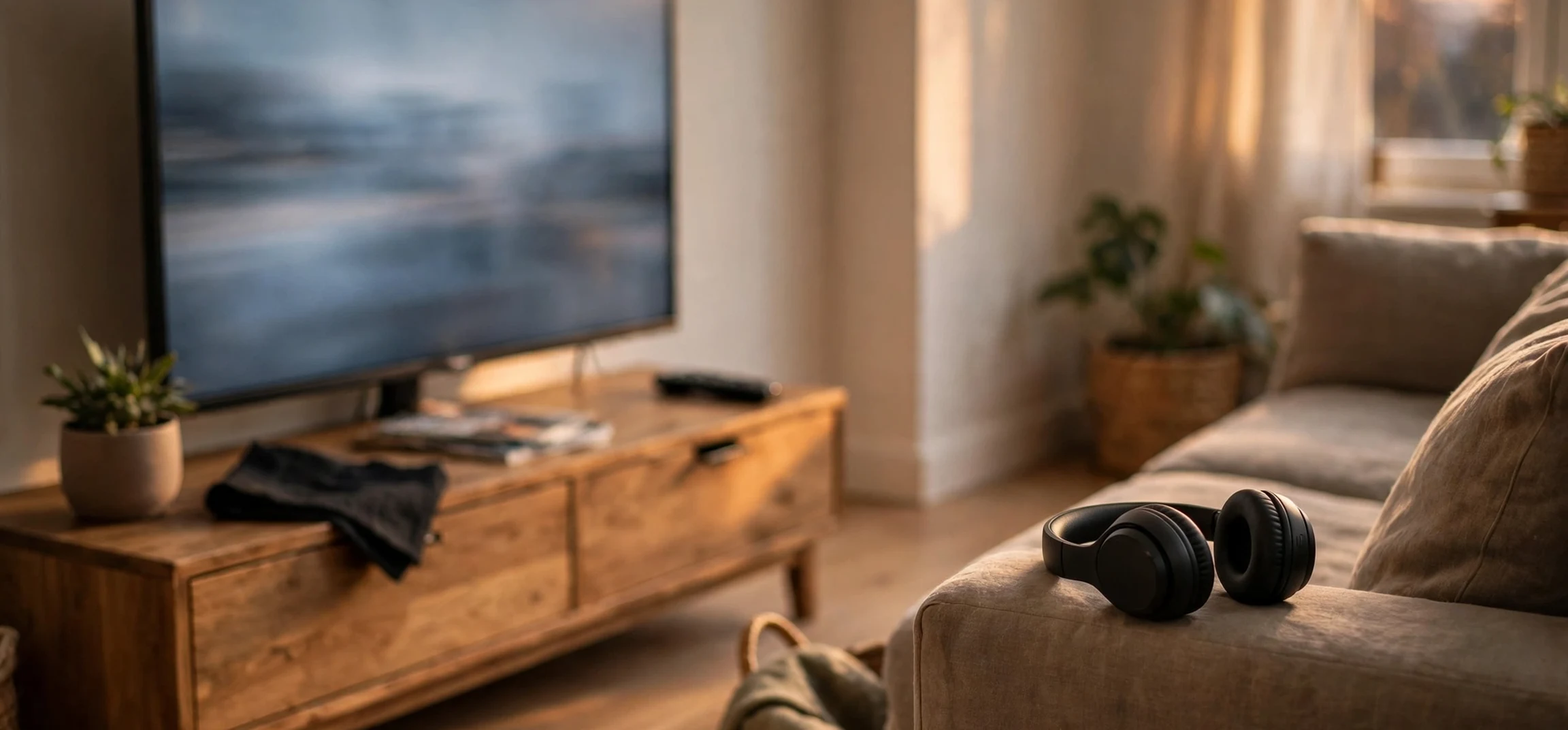
If you are asking can roku tv connect to bluetooth, the honest answer is: it depends on your television and what you want to connect. Some Roku televisions and Roku devices support Bluetooth in certain ways, while others do not support direct Bluetooth audio at all, and features vary considerably by model, year, and software version. This guide explains the different kinds of Bluetooth connection you might mean, how to check what your own model supports, and the practical workarounds that most owners use when direct pairing is not available. Always check your own model’s specifications and the official Roku support pages for your exact device, rather than assuming that a feature described for one model applies to all.
The confusion is understandable, because the word Bluetooth covers several different uses. Pairing wireless headphones for private listening is not the same as connecting a Bluetooth speaker, a soundbar, a game controller, or a remote control, and Roku products handle those uses differently. A television that supports Bluetooth for a remote, for example, may not support Bluetooth headphones. Similarly, a feature available through the Roku mobile app may not be available as a direct television setting. Untangling those distinctions is the key to getting the result you want.
Can Roku TV Connect to Bluetooth? The Short Overview
In broad terms, many Roku televisions do not offer a general Bluetooth audio pairing menu of the kind found on some other smart televisions. That does not mean private listening is impossible; it means the route is often different. The most widely available method is private listening through the Roku mobile app, which lets you listen to television audio through headphones connected to your phone, with the audio streamed over your home network. Some Roku remotes also include a headphone jack for wired private listening, which achieves a similar result without Bluetooth at all.
A smaller number of newer Roku televisions and Roku-branded audio products do include Bluetooth features, but the details matter. Some support Bluetooth as an input, allowing you to play music from a phone through the television’s speakers, while others support Bluetooth output to headphones or speakers, and some support both. Because manufacturers and model ranges change, and because the same brand name can cover televisions made by different partners, there is no reliable universal statement about Roku television Bluetooth support. Your model number is the only safe starting point.
Can Roku TV Connect to Bluetooth? How to Check Your Model
Start by finding your exact model number. On most Roku televisions, you can find it in the settings menu under system information, or on a label on the back of the television. Note the full model name, not just the brand or screen size, because similar-looking models can differ in features. Once you have it, search the official support pages and the manufacturer’s specifications for that exact model, looking specifically for Bluetooth audio, Bluetooth input or output, and private listening.
Next, check the television’s own menus. Look under settings for audio, remotes and devices, or a Bluetooth section, if one exists. If you find a Bluetooth menu, follow the on-screen pairing instructions for the device you want to connect. If no such menu exists, that is itself useful information: your model probably does not offer direct Bluetooth pairing, and the app-based or wired routes below are more likely to help. Also check that your television’s software is up to date, since features can be added or changed through updates, although an update cannot add Bluetooth hardware that is not present.
Private Listening Through the Roku Mobile App
Private listening is the most reliable workaround for headphone use, and it works on many Roku televisions and devices. First, make sure your phone and your Roku television are connected to the same home network. Open the Roku mobile app, connect it to your television, and start playing something. Look for the private listening option, often shown as a headphones icon, and activate it. Then connect your Bluetooth headphones to your phone, not directly to the television, and the television audio should play through your headphones via the app.
There are a few practical points to know. Audio may be slightly delayed compared with the picture, because it travels through your network and phone, although for most viewing this is barely noticeable. Your phone’s battery will drain faster while streaming audio, so keep a charger nearby for long sessions. If the audio drops, check that your phone has not locked or switched networks, and that the app is still connected to the correct television. If you have more than one Roku device at home, make sure the app is paired with the one you are actually watching.
Wired Headphones, Soundbars, and Bluetooth Transmitters
If your Roku remote has a headphone jack, wired private listening is a simple and dependable option: plug in headphones, and the television audio is routed to them. This avoids network delay and phone battery use entirely. For speakers, most Roku televisions offer wired and wireless options that do not involve Bluetooth at all, such as HDMI ARC, optical audio, or Wi-Fi-based speaker systems designed for the Roku platform. Check your television’s audio output options and your speaker’s inputs before buying anything new.
A Bluetooth transmitter is another workaround some owners use. These small devices plug into a television’s headphone jack or optical output and broadcast audio to Bluetooth headphones or speakers. Results vary by transmitter, and lip-sync delay can be an issue with cheaper models, so look for a transmitter that supports low-latency audio if that matters to you, and check that it is compatible with your television’s outputs. A transmitter does not change your television’s built-in features, but it can bridge the gap when direct pairing is unavailable.
Troubleshooting Common Bluetooth Problems
If pairing fails, work through the basics methodically. Put your headphones or speaker into pairing mode first, and keep it close to the television or phone during pairing. Forget the device on any other gadget it may already be connected to, since many Bluetooth accessories connect to only one source at a time. Restart the television, the app, and the accessory, and try again. If audio connects but stutters, move closer, reduce interference from other wireless devices, and check that your home network is stable, particularly for app-based private listening.
If you are using a Bluetooth speaker as a television output, remember that volume may be controlled from the speaker, the television, or both, depending on the setup. If sound plays through both the television speakers and the Bluetooth device, check the television’s audio output setting and select the correct output. If a feature worked previously and has stopped, check for software updates on both the television and the app, and re-pair the accessory from scratch rather than assuming the old pairing is still valid.
For broader television and streaming guidance, you may also find our television guide and our streaming television overview useful, along with the Apple TV movies guide if you are comparing platforms.
| What you want to do | Likely route on a Roku TV | Check first |
|---|---|---|
| Listen privately on headphones | Roku app private listening, or wired remote jack | App connection; same home network |
| Pair Bluetooth headphones directly | Only if your model has Bluetooth audio output | Exact model specifications |
| Play phone music through TV speakers | Bluetooth input, where supported | Model’s Bluetooth input support |
| Connect a Bluetooth speaker | Direct pairing if supported, otherwise transmitter or wired output | TV audio outputs; speaker inputs |
| Use a Bluetooth remote or controller | Supported on many Roku devices via their own pairing | Device compatibility list |
Choosing the Right Setup for Your Home
The best setup depends on how you watch television and who you watch with. If you mainly want late-night private listening so you do not disturb others, app-based private listening or a wired remote jack is usually the simplest and cheapest route, and it requires no extra hardware beyond headphones you already own. If you share a home with several viewers, consider whether everyone needs private listening or whether a soundbar with clear dialogue would serve the household better overall. A solution that works brilliantly for one person in a quiet flat may be unnecessary in a busy family living room.
Budget matters too. Before buying a transmitter, a new speaker, or replacement headphones, check what your television already offers. Many owners discover that a headphone jack, an existing soundbar connection, or the mobile app already solves their problem at no extra cost. When you do buy accessories, keep receipts and check return policies, since Bluetooth compatibility and audio delay can vary, and a device that works well in a shop demonstration may behave differently with your exact television and home network. A short test at home, with the content you actually watch, is worth more than any specification sheet.
Frequently Asked Questions
Do all Roku televisions support Bluetooth headphones?
No. Features vary by model, year, and software version. Some models support direct Bluetooth audio, while others rely on app-based private listening or a wired headphone jack. Check your exact model’s specifications before assuming support.
Can I use Bluetooth headphones with the Roku app?
Yes, in many cases. Connect your Bluetooth headphones to your phone, then use private listening in the Roku mobile app while your phone and television share the same home network. The headphones pair with the phone, not directly with the television.
What if my Roku TV has no Bluetooth at all?
You can still listen privately through the app or a wired headphone jack where available, use wired or Wi-Fi speaker connections, or add a Bluetooth transmitter to a suitable audio output. The best option depends on your television’s outputs and what you want to connect.
Conclusion
So, can roku tv connect to bluetooth? Sometimes directly, often through the Roku app, and sometimes only with a workaround, depending entirely on your model. The practical approach is to identify your exact television, check its official specifications, try app-based private listening for headphones, and consider wired outputs or a transmitter when direct pairing is unavailable. With the right route for your model, private listening and wireless audio are usually achievable, even when the television itself does not offer a general Bluetooth pairing menu.