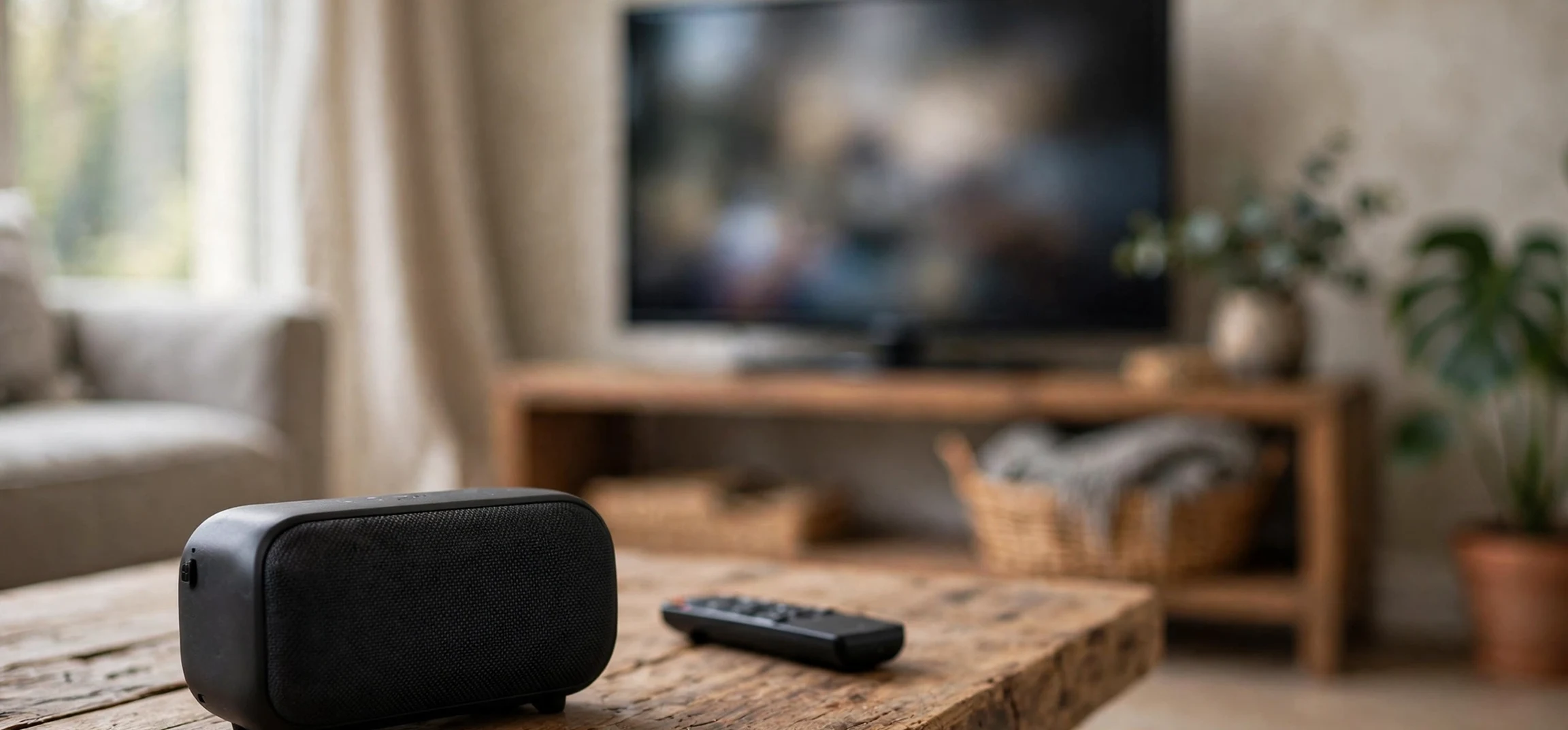
If you are asking can roku tv connect to bluetooth, the short answer is that it depends on your television model, and the pairing process itself is straightforward once you know which route your set supports. This guide is a step-by-step speaker-pairing walkthrough, not a general compatibility overview: it takes you from checking your model, through putting your speaker into pairing mode, to connecting, testing and fixing the most common problems. Follow the steps in order, and if a menu option described here does not appear on your set, that is useful information in itself, because it tells you that your model needs one of the alternative routes explained later in this guide.
Bluetooth speakers are popular with television owners for a simple reason. A portable speaker can sit closer to your seat than the television, which helps in a large room, and it can give clearer dialogue than small built-in television speakers. A speaker can also be moved between rooms, so the same device that plays music from your phone can serve as your television speaker in the evening. Before you buy anything new for this purpose, however, it is worth confirming what your Roku TV already supports, because the answer varies between models and model years, and the official Roku support pages for your exact model are the final word.
One important distinction runs through this whole guide. Some Roku TVs support Bluetooth audio output directly, which means the television itself can send sound to a Bluetooth speaker. Others do not offer that feature, and on those sets the practical routes are different: a wired or HDMI connection to a soundbar or speaker system, the private listening feature in the Roku mobile app, or a Roku wireless speaker system designed for Roku TVs. None of these is a failure of your television. They are simply different designs, and this guide covers each route so you can reach the same goal, which is better sound in your room, whichever route your set supports.
Can Roku TV Connect to Bluetooth? Check Your Model First
Before you touch your speaker, confirm what your television supports. The quickest check is on the television itself. Press the Home button on your Roku remote, then open Settings. Look for a section dealing with remotes and devices, or with audio. On models that support Bluetooth output, you should find a Bluetooth option in that area, sometimes under a heading such as Remotes and Devices. If you see a Bluetooth entry, your set supports direct Bluetooth pairing, and you can follow the main walkthrough below.
If there is no Bluetooth entry, do not assume that you have missed it. Menu layouts differ between manufacturers, because Roku TVs are made by several different television brands running the Roku operating system. On one brand the setting may sit under Remotes and Devices, while on another it may sit under Audio or under a general devices heading. Use the search function in Settings if your set offers one, and search for the word Bluetooth. If nothing appears, check the model number, which is usually printed on a label on the back of the television and also shown in Settings under System and then About. With that model number, visit the official Roku support pages or your television manufacturer’s support pages and search for Bluetooth support for that exact model. That check takes a few minutes and saves a long evening of trying to pair a speaker to a feature the set does not have.
It is also worth checking what kind of speaker you own. Most modern portable Bluetooth speakers, Bluetooth soundbars and Bluetooth headphones support standard Bluetooth pairing, which is what this guide assumes. Very old speakers may use an outdated Bluetooth version that pairs less reliably, and some speakers require a specific button combination to enter pairing mode. Keep your speaker’s manual nearby, or search for its pairing instructions from the manufacturer, before you begin. A few minutes of preparation at this stage prevents most of the frustration that people associate with Bluetooth pairing.
Can Roku TV Connect to Bluetooth? The Step-by-Step Pairing Walkthrough
Once you have confirmed that your Roku TV supports Bluetooth, the pairing itself follows a simple sequence. The golden rule is order: put the speaker into pairing mode first, then tell the television to search for it. If you search from the television before the speaker is discoverable, the television will find nothing, and you will waste time wondering whether the feature is broken. Get the speaker ready first, every time.
Step 1: Prepare the speaker
Place the speaker within a few metres of the television, with a clear line of sight if possible. Bluetooth works through walls and furniture, but pairing is fastest at close range, and you can move the speaker to its final position afterwards. Make sure the speaker is charged or plugged in, and switch it on. Then put it into pairing mode. On many speakers this means pressing and holding the Bluetooth button until a light flashes, often in blue, or until you hear a voice prompt or tone saying that the speaker is ready to pair. On other speakers, switching the speaker on for the first time automatically enters pairing mode. If your speaker is already paired to your phone, disconnect it from the phone first, or it may reconnect to the phone instead of waiting for the television. Switching off Bluetooth on your phone temporarily is a simple way to avoid that clash during pairing.
Step 2: Open Bluetooth settings on the television
With the speaker flashing in pairing mode, pick up the Roku remote and press Home. Open Settings, then find the Bluetooth section, usually under Remotes and Devices. Select the option to pair a new device, which may be labelled Pair Device, Add Device or simply Bluetooth Pairing. The television will begin scanning for nearby Bluetooth devices. This scan usually takes well under a minute. Leave the remote alone during the scan, and keep the speaker in pairing mode until the television finds it.
Step 3: Select and confirm the speaker
When the scan finishes, your speaker should appear in a list, usually under its brand or model name. If several devices appear, for example a neighbour’s device or a phone, choose the name that matches your speaker. Select it, and confirm the pairing when the television asks. Some speakers require a confirmation on the speaker itself, such as pressing the Bluetooth button once, but most pair without further action. When pairing succeeds, the television should show the speaker as connected, and the speaker’s light usually changes from flashing to steady, or the speaker plays a confirmation tone.
Step 4: Test the sound properly
Do not assume that a successful pairing means perfect sound. Play something with clear dialogue, such as a news programme or a drama, and listen for three things: volume, clarity and timing. Start with the television volume at a moderate level and adjust from there, because Bluetooth speakers have their own volume control as well as the television’s, and the two interact. Listen to whether speech matches lip movements. A small delay between picture and sound, known as lip-sync delay, is common with Bluetooth audio, and it varies between speakers and televisions. Some televisions offer an audio delay or lip-sync setting in their audio menu, which can correct a small mismatch. If the delay is large and distracting, try moving the speaker closer to the television, since a weak signal can worsen timing problems.
Step 5: Make the speaker your usual output
Once the sound is working, check how your television handles the connection over time. Many Roku TVs remember a paired Bluetooth device and reconnect automatically when the speaker is switched on and in range, while others require you to select the speaker again from the Bluetooth menu each time. Test this by switching the speaker off and on again, and by switching the television off and on again, and note what happens. If the television does not reconnect automatically, selecting the speaker from the Bluetooth devices list takes only a few seconds once you know where the list lives. Keep that menu path in mind, because you will use it whenever you want to switch back to the television’s built-in speakers, for example when someone else wants to watch without the Bluetooth speaker.
Fixing the Most Common Pairing Problems
Most Bluetooth pairing problems have a small number of causes, and working through them in order solves the majority. If the television cannot see the speaker at all, the speaker is almost certainly not in pairing mode, or it is still connected to another device such as a phone. Switch Bluetooth off on nearby phones and tablets, put the speaker back into pairing mode, and scan again. If the speaker appears but pairing fails, move the speaker closer to the television, switch the speaker off and on again, and retry. Restarting both devices clears many temporary glitches, and it costs nothing.
If sound plays but keeps dropping out, distance and interference are the usual suspects. Bluetooth signals can be weakened by thick walls, large metal objects and other wireless devices operating nearby. Move the speaker closer, ideally in the same room with a clear path to the television, and test again before assuming the speaker is faulty. If the sound is out of sync with the picture, check the television’s audio settings for a lip-sync or audio delay control, and try the speaker at a closer range. If the delay remains severe on every programme, that particular speaker and television combination may simply be a poor match for video, and a wired connection, covered below, may give better results.
If the television pairs with the speaker but no sound comes out, check the volume on both devices, because a muted speaker or a television volume set very low will look like a failed connection. Also check that the television’s audio output is set to the Bluetooth device rather than to the built-in speakers or to an external sound system. Playing a different programme or app helps to rule out a problem with one particular streaming service. If one app is silent while others play sound, the issue lies with that app rather than with the Bluetooth connection.
| Problem | Likely cause | First thing to try |
|---|---|---|
| Speaker not found in scan | Speaker not in pairing mode, or still linked to a phone | Disconnect the phone, re-enter pairing mode, scan again |
| Pairing fails repeatedly | Weak signal or temporary glitch | Move the speaker closer and restart both devices |
| Sound drops out | Distance or wireless interference | Move the speaker into the same room as the television |
| Sound out of sync | Bluetooth audio delay | Adjust lip-sync or audio delay in television audio settings |
| Paired but silent | Volume or output setting | Check volume on both devices and confirm Bluetooth is the selected output |
Alternatives If Your Roku TV Lacks Bluetooth Output
If your model check shows that your Roku TV does not support direct Bluetooth audio output, you still have good options. The first is a wired or HDMI connection. Many Bluetooth speakers also have an auxiliary input or can connect through a soundbar, and most televisions offer HDMI ARC, optical audio or a headphone output. A soundbar connected by HDMI ARC usually gives the most reliable television sound, with the television remote controlling the volume, and it avoids Bluetooth delay entirely. This route suits a fixed living-room setup where the speaker does not need to move.
The second option is private listening through the Roku mobile app. This feature sends television audio to your phone, so you can listen through wired earphones or a Bluetooth speaker or headphones paired to your phone rather than to the television. It is especially useful late at night, when you want sound close to you without disturbing others. The steps are simple: connect your phone to the same network as the television, open the Roku app, connect to your television, and enable private listening. Then pair your Bluetooth speaker to your phone in the usual way. The television audio then travels to the phone and on to the speaker. There may still be a small delay, so test with dialogue before settling in for a film.
The third option is a wireless speaker system designed for Roku TVs. These systems connect over a dedicated wireless link rather than standard Bluetooth, and they are designed to stay in sync with the picture. If you are buying new equipment specifically for a Roku TV, checking compatibility with Roku TVs before purchase is the single most useful step you can take. For guidance on everyday Roku television settings, see our guide on how to turn off voice on Roku TV, and for wider television viewing help, see our TV guide. Both illustrate how much of Roku television ownership is simply knowing which menu holds the setting you need.
Getting the Best Sound From a Bluetooth Speaker
Pairing is only half the job. Placement matters as much as the connection itself. A speaker placed behind the television, inside a closed cabinet or facing a wall will sound muffled no matter how good the pairing is. Place the speaker facing your usual seat, at roughly ear height when seated if possible, and away from corners that can make bass sound boomy. If you use a single portable speaker, placing it centrally in front of your seat gives clearer dialogue than placing it to one side. If you use a stereo pair, keep the two speakers at a similar distance from your seat and facing you, rather than pointing them at each other across the room.
Room acoustics play a part too. Hard floors and bare walls reflect sound and can make dialogue harder to follow, while curtains, rugs and soft furnishings absorb reflections and usually improve clarity. You do not need to redecorate to improve television sound. Simply moving a speaker out of a corner, or off a hollow shelf that vibrates, can make a noticeable difference. Experiment with two or three positions and listen to the same dialogue-heavy scene in each, rather than judging by music alone, because dialogue clarity is what matters most for television.
Finally, remember that a Bluetooth speaker used for television is also a shared device in many homes. If other family members pair their phones to the same speaker, the speaker may reconnect to a phone when you want it to connect to the television. Agreeing a simple habit, such as switching the speaker off when not in use, or disconnecting it from phones before television time, avoids the familiar evening ritual of the television searching for a speaker that has already paired itself to someone’s phone upstairs. A little routine saves repeated troubleshooting.
Frequently Asked Questions
Can I connect two Bluetooth speakers at once?
Most Roku TVs that support Bluetooth output connect to one Bluetooth audio device at a time. Some speakers offer their own pairing feature that links two speakers from the same brand into a stereo pair, in which case the television connects to the pair as a single device. Check your speaker manufacturer’s instructions for that feature, and do not expect the television itself to manage two separate Bluetooth speakers simultaneously.
Why is Bluetooth television sound sometimes out of sync?
Bluetooth audio takes a short time to encode, transmit and decode, which can put sound slightly behind the picture. The delay varies with the speaker, the Bluetooth version and the signal strength. A closer speaker, a stronger signal and a television lip-sync setting can all reduce the problem, but a small delay is a normal characteristic of Bluetooth audio rather than a sign that something is broken.
How do I switch back to the television speakers?
Open the Bluetooth devices list in Settings, disconnect the speaker, or simply switch the speaker off. Most televisions then return to their built-in speakers automatically. If sound does not return, check the audio output setting in the television’s audio menu and select the television speakers explicitly.
Conclusion
So, can roku tv connect to bluetooth? On models that support Bluetooth audio output, yes, and the walkthrough above takes you from pairing mode to tested sound in a few minutes. On models that do not, the goal is still reachable through a wired or HDMI soundbar, through private listening in the Roku app, or through a wireless speaker system designed for Roku TVs. The key step in every case is the same: check your exact model first, then follow the route that model supports, rather than fighting a menu option that was never there. Pair the speaker before you search for it, test with dialogue, fix placement before blaming the equipment, and you will have clearer, more flexible television sound without buying anything you do not need.



