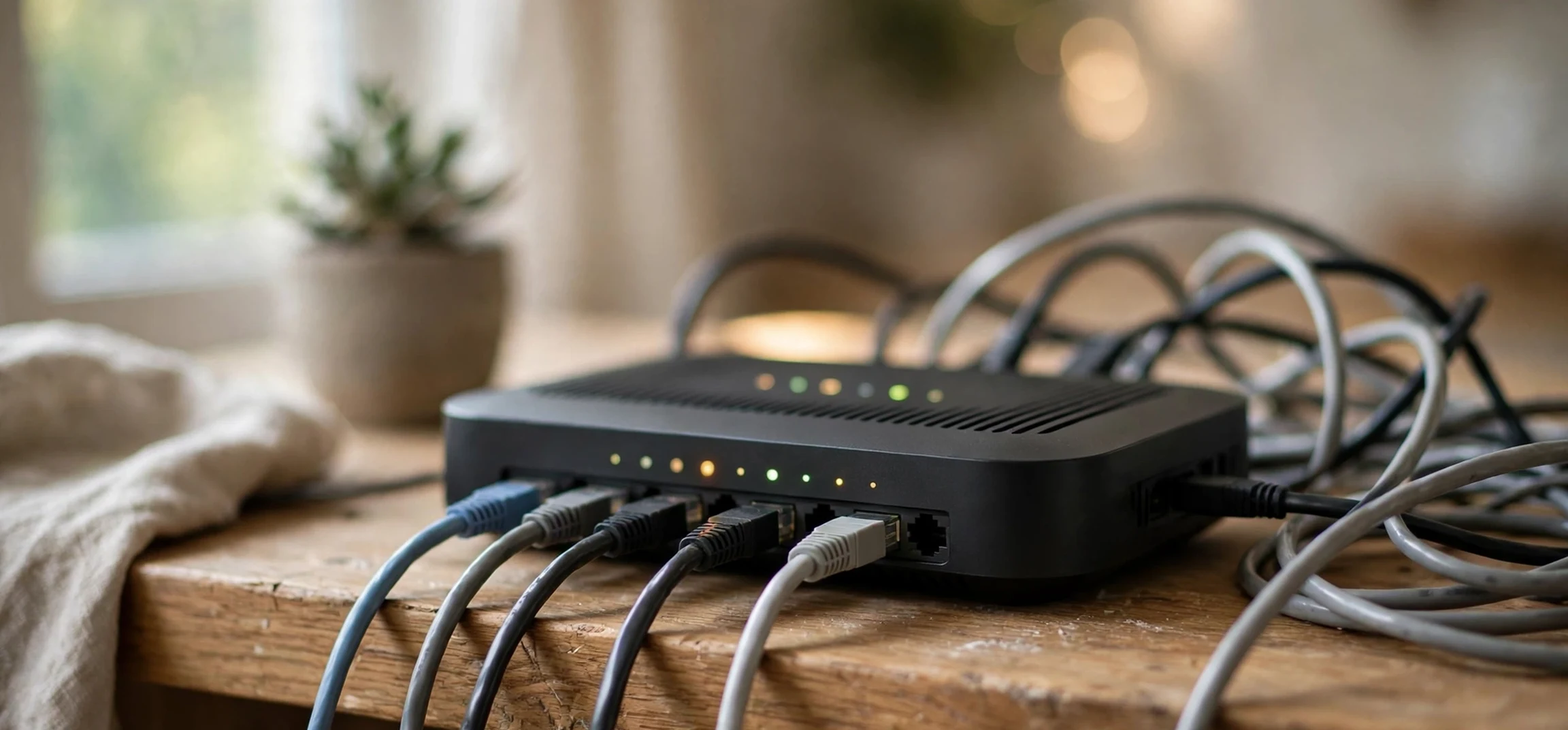
If you have ever wondered what is ip address in wifi, you are asking one of the most practical questions in home networking. In simple terms, an IP address is a number label that identifies a device on a network, and when you connect through WiFi, your router gives your phone, laptop, tablet, or smart television a local address so it can send and receive data correctly. Without that label, your router would not know which device requested a video, a web page, or a software update, and the information could not find its way back to the right screen. This guide explains the idea in plain language, shows how private and public addresses work together, and helps you check only your own device and your own home network with confidence.
WiFi itself is simply a wireless way to join a local network. The router at the centre of that network acts like a reception desk. When a device joins, the router notes its identity, assigns it a local IP address, and keeps a record of that assignment for as long as the device stays connected. When the device asks for something from the internet, the router forwards the request using a separate public address that represents your whole household to the outside world. Replies come back to the router, which then passes them to the correct local address. That two-step system is why a home with many devices can share a single internet connection without confusion.
What Is IP Address in WiFi? The Basics Explained
An IP address, short for Internet Protocol address, is a set of numbers that works like a delivery address for data. On a WiFi network, the most common format you will see is IPv4, which looks like four groups of numbers separated by dots, such as 192.168.1.24. Each group can range from zero to 255. A newer format, IPv6, uses longer combinations of numbers and letters separated by colons, because the world has far more connected devices than the older format can comfortably describe. Most home routers support both, and most people only need to recognise the shorter IPv4 form for everyday checks.
The key point is that an IP address is not a permanent name for a device, and it is not the same thing as a WiFi password, a device name, or a serial number. It is a temporary working label for communication. Your phone may receive one address at home, a different address at a coffee shop, and yet another address at work, because each network manages its own set of local addresses. That is normal, and it is by design. Networks reuse local address ranges precisely because those addresses only need to be unique inside one network at a time, not across the entire internet.
Another useful distinction is between a device address and a network address. Your router has a local address of its own, often something like 192.168.1.1 or 192.168.0.1, which is the gateway address your devices use to reach the internet. Your devices each have their own local addresses in the same range. Think of the router as the main entrance to a building and each device address as a room number inside it. Mail from outside is addressed to the building, and the reception desk sorts it to the right room. That image explains why checking a public address tool shows one shared address for your household, while checking your device settings shows a different, local address.
What Is IP Address in WiFi? Private Versus Public Addresses
Private addresses are used only inside a local network. Common private ranges include addresses beginning with 192.168, addresses in the 10 range, and addresses in the 172.16 to 172.31 range. These addresses are never routed directly across the public internet. Instead, your router translates them through a process called network address translation, which swaps the private address for the public address when traffic leaves your home, and swaps it back when replies return. This translation is one reason home networks can support dozens of devices while using a single public address supplied by an internet provider.
Public addresses, by contrast, are globally unique and visible to websites and services you visit. Your internet provider assigns a public address to your connection, and it may stay the same for a long time or change periodically, depending on the provider and the type of service. A public address identifies a household connection rather than a single person, because many people and devices may share it. That is also why a public address alone does not identify who was using a particular device at a particular time. Providers keep their own records, and those records are not something a home user needs to manage day to day.
Understanding this split answers many common puzzles. If two people in different houses both see a device address beginning with 192.168, that is not a clash, because each address only matters inside its own home network. If a website shows a location near your town rather than your exact street, that is because a public address is mapped only approximately to a region, not to a precise home. And if your device address changes after you restart your router, that is simply the router handing out addresses afresh, not a sign that anything is wrong.
How Your Router Assigns Addresses Automatically
Most home routers use a service called DHCP, which stands for Dynamic Host Configuration Protocol. When a device joins the WiFi network and provides the correct password, DHCP selects a free local address from a pool, assigns it to the device for a set lease period, and also tells the device the gateway address and the DNS server addresses it should use. DNS, the Domain Name System, turns website names into numeric addresses so you can type a familiar name instead of memorising numbers. The whole exchange happens in seconds and requires no manual setup from you.
Some people choose to set a static address for a device that always needs the same local address, such as a network printer or a home server. A static address is chosen from inside the local range but outside the pool that DHCP hands out automatically, so two devices never receive the same address. For ordinary phones, laptops, and tablets, however, automatic assignment is simpler and safer. If you ever set a static address by hand, write it down, and make sure it does not duplicate another device, because duplicate addresses cause confusing connection drops where one device works and another does not.
Lease times explain why an address can change over time. When a lease expires, the router may renew the same address or hand out a different one, especially if the device was away from the network for a while. Restarting the router clears the current assignments and starts the process again. None of this affects your files, your accounts, or your WiFi password. It only changes the temporary label used for routing data inside your home.
How to Check Your Own Device Address Safely
Checking your own address is a useful troubleshooting skill, and it only ever needs to involve your own device and your own network. On a phone, open the WiFi settings, tap the name of the network you are connected to, and look for the IP address field in the network details. On a Windows computer, you can open the network settings and view the properties of the active WiFi connection. On a Mac, the network settings panel shows the address for the connected WiFi service. On each system the address shown is your private, local address, which is the one your router assigned to that device.
To see your public address, you can use a reputable address-checking page in your browser while connected to your home WiFi. That page will show the public address your provider has assigned to your connection. Comparing the two results is a good learning exercise: the private address is for your device inside your home, and the public address is for your whole household connection as seen from the internet. Neither result needs to be shared publicly, and there is no need to post either one in a forum or a chat group when asking for help. A description of the problem is usually enough, and a support helper can guide you without seeing your addresses.
If you are helping a family member, stick to the same rule: only check the device that belongs to you or to the person you are helping with their permission, on a network you are both authorised to use. This guide covers your own device and your own network only. It deliberately does not explain how to find out the address of someone else, because that is not needed for home troubleshooting and it would not be appropriate to attempt. Good network habits start with respecting that boundary.
Why Your Address Changes and What to Do When WiFi Fails
A changing local address is normal, but a few symptoms deserve attention. If a device connects to WiFi yet has no internet, first check whether other devices on the same network are working. If they are, the problem is likely limited to that one device, and forgetting the network and reconnecting often forces a fresh address assignment that clears the fault. If no device has internet, restart the router and the modem, wait a couple of minutes, and check again. This simple sequence resolves a large share of home network problems because it clears stale assignments and re-establishes the connection to your provider.
An address conflict is another classic fault. It happens when two devices end up with the same local address, usually after a manual static assignment overlaps with the automatic pool. The symptom is intermittent: one device works, then the other works, then neither works reliably. The fix is to remove the manual assignment or move it outside the automatic pool, then restart both devices so each receives a clean address. Keeping a short note of any static addresses you set will save you from repeating this puzzle later.
Weak WiFi signal can also masquerade as an address problem. A device far from the router may connect, receive an address, and then drop the connection repeatedly as the signal fades. Moving closer to the router, reducing interference from thick walls or neighbouring networks, or adding a properly configured extender or mesh unit usually helps more than changing any address setting. If problems persist across many devices and after a restart, contact your internet provider, because the fault may be on the line or at the provider end rather than inside your home.
Security and Privacy Tips for Home WiFi Addresses
Your local address is not sensitive in the same way as a password, but good habits still matter. Keep your router firmware updated, because updates fix security flaws and improve stability. Use a strong, unique WiFi password and a strong administrator password for the router itself, so nobody outside your household can join the network or change its settings. Change any default administrator password that came printed on the router, and store the new password somewhere safe.
It is also wise to keep your network name neutral. A network name that includes a family name or a street name gives away more than it needs to. A simple, generic name works just as well and reveals nothing. If your router offers a guest network, use it for visitors and for smart-home gadgets that do not need access to your main computers. Guest networks keep visitor devices separated from your private files while still giving them internet access, which is a sensible balance of convenience and safety.
Finally, remember that an IP address is only one small piece of online privacy. Websites also use cookies, account logins, and device information. Using reputable browsers, keeping software updated, and being careful about what you share online matter far more than worrying about the numbers in your local address range. Focus on strong passwords, updates, and sensible sharing, and your home network will be in good shape.
| Address type | Where you see it | What it identifies |
|---|---|---|
| Private local address | Your device WiFi settings | One device inside your home network |
| Router gateway address | Your router or device network details | The router as the exit point of your home network |
| Public address | A reputable address-checking page | Your whole household connection as seen from the internet |
| DNS server address | Your device or router network settings | The service that turns website names into numbers |
Frequently Asked Questions
Is my WiFi IP address the same as my public IP address?
No. Your device shows a private local address assigned by your router, while the public address is the single address your provider assigns to your household connection. Websites see the public address, and your router sorts replies back to the correct private address.
Does my IP address change when I move to a different WiFi network?
Yes. Each network assigns its own local addresses, so your device will normally receive a different local address on a new network, and the public address will be that of the new connection.
Should I share my IP address online to get help?
There is no need to share it in a public forum. Describe the symptom instead, such as whether other devices work or whether the problem started after a restart. A helper can guide you through the steps without seeing your addresses.
Can two devices in my home have the same local address?
They should not. If that happens by accident, usually through a manual setting, one or both devices will behave unreliably until the duplicate is removed and both devices reconnect.
Conclusion
An IP address on WiFi is simply the working label your router gives your device so data can travel to the right place. Private addresses organise traffic inside your home, public addresses represent your household to the internet, and automatic assignment keeps the whole system running without manual effort. Knowing how to check your own device address, understanding why it sometimes changes, and following a few basic security habits will make home troubleshooting faster and less stressful. Keep your router updated, use strong passwords, and remember that your own device and your own network are the only ones you ever need to check. For related reading, see our guides on how to find the IP address of a Mac, whether an IP address counts as personal information, and other names for a network.