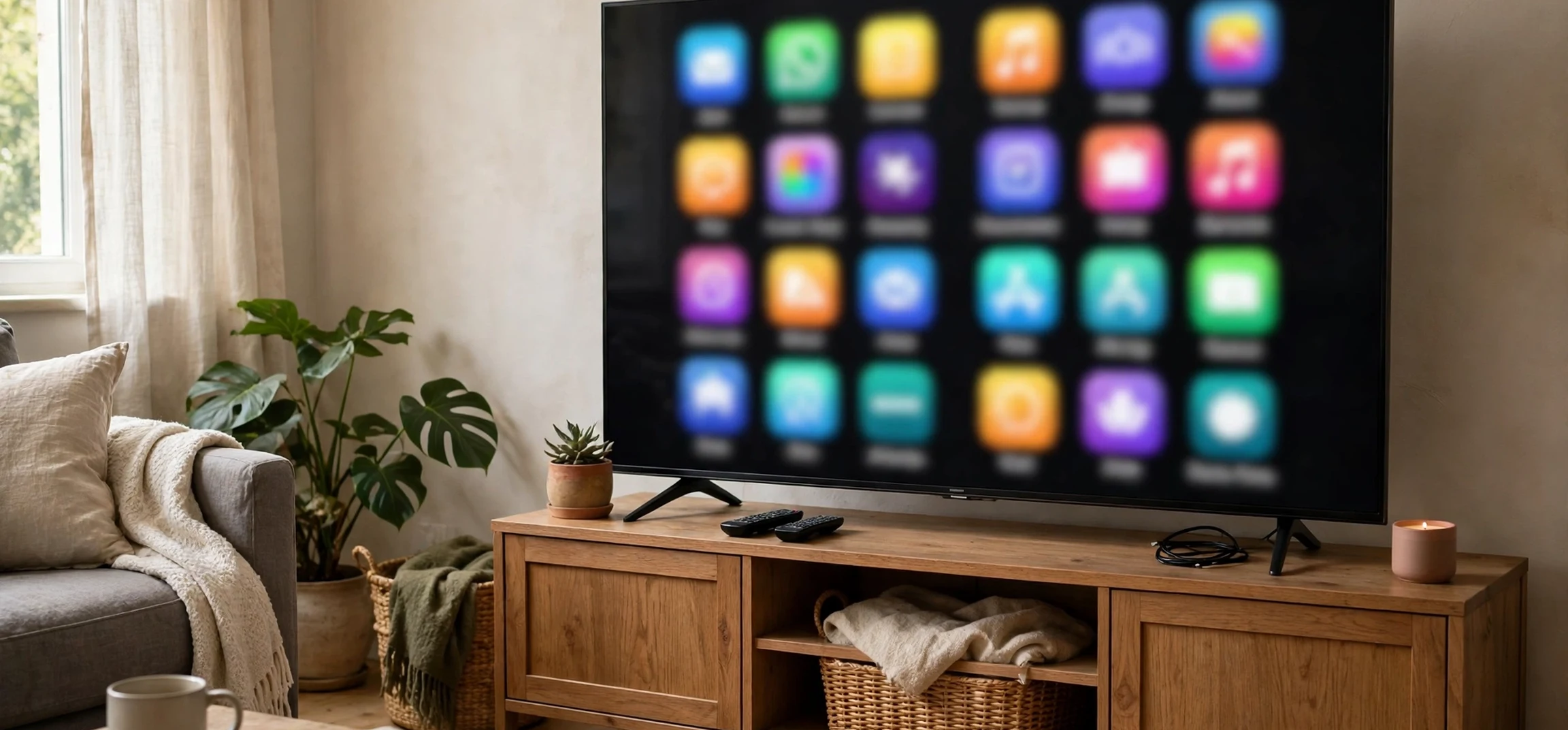
If you have just bought a Samsung smart TV or you want quicker access to a streaming service you love, learning how to add app on samsung tv home screens will save you time every day. The home screen is the row of apps and recommendations you see when the TV first turns on, and adding an app there means you can open it with one or two presses of the remote instead of hunting through menus. This guide explains how to add app on samsung tv models step by step, how to install a new app from the Samsung app store, how to move apps into your preferred order, and how to fix the most common problems when an app will not appear or will not install.
Samsung TVs run an operating system called Tizen, and the app store on Samsung TVs is usually called Apps or Samsung Apps. The exact menu names and button positions vary slightly between model years, but the overall flow is the same: open the Apps section, search for or browse to the app you want, install it, and then add it to your home screen or move it to a spot you can reach easily. You only need your own TV, its remote, and an internet connection. You do not need any extra equipment, and you should only install apps from the official Samsung store on your TV, which keeps the process safe and supported.
How to Add App on Samsung TV: The Basics First
Before you start, make sure your own Samsung TV is connected to the internet. Press the Home button on the remote, which usually looks like a small house icon, and look for the Apps icon along the bottom bar. If your TV is not connected, open Settings, then General, then Network, and connect to your own home Wi-Fi network first. Without a connection, the app store cannot load, search results will be empty, and installations will fail, so this check saves a lot of frustration. For help with a similar own-device Wi-Fi task on another brand, see the guide to turning on Wi-Fi on an LG smart TV.
Once you are connected, the phrase how to add app on samsung tv really breaks into two tasks that people often combine. The first task is installing an app that is not yet on your TV. The second task is placing an app you already have onto the home screen or moving it to a prominent position. On many Samsung models, installing an app automatically adds it to the home screen row, while on others you may need to use the Add to Home option explicitly. Both tasks are covered below, so follow the section that matches what you see on your screen.
What You Need Before You Begin
You need the TV remote, a stable internet connection, and a Samsung account if the app store asks you to sign in. Some apps also require their own account after installation, such as a streaming subscription, but that step happens inside the app itself. Keep your remote batteries fresh, because a weak remote can make menu navigation feel unresponsive and can be mistaken for a software problem.
How to Add App on Samsung TV From the App Store
Start by pressing the Home button on your remote. Navigate to the Apps section, usually found on the bottom menu bar, and select it. The app store will open with featured apps, categories such as Video, Music, Sports, and Lifestyle, and a search icon, usually a magnifying glass in the top corner. If you know the app name, select the search icon, type the name using the on-screen keyboard, and choose the correct app from the results. Check the app icon and developer name carefully, because similarly named apps can appear in search results.
Select the app to open its details page, where you can read a short description and see screenshots. Select Install, and wait while the TV downloads and installs the app. Installation time depends on the app size and your internet speed, and the TV will usually show a progress indicator. When installation finishes, select Open to launch the app immediately, or press Home to return to the home screen, where the new app should now appear in the apps row. If it does not appear immediately, move to the Apps section again, where all installed apps are listed, and use the option described in the next section to add it to the home screen.
Installing From a Category Browse
If you are not sure which app you want, browsing by category is a good alternative. Open Apps, choose a category that matches your interest, and scroll through the available apps. This is a useful way to discover free news, fitness, music, and kids apps that you might not have searched for by name. Only install apps that you genuinely intend to use, because a cluttered home screen becomes harder to navigate, and unused apps can be removed later just as easily.
How to Add App on Samsung TV Home Screen and Reorder Apps
To add an installed app to the home screen on most Samsung models, press Home, navigate to the apps row, and scroll to the end or open the Apps section to see the full list. Highlight the app you want, then press and hold the Select button on the remote, or press the Down button to reveal options, depending on your model. Choose Add to Home if that option appears. The app should then appear in the home screen row, where you can reach it quickly each time you turn the TV on.
Reordering is just as useful as adding. Highlight an app on the home screen, press and hold Select or open its options menu, and choose Move. Use the directional buttons to slide the app left or right to your preferred position, then press Select again to confirm. Place the apps you use daily at the start of the row, and move rarely used apps toward the end. A tidy home screen means less scrolling, fewer wrong selections, and a faster route to the show, music, or game you actually want.
| Task | Steps in brief | Where to look |
|---|---|---|
| Install a new app | Home, Apps, Search, Install | App store on the TV |
| Add to home screen | Highlight app, options, Add to Home | Apps list or home row options |
| Move an app | Highlight app, Move, slide, confirm | Home row options menu |
| Remove an app | Highlight app, options, Delete or Remove | Home row or Apps list options |
| Update an app | Apps, Settings or app options, Update | App store settings |
Tips for Managing Apps on Your Own Samsung TV
Keeping your apps organised pays off over time. Review the home row every few months and remove apps you no longer use, because a shorter row is faster to navigate and easier for other household members to understand. Check for app updates in the Apps settings, since updates often fix playback problems and add features. If storage space becomes low, removing large unused apps or games frees space for new installations, and you can reinstall a removed app later from the store without losing your separate subscription account, although you may need to sign in again inside the app.
Parental controls and profiles are worth setting up if children use the TV. Samsung TVs offer options to restrict app installation and to set a PIN for purchases or for certain content, depending on the model. Setting a PIN on your own TV prevents accidental purchases and keeps age-appropriate apps front and centre for younger viewers. These controls are found in Settings under General, Privacy, or Parental settings, with names that vary slightly by model year.
Using Voice and Shortcuts
Many Samsung remotes include a voice button that lets you search for an app by speaking its name, which can be faster than typing with the on-screen keyboard. You can also use the TV’s universal guide or search function to find content across installed apps. If your remote has dedicated buttons for popular streaming services, those buttons open the app directly even if it is not first in your home row, which is a handy shortcut for the service you use most.
Fixing Problems When an App Will Not Add or Install
If an app does not appear after installation, first restart the TV properly. Turn the TV off, unplug it for about thirty seconds if the problem persists, plug it back in, and turn it on again. This clears temporary glitches that can hide a newly installed app. Next, check your internet connection in Settings, and confirm the TV software is up to date, since an outdated system can block newer app versions. Software updates are found in Settings under Support and Software Update on most models.
If installation itself fails, check available storage, because a full TV cannot install a new app until space is freed. Remove an unused app or game, then try again. If the app is not available in your region, it will not appear in search results at all, and no setting on your TV can add a region-restricted app from the official store. In that case, look for an official alternative service that is available in your region. If a specific app keeps crashing after installation, try updating it, clearing its cache where that option exists, or removing and reinstalling it. For historical context on how television itself developed before smart apps existed, see the guide to when television was invented and the guide to when the television was made.
When to Check Your Samsung Account
Some app store actions require a signed-in Samsung account. If the Install button is greyed out or the store asks you to sign in repeatedly, sign out and sign back in with your own Samsung account, and check that the account region matches your location. Account problems are a common hidden cause of store errors, and a fresh sign-in often resolves them without any change to the TV itself.
Frequently Asked Questions
Why can I not find a particular app on my Samsung TV?
The app may not be available for Samsung TVs, may be restricted in your region, or may require a newer TV model or software version. Search with the exact name, check for spelling, and look for an official alternative if it is genuinely unavailable.
Does adding an app to the home screen cost anything?
Adding and installing apps from the store is free in itself, although many apps require a separate paid subscription to use their content. Check the app description before installing if cost matters to you.
Can I add the same app twice?
No. Each app can be installed once, but you can move its single icon to a prominent position on the home screen so it is always easy to reach.
Will removing an app delete my subscription?
Removing an app from your TV does not cancel a subscription with that service, which is managed separately through the service itself. You can reinstall the app later and sign in again.
How many apps can I put on the home screen?
There is no small fixed limit, but a very long row becomes slow to scroll. Keep daily apps at the front and remove or demote the rest for the fastest experience.
How to Add App on Samsung TV: Extra Help for Tricky Cases
Sometimes the standard steps do not quite match what you see, because Samsung updates its menus between model years. If you cannot find the Apps icon where you expect it, press Home and scroll along the bottom bar slowly, checking each icon, because the Apps icon may sit further along the row than you remember. If your remote has a dedicated Apps button, pressing it opens the store directly. The core question of how to add app on samsung tv stays the same even when the button moves: open the store, find the app, install it, and place it where you can reach it. When you learn how to add app on samsung tv on your own model, write down the exact button sequence that worked, because it will save you time the next time you add an app.
Another tricky case is an app that installs but hides at the far end of a long apps list. In that situation, open the full Apps view rather than only the home row, find the app there, and use its options menu to add it to the home screen. People who search for how to add app on samsung tv often hit this exact problem, and the solution is simply to distinguish the full installed-apps list from the shorter home row. Once you know how to add app on samsung tv home screens in this way, you can also tidy the row by moving daily apps forward and pushing occasional apps back, which keeps the television pleasant for everyone in the household.
It is also worth checking the television’s storage and software before you conclude that an app is unavailable. A television with very little free space may fail an installation silently, and an outdated system may hide newer apps from search results. Freeing space and updating the software are quick steps that solve many cases where someone believes they do not know how to add app on samsung tv, when in fact the television simply needed a little maintenance first. After those checks, the usual flow of searching, installing, and adding to the home screen should work as expected, and you will have mastered how to add app on samsung tv for future additions too.
Quick recap: the question how to add app on samsung tv comes up often because menus differ by model, but how to add app on samsung tv always follows the same pattern. To master how to add app on samsung tv, open Apps, search, install, and add to the home screen. If you forget how to add app on samsung tv later, return to the full Apps list, because how to add app on samsung tv is easiest from there. Once you know how to add app on samsung tv, reordering is simple too, and knowing how to add app on samsung tv means every new service you try can join your home row in minutes, which is exactly why how to add app on samsung tv is such a useful skill for every Samsung owner.
Conclusion
Learning how to add app on samsung tv home screens comes down to a simple routine: connect to the internet, open Apps, search and install, then add or move the icon to where you want it. Once that routine is familiar, managing your TV becomes quick and satisfying, whether you are adding a new streaming service, tidying the home row for the family, or fixing a missing app with a restart and a software check. Keep the home screen focused on the apps you actually use, keep the software updated, and only install apps from the official store on your own TV. With those habits, your Samsung TV home screen will stay fast, tidy, and ready for whatever you want to watch next.