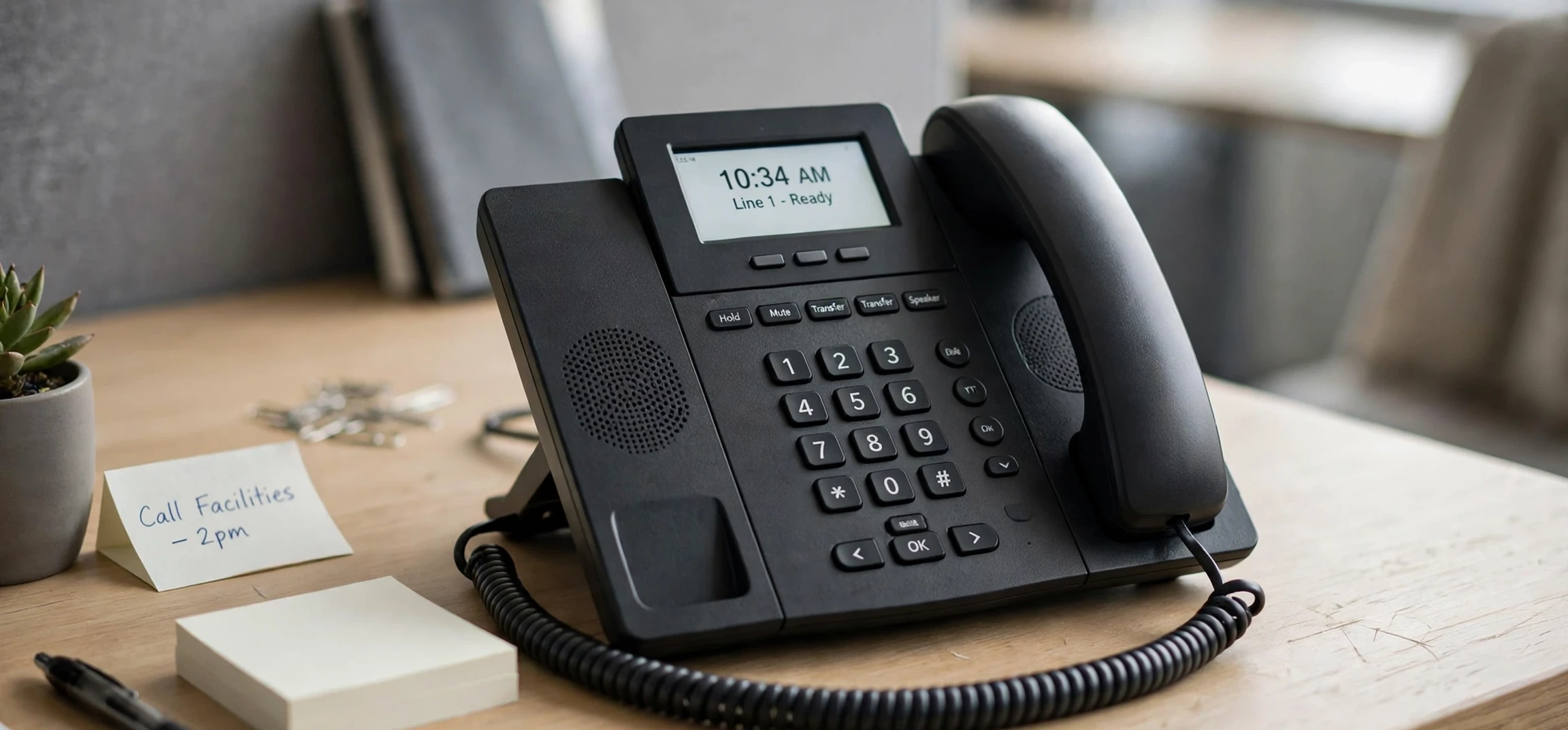
An avaya telephone system user manual is the essential companion for anyone who uses an Avaya desk phone at work, whether you are answering customer calls, transferring calls to colleagues, or setting up voicemail for the first time. This guide explains, in plain language, how Avaya phone systems work, what the main buttons do, and how to handle everyday tasks with confidence. It is written as a general user guide, not as a replacement for your own organisation’s official documentation, and it avoids technical jargon wherever possible. If you have ever picked up an Avaya handset and wondered which button does what, this article will help you find your way quickly and avoid common mistakes.
Avaya telephone systems are used in offices, call centres, hospitals, schools, and many other workplaces around the world. They are designed to handle large numbers of calls reliably, to connect teams across buildings and locations, and to give each user flexible features such as call forwarding, conferencing, and voicemail. Different Avaya phone models look slightly different, but they share the same basic logic: a handset or headset for talking, a keypad for dialling, softkeys whose labels change with context, and feature buttons for common tasks. Once you understand that logic, you can use almost any Avaya desk phone, even if the exact layout is new to you.
The first step for any new user is to learn your own phone. Look at the display screen, which shows the time, your extension number, caller information, and menu options. Notice the softkeys directly below the screen, because their functions change depending on what you are doing. Find the volume controls, the mute button, the speaker button, and the headset button, and practise using them before you need them on a live call. A few minutes of exploration will save you stress later, especially when a call comes in during a busy moment and you need to act quickly.
Avaya Telephone System User Manual: Everyday Basics
Every avaya telephone system user manual starts with the basics, and this guide is no exception. To make an internal call, lift the handset or press the speaker button, then dial the extension number and wait for the other person to answer. To make an external call, you usually dial an outside-line code first, such as a single digit set by your organisation, followed by the full phone number. Your workplace may have its own dialling rules, so always check with your team or IT support if you are unsure. The key point is simple: internal calls use short extensions, external calls need the full number plus any required prefix.
To answer a call, lift the handset, press the flashing line button, or press the headset or speaker button if you are using those options. To end a call, replace the handset or press the end-call softkey. If you need to adjust volume during a call, use the volume buttons: they control handset, speaker, or ringer volume depending on whether you are on a call or idle. Many new users accidentally change the ringer volume when they meant to change call volume, so practise both states. A comfortable volume makes long calls much easier, especially in open offices.
Redial, recent calls, and contacts are also part of everyday use. Most Avaya phones keep a list of recent incoming, outgoing, and missed calls, which you can browse with the navigation buttons and the display menu. Contacts or directory features let you search for colleagues by name instead of remembering extensions. Using these features saves time and reduces dialling errors. If your phone is shared between shifts or teams, take care to log out or clear personal settings at the end of your shift, following your organisation’s policy.
Avaya Telephone System User Manual: Handling Calls Like a Professional
Call handling is where an avaya telephone system user manual proves its value, because most workplace confusion comes from transfers, holds, and conferences. To place a caller on hold, press the Hold button or the hold softkey, and tell the caller clearly that you are placing them on hold and roughly how long you expect to be. To resume the call, press the flashing line button again. Never leave a caller on hold for a long time without checking back: a brief update, even if you have no news yet, shows respect and keeps trust.
To transfer a call, you generally have two options: a blind transfer, where you send the caller directly to another extension, and a consulted transfer, where you speak to the colleague first. For a blind transfer, press Transfer, dial the extension, and press Transfer again or hang up, depending on your model. For a consulted transfer, press Transfer, dial the extension, wait for your colleague to answer, explain the call, and then complete the transfer. Consulted transfers are better for complex or sensitive calls, because the colleague is prepared and the caller does not have to repeat everything.
Conference calls let you bring several people together. To start a conference, call the first person, press Conference, call the second person, and press Conference again to join everyone. Repeat the process to add more participants, up to your system’s limit. Speak clearly, identify yourself when you join, and mute yourself when you are not speaking in a large conference. Good conference manners matter as much as button presses: background noise, side conversations, and unclear speech can derail an otherwise useful meeting.
Call Forwarding and Do Not Disturb
Call forwarding sends your calls to another extension or number when you are away, busy, or unavailable. The exact steps vary by model, but the pattern is consistent: open the forwarding menu, enter the destination, and activate it. Always test forwarding with a colleague before relying on it for important calls, and remember to turn it off when you return. Do Not Disturb blocks incoming calls or sends them directly to voicemail, which is useful during focused work or meetings. Use it sparingly, and tell your team when you are unavailable so that urgent calls can still reach someone.
Voicemail Basics Every User Should Know
Voicemail is your safety net when you cannot answer. To access voicemail, press the Message button or dial your voicemail access number, then enter your PIN when prompted. Listen to messages in order, note down key details, and delete or save each message after handling it. Record a clear greeting that states your name, your team, and when callers can expect a reply. A good greeting might say that you are unavailable, that you will return calls within one working day, and that urgent matters should be directed to a colleague. Update your greeting when you are on leave, so callers are not left guessing.
Useful Avaya Phone Features Explained
Beyond basic calls, Avaya phones offer features that make work smoother. Speed dial lets you assign frequently called numbers to a single button, which is ideal for team leaders, support desks, and regular contacts. Call park lets you place a call on hold in a shared parking slot so that a colleague at another phone can pick it up. Call pickup lets you answer a colleague’s ringing phone from your own desk, which is useful in small teams. Intercom features, where available, let you speak directly through a colleague’s speaker for quick questions, though you should use this respectfully and only where your workplace allows it.
Headsets are another important feature. A headset frees your hands for typing and note-taking, and it reduces neck strain during long calls. To use a headset, connect it to the headset port, press the Headset button to answer or make calls, and adjust the volume for comfort. If you share a desk, bring your own headset or earpiece for hygiene, and check that the headset is compatible with your phone model. Wireless headsets offer more movement, but they need charging and pairing, so keep a wired option as a backup.
Display and accessibility features also deserve attention. Many Avaya phones let you adjust screen brightness and contrast, change ring tones, and set language preferences through the settings menu. If you have hearing or vision needs, explore the accessibility options or ask IT support for help configuring your phone. A phone that is set up for you is easier to use, less tiring, and less likely to cause errors during important calls.
Troubleshooting Common Avaya Phone Problems
Most Avaya phone problems have simple causes. If your phone has no dial tone, check that the handset cord and network cable are firmly connected, and that the phone has power. If the display is blank, check the power supply and cable, and try unplugging and reconnecting the phone after a short wait. If you cannot hear a caller, check the volume, check whether mute is on, and try the handset, speaker, and headset in turn to find where the problem lies. If one method works and another does not, the fault may be with a cord or headset rather than the system.
If calls go straight to voicemail unexpectedly, check whether Do Not Disturb or call forwarding is active, and turn those features off if needed. If you cannot transfer calls, practise the steps slowly and check whether your system requires a different sequence. If voicemail does not work, check your PIN, check whether your mailbox is full, and contact IT support if the problem continues. In all cases, note down exactly what happened, what you tried, and any error messages on the display, because that information helps support staff fix the problem faster.
When should you contact IT support instead of troubleshooting yourself? Contact support if the phone is completely dead after checking cables, if the problem affects many phones at once, if you cannot access voicemail after resetting your PIN, or if you suspect a system-wide outage. Do not open the phone, do not try to rewire cables beyond simple reconnection, and do not share your voicemail PIN with colleagues. Your IT team can handle system settings, line faults, and account issues safely, and they would rather hear about a small problem early than a large problem late.
| Task | Typical steps | Tip |
|---|---|---|
| Make an internal call | Lift handset, dial extension | Use the directory if you forget an extension |
| Transfer a call | Press Transfer, dial extension, complete transfer | Use consulted transfer for complex calls |
| Start a conference | Call first person, press Conference, add others | Mute when not speaking in large groups |
| Check voicemail | Press Message, enter PIN, follow prompts | Record a clear, up-to-date greeting |
| Forward calls | Open forwarding menu, enter destination, activate | Test it and remember to turn it off |
Professional Phone Etiquette for Avaya Users
Good phone skills are about people, not just buttons. Answer promptly, greet callers warmly, and state your name and team. Listen fully before replying, and avoid interrupting. If you need to place a caller on hold or transfer them, explain what you are doing and why, and thank them for their patience. If you promise a callback, keep a note and follow through within the time you promised. Small courtesies build trust, especially when callers are stressed, confused, or in a hurry.
Privacy matters too. Do not discuss sensitive calls where others can overhear, do not leave voicemail messages playing on speaker in a shared office, and do not share extension lists or PINs outside your team. If you handle personal or confidential information on calls, follow your organisation’s data protection rules and keep notes secure. A telephone system is a workplace tool, and using it responsibly protects both callers and colleagues.
Frequently Asked Questions About Avaya Telephone Systems
Where can I find the official avaya telephone system user manual?
The official avaya telephone system user manual for your exact phone model is usually provided by your employer or IT team, or through Avaya’s official support resources for your organisation. This guide is a general companion: for model-specific button layouts and system codes, always follow your workplace documentation first.
How do I transfer a call on an Avaya phone?
Press Transfer, dial the destination extension, and either complete the transfer immediately for a blind transfer or speak to your colleague first for a consulted transfer. The exact softkey labels vary by model, but the pattern of Transfer, dial, and complete is consistent across Avaya desk phones.
How do I set up Avaya voicemail?
Press the Message button or dial the voicemail access number, enter your initial PIN provided by IT, and follow the prompts to record your name and greeting and set a new PIN. Keep your PIN private, update your greeting when you are away, and clear old messages regularly so your mailbox does not fill up.
What should I do if my Avaya phone has no dial tone?
Check handset and network cables, check power, and try the speaker and headset to narrow down the fault. If the phone stays dead or the problem affects several phones, report it to IT support with a note of what you checked and any display messages you saw.
Searching for an Avaya Telephone System User Manual: What to Look For
Many office workers begin by searching for an avaya telephone system user manual on their first day, when a new phone sits on the desk and no one has time to explain it. The search for an avaya telephone system user manual usually means the user needs quick answers: how to answer, how to transfer, how to check voicemail, and how to fix a silent phone. A good avaya telephone system user manual should answer those questions in plain language, with steps that match the buttons on the actual phone, and with notes about where workplace settings may differ.
When you use an avaya telephone system user manual, start by identifying your phone model, because button layouts vary even though the logic stays the same. The avaya telephone system user manual for your model will show the exact softkey labels, the location of Hold, Transfer, and Conference, and the voicemail access steps for your system. If your workplace guide differs from a general avaya telephone system user manual, follow the workplace guide first, because outside-line codes, forwarding rules, and voicemail numbers are set locally by IT teams.
A practical tip for anyone relying on an avaya telephone system user manual is to practise with a colleague before a busy shift. Try a consulted transfer, try a conference, and try checking voicemail, so that the steps feel familiar when a real caller is waiting. The best avaya telephone system user manual is the one you have actually used, not the one sitting unread in a drawer. Keep this guide handy, note your extension and voicemail steps, and ask IT support early whenever an avaya telephone system user manual step does not match what you see on your display.
Key Takeaways From This Avaya Telephone System User Manual
First, this avaya telephone system user manual guide shows that internal calls use short extensions while external calls need a prefix and full number. Second, an avaya telephone system user manual approach to transfers means choosing blind transfer for simple calls and consulted transfer for complex ones. Third, any avaya telephone system user manual should stress hold etiquette: tell callers you are placing them on hold, check back promptly, and resume with a clear summary. Fourth, the avaya telephone system user manual conference pattern is consistent: call, press Conference, add the next person, and repeat.
Fifth, this avaya telephone system user manual guide reminds users to record a clear voicemail greeting and to update it when away. Sixth, an avaya telephone system user manual troubleshooting habit is to check cables, volume, mute, and forwarding before calling support. Seventh, the avaya telephone system user manual etiquette rules matter as much as buttons: greet warmly, listen fully, protect privacy, and keep callback promises. Eighth, the best use of an avaya telephone system user manual is practice with a colleague, so that every step feels calm and familiar on a busy workday.
Conclusion: Using Your Avaya Phone With Confidence
An avaya telephone system user manual is most useful when it turns button presses into habits, and this guide has aimed to do exactly that. You now know how to make and answer calls, how to hold, transfer, and conference, how to use forwarding and voicemail, and how to fix common problems. The next step is practice: spend a few minutes exploring your own phone, test transfers with a colleague, and record a clear voicemail greeting. Confidence comes from repetition, and a few calm practice calls will make busy workdays much smoother. For more general guides, explore a comprehensive guide to everyday tools, a practical writing and communication guide, and a detailed uniform and workplace guide, and keep this Avaya companion handy whenever you need a quick reminder.



