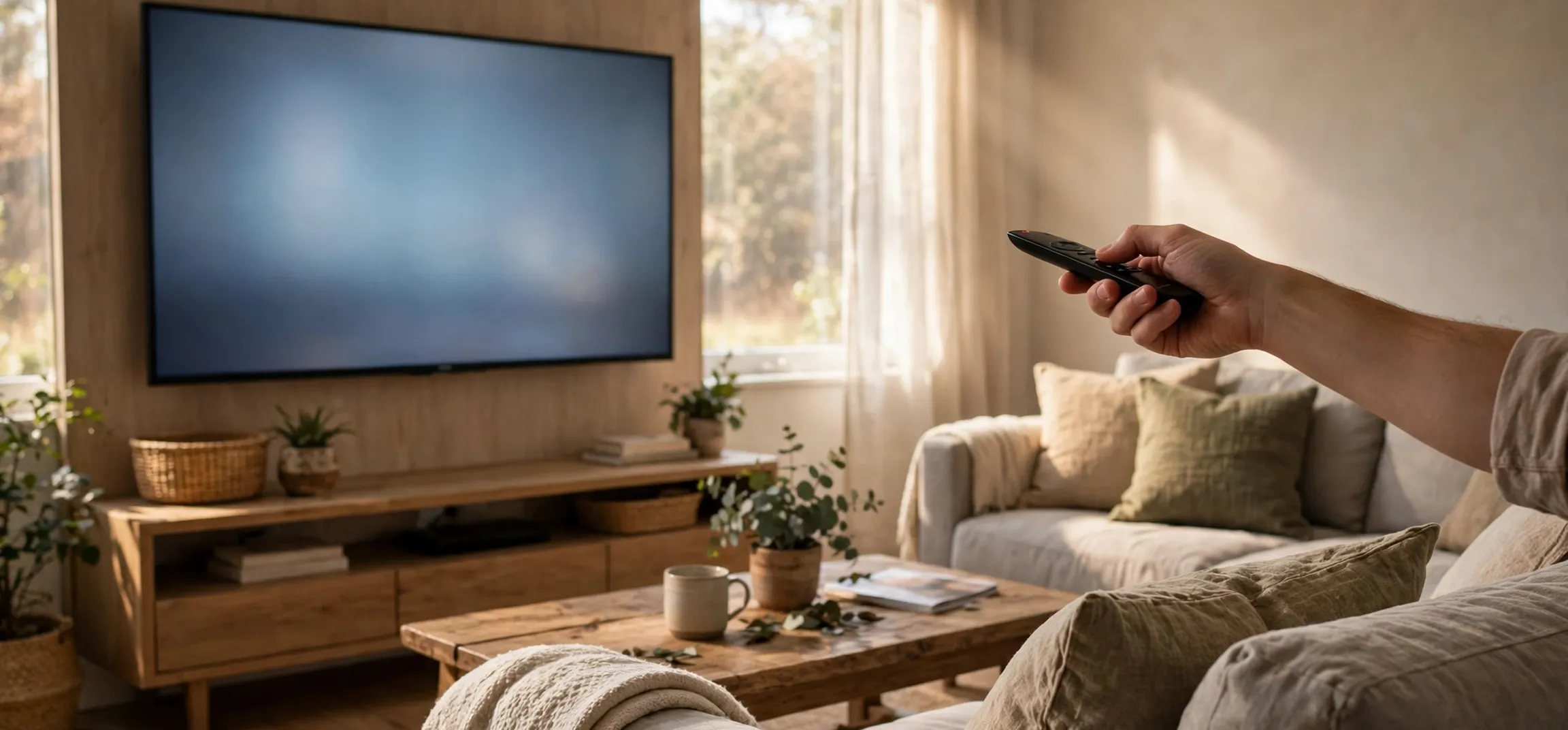
If you have just unboxed a streaming box and are wondering about the apple tv remote how to use it without pressing the wrong thing every few seconds, you are not alone. The Siri Remote looks simple, with very few buttons, yet it quietly handles navigation, playback, volume, voice search and even switching the television on and off. This guide walks through every control in plain language, so you can move around menus confidently, find something to watch faster, and stop hunting for a second remote just to change the volume or turn the screen off at night.
Most people only ever need a handful of gestures: swipe to move, click to choose, press and hold for extra options. Once those basics feel natural, the rest of the apple tv remote how to use questions answer themselves. We will cover the layout of both the newer aluminium remote and the older black touch remote, how to pair and charge each one, how voice control works, and what to try when the remote stops responding. No technical background is needed, and every step can be followed while sitting on the sofa with the television in front of you.
Apple TV Remote How to Use: Meet the Buttons
The top half of the remote is dominated by the clickpad, a round touch surface you use to move a highlight around the screen. Swipe up, down, left or right to browse rows of apps and menus, then press the centre of the pad to select. On the second-generation remote you can also press the outer ring like a traditional directional pad, which many people find more precise for small movements. Learning the clickpad is the heart of apple tv remote how to use skills, because almost every action on the device starts with moving and confirming a selection there.
Below the clickpad sit the buttons you will touch most. The TV/Control Centre button returns you to the home screen or opens Control Centre when held. The Back button, marked with a chevron on newer models, steps one screen backwards. The Play/Pause button starts and stops video and music. Mute silences the sound instantly, and the volume rocker on the side raises or lowers it. A dedicated Siri button on the side of the aluminium remote summons the voice assistant, while the power button at the top switches the television and streaming box on or off together when your setup supports it.
Pairing, Charging and Connecting the Remote
Your remote normally arrives already paired, but if it ever loses its connection the fix is quick. Hold the remote within a few inches of the streaming box, then press and hold the Back and Volume Up buttons together for a couple of seconds until an on-screen message confirms pairing. This is one of the most useful apple tv remote how to use facts to know, because a supposedly dead remote is very often just an unpaired one. Keep the box uncovered while pairing, since furniture and cabinet doors can weaken the Bluetooth signal the remote relies on.
Charging depends on the model. The newer remotes charge over USB-C and the older ones over Lightning; a cable in the box connects to any phone charger or computer port. A full charge typically lasts for months of normal use, so topping up during a quiet afternoon is plenty. You can check the battery level on the television by opening Settings, choosing Remotes and Devices, then Remote. If the level is low, charge first before troubleshooting anything else, because a nearly flat battery can cause missed clicks, laggy swipes and pairing failures that look like bigger faults than they are.
| Control | What it does |
|---|---|
| Clickpad centre | Selects the highlighted item and confirms choices |
| Clickpad ring and swipes | Moves around menus and scrubs through video |
| Back button | Returns to the previous screen |
| TV / Control Centre | Goes home; hold for Control Centre and sleep options |
| Play/Pause | Starts, pauses and resumes playback |
| Volume rocker and Mute | Adjusts or silences television sound |
| Siri button | Hold and speak for voice search and commands |
Apple TV Remote How to Use for Playback and Browsing
Playback control is where the clickpad earns its keep. While a video plays, rest your thumb on the pad to reveal the progress bar, then swipe left or right to scrub backwards or forwards. Clicking the left or right edge of the ring jumps in short steps, which is ideal for replaying a line of dialogue. Pressing Play/Pause once pauses instantly. Many apps also support pressing and holding on a title to open a context menu with options such as adding to a watchlist, marking as watched or viewing more episodes, so experiment with a long press when a menu seems to be missing.
For everyday browsing, the apple tv remote how to use routine is simple: swipe to the app or title you want, click once, and use Back to retrace your steps. Double-clicking the TV button opens the app switcher, where you can swipe between recently used apps or flick one upwards to close it. Holding the TV button opens Control Centre, giving quick access to profiles, audio output, sleep and accessibility shortcuts. These small habits turn slow menu wandering into a few confident movements, and they work the same way across most apps because the system, not each app, defines how the remote behaves.
Using Siri and Voice Search
Voice control is the fastest way to find content, and understanding it completes the apple tv remote how to use picture. Press and hold the Siri button, speak naturally, then release. You can ask for a film by name, a genre for tonight, or something more specific such as comedies from a particular decade. Siri searches across your installed apps at once, which saves opening each service separately. You can also dictate text into search boxes and password fields, which is far quicker than typing letter by letter with the clickpad, although for passwords many people prefer approving a prompt on a nearby phone instead.
Siri handles playback commands too. Ask it to rewind thirty seconds, turn on subtitles, or tell you what song is playing in a scene. If Siri misunderstands, check that the microphone end of the remote is not covered and that you are holding the button for the whole phrase. Voice features depend on region and language settings, so if the button does nothing, open Settings and confirm Siri is switched on. And if you would rather not use voice at all, every Siri action has a manual equivalent, so skipping voice never locks you out of any part of the system.
Troubleshooting When the Remote Misbehaves
When clicks stop registering, work through a short checklist before assuming the worst. Restart the streaming box from Settings, charge the remote for at least thirty minutes, and move closer to rule out range or interference. Re-pairing, as described above, fixes a surprising share of problems. If the volume buttons stop working, the television’s HDMI-CEC setting may have been switched off during a software update; re-enabling it usually restores volume and power control. Knowing these steps is the practical side of apple tv remote how to use knowledge, turning a frustrating evening into a two-minute fix.
If the physical remote is lost or still unresponsive, your phone can stand in. The remote feature built into a paired phone’s control centre connects over your home Wi-Fi and offers the same swipe, click and keyboard functions, including easy text entry. It is also the best tool for typing long passwords. Some people end up preferring it for search and sign-in while keeping the physical remote for everyday clicking. Either way, you are never stuck: between re-pairing, charging, phone control and a replacement remote, there is always a route back to your programmes, and the steps above cover each one in order.
Frequently Asked Questions
How do I pair the remote if it stops working? Hold it close to the box and press Back and Volume Up together for a few seconds. Pairing is the first thing to retry whenever anyone asks about the apple tv remote how to use again after a fault, because most connection problems end there.
How long does the remote battery last? Typically months between charges with normal use. Check the level under Settings, Remotes and Devices, and top it up with the USB-C or Lightning cable that came in the box whenever it runs low.
Can I control my TV volume with it? Yes, in most setups. The remote sends volume and power commands to the television over HDMI-CEC, so make sure that feature is enabled in your TV settings if the volume rocker seems to do nothing.
What if I lose the remote completely? Use the remote feature on a paired phone connected to the same Wi-Fi. It covers swiping, clicking, playback and typing, so it works as a full replacement until you find or replace the original remote.
Conclusion
That covers the essentials: clickpad navigation, pairing, charging, playback tricks, voice search and the fixes that solve nearly every fault. Keep the remote charged, remember the Back plus Volume Up pairing shortcut, and reach for your phone when typing long passwords. For more help with the same setup, see our guide on using the Apple TV remote control, our overview of Apple TV 4K specifications, and our steps for closing Apple TV apps when one misbehaves.



