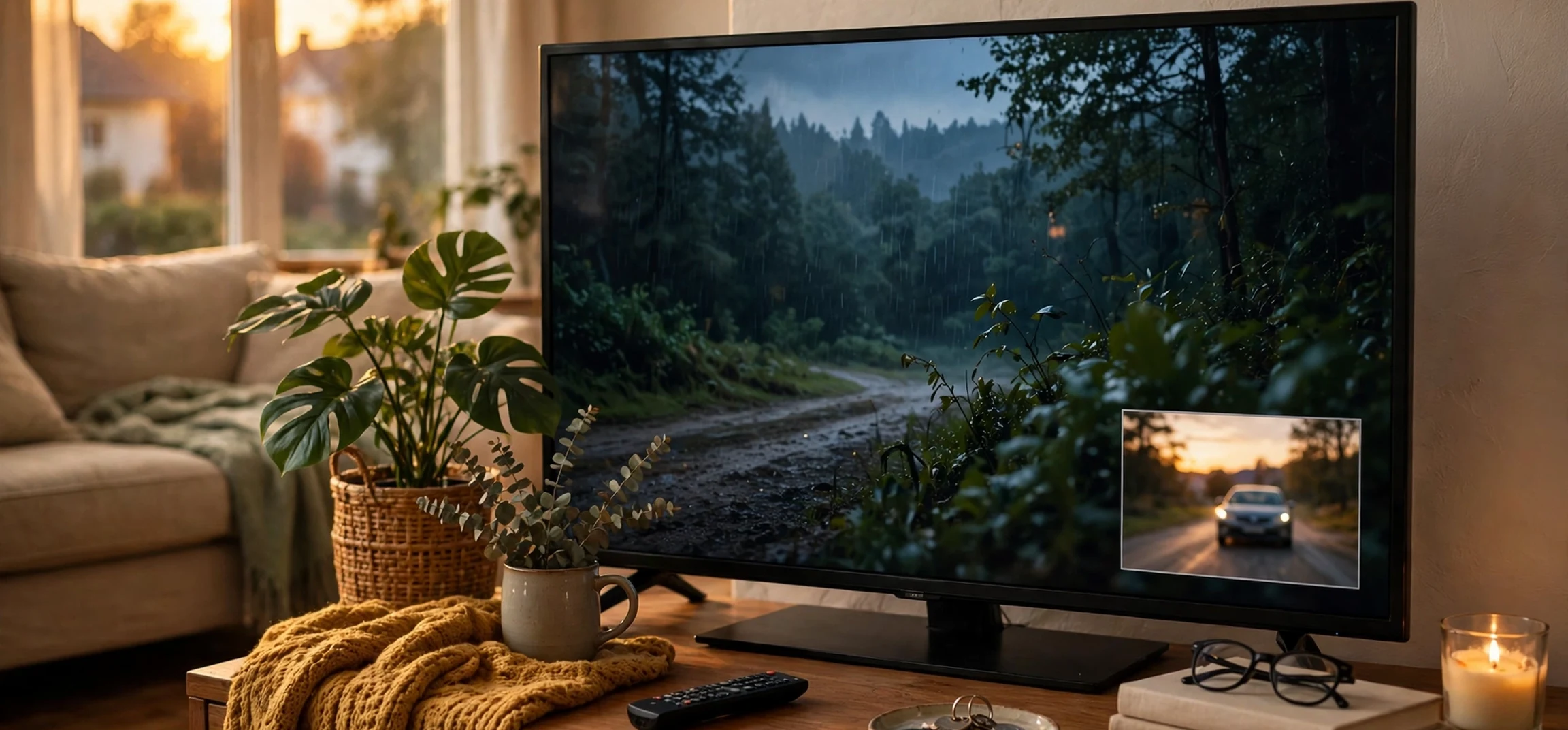
Picture in Picture with subtitles quick access is one of the most useful features for anyone who watches videos while doing other work. It lets a small floating video window stay on top of your screen while you browse, write, chat, or check email. When subtitles are turned on in that floating window, you can follow the dialogue even with the sound off, in a noisy room, or in a quiet place where you do not want to disturb others. This guide explains what Picture in Picture is, how subtitles work inside it, and how to get quick access to both on phones, tablets, and computers.
Many people first discover Picture in Picture by accident. They are watching a video, they switch to another app, and the video suddenly shrinks into a corner. That small window is not a bug. It is a feature designed to help you multitask. Once you learn how to control it, you can move it, resize it, pause it, and turn subtitles on or off without going back to the full video player. The result is a smoother experience, especially for students, remote workers, parents, and anyone who learns from video tutorials.
In this article, you will learn the basics in plain language. We will cover how Picture in Picture works on Android, iPhone, iPad, Windows, and Mac, how to enable subtitles quickly, what to do when subtitles do not show, and how to fix common problems. You will also find a comparison table, practical tips for everyday use, and answers to frequently asked questions. By the end, you should be able to set up quick access in less than a minute and use it confidently every day.
What Is Picture in Picture?
Picture in Picture, often shortened to PiP, is a viewing mode that keeps a video playing in a small, movable window while you use other apps. On a phone, the window usually sits in a corner and can be dragged to a different corner. On a computer, the window floats above other windows and can be resized by dragging its edge. The main app stays open in the background, so the video does not stop when you switch tasks.
The idea is simple: video should not force you to stop everything else. If you are following a cooking tutorial, you can keep the video visible while you check a recipe list. If you are in a video meeting, you can keep a colleague visible while you open a document. If you are watching a lecture, you can take notes in another window without losing your place. Picture in Picture turns video from a full-screen activity into a companion that stays with you.
How PiP Differs From Split Screen
Split screen divides your display into two equal parts, while Picture in Picture uses a small overlay. Split screen is good when you need two apps side by side for a long time. Picture in Picture is better when video is secondary and you need most of the screen for something else. You can also move a PiP window out of the way with one finger or one mouse drag, which is faster than resizing a split-screen layout.
Why Subtitles Matter in PiP
Subtitles, also called captions, show spoken words as text at the bottom of the video. In a small PiP window, subtitles help in three important ways. First, they let you watch silently in libraries, offices, buses, and late at night. Second, they help when the speaker has a strong accent, speaks quickly, or uses technical terms. Third, they support language learning and accessibility for viewers who are deaf or hard of hearing. Without subtitles, a small muted window is often useless. With subtitles, it stays useful even at low volume.
Picture in Picture With Subtitles Quick Access: The Basics
Quick access means you can start PiP and subtitles with as few taps as possible. On most devices, the fastest route is to turn on subtitles before you enter PiP mode, then switch to PiP. That way, the captions carry over into the floating window automatically. If you turn on subtitles after entering PiP, you may need to tap the window first to reveal its controls.
On Android, open a supported video app, play a video, tap the subtitle or CC button, choose your language, then press the Home button or swipe up. The video should shrink into a PiP window with subtitles visible. On iPhone and iPad, play a video in a supported app or in Safari, tap the PiP button or swipe up from the bottom, and the floating window appears. Subtitles chosen in the player usually continue in PiP mode.
On a computer, most modern browsers support PiP. In Chrome, Edge, and Firefox, right-click a video twice or use the media control in the toolbar to find the Picture in Picture option. In Safari on Mac, right-click the video or use the Picture in Picture button in the video controls. Turn on captions in the video player first, then activate PiP. If the browser window is minimized, the PiP window stays visible on top.
Keyboard Shortcuts and Buttons to Remember
On Windows and Mac, learning one or two shortcuts saves time every day. Many players use the letter C to toggle captions and the letter F for full screen. Browser PiP does not have one universal shortcut, but you can often right-click and choose it from a menu in two clicks. On mobile, there is no single shortcut, so the best quick access is to keep the subtitle button visible and to allow PiP in your device settings before you need it.
Setting Up PiP Permission in Advance
PiP will not work if the app does not have permission. On Android, go to Settings, then Apps, then Special app access, then Picture-in-Picture, and allow your video apps. On iPhone and iPad, go to Settings, then General, then Picture in Picture, and turn on Start PiP Automatically. On a computer, no special permission is usually needed, but you should keep your browser updated, because older versions may not support PiP for every site.
How Subtitles Work Inside a PiP Window
Subtitles in PiP mode depend on where the captions come from. If the video app provides its own captions, those captions are usually drawn inside the video frame and will appear in the PiP window. If captions are provided by the operating system, such as live captions on Android or Mac, they may appear as a separate caption box near the PiP window instead of inside it. Both are useful, but they look different, so do not be surprised if the style changes when you switch modes.
Font size is another factor. A PiP window is small, so captions can be hard to read if the text is tiny. Most video apps let you change caption size, style, and background in accessibility settings. Choose a larger, bold font with a dark background for PiP viewing. This small change makes a big difference when the window is only a few inches wide. If you watch on a phone, try moving the window to the bottom of the screen, where captions are easier to read without covering important parts of the video.
Auto Captions and Live Captions
Some platforms create captions automatically using speech recognition. These auto captions are helpful, but they can contain errors, especially with names, numbers, and technical words. Live captions on Android, Windows, and Mac work system-wide and can caption almost any audio, even if the video app has no captions of its own. Turn on live captions in accessibility settings if you often watch videos without built-in subtitles. Keep in mind that live captions may lag slightly behind the audio.
Subtitle Languages and Styles
Many popular video services offer subtitles in several languages. Choose the language before entering PiP, because changing language inside a tiny window can be fiddly. If you are learning a language, try watching once with subtitles in your own language and once with subtitles in the language being spoken. For accessibility, look for SDH captions, which also describe important sounds such as music and doorbells in brackets.
Step-by-Step Guides by Device
The steps below cover the most common devices. Exact menu names can vary slightly by version, but the flow is the same: play, turn on captions, then enter PiP.
Android Phones and Tablets
Open your video app and play a video. Tap the screen to show controls, tap CC or Subtitles, and pick a language. Press the Home button or swipe up to go home. The video should become a small window. Drag it to a corner, pinch to resize if your phone supports it, and tap it once to show pause, play, and close buttons. To turn captions off, tap the window, return to full screen, and tap CC again.
iPhone and iPad
Play a video in a supported app or Safari. Tap the PiP icon, which looks like a small rectangle inside a larger rectangle, or swipe up from the bottom edge. The video floats above your home screen and other apps. Drag it to a side or corner, pinch to make it bigger or smaller, and swipe it to the edge to hide it temporarily while audio continues. Tap the window to bring back controls and subtitle settings.
Windows and Mac Computers
Open a video in Chrome, Edge, Firefox, or Safari. Click the CC button in the player and choose captions. Then right-click the video and select Picture in Picture, or use the media icon in the browser toolbar. The floating window stays on top of other windows. Drag it anywhere, drag a corner to resize, and click the X to close it. To return to normal viewing, click the button to go back to the tab.
Picture in Picture and Subtitles at a Glance
The table below compares how PiP and subtitles behave on common platforms, so you can pick the setup that fits your daily routine.
| Device or Browser | How to Start PiP | Subtitle Quick Access | Best For |
|---|---|---|---|
| Android | Press Home while video plays | CC button, then system live captions | Multitasking on the go |
| iPhone and iPad | PiP button or swipe up | CC button in player | Watching while messaging |
| Windows with Chrome or Edge | Right-click, then Picture in Picture | CC button, plus Windows live captions | Work and study on a large screen |
| Mac with Safari or Chrome | PiP button or right-click menu | CC button, plus Mac live captions | Notes, documents, and research |
For more everyday tech guides, see our posts on Ploomes Org and TechNewsTop Org, and for a retro viewing break, check Airwolf TV Show Retro Classic.
Troubleshooting: When PiP or Subtitles Do Not Work
If PiP does not start, first check permission. On Android, the app may be blocked from PiP. On iPhone, automatic PiP may be off. On a computer, try another browser or update the one you use. Some apps and websites disable PiP for licensing reasons, especially for certain live streams or protected content. In that case, no setting will force it, and split screen is the next best option.
If subtitles disappear in PiP, return to full screen and check that captions are still on. Some players turn captions off when the window changes size. Others only show captions in full screen and not in PiP, which is a limitation of that app, not your device. Try system live captions as a workaround, or use a different app that keeps captions in PiP mode. Also check caption style: white text without a background can vanish against a bright video in a small window.
Audio and Sync Problems
If audio continues but video freezes, close the PiP window and reopen the video. If captions lag behind speech, pause for a second and resume, or switch from auto captions to manual captions if available. If the PiP window is too small to read, enlarge it or move it to a less cluttered part of the screen. Closing unused apps can also help, because PiP uses extra memory and processing power.
Battery and Performance Tips
PiP keeps video decoding active while you use other apps, so it uses more battery than audio alone. Lower screen brightness, close heavy apps you do not need, and use Wi-Fi instead of mobile data when possible. On a laptop, PiP is usually fine, but on an older phone, long PiP sessions can warm the device. Taking short breaks and closing the window when you are not actively watching helps.
Everyday Uses That Save Time
Students can watch a lecture in PiP while typing notes, pausing only when a key point appears in the captions. Remote workers can keep a training video visible while following steps in another app. Language learners can read subtitles in PiP while practising pronunciation aloud. Parents can follow a tutorial while managing a shopping list. News watchers can keep a live update visible while reading articles. In each case, subtitles make silent or low-volume viewing practical.
Accessibility is the strongest reason to master this feature. Captions help viewers who cannot hear well, viewers in noisy environments, and viewers who process written text better than spoken words. Quick access matters here most of all: if turning on captions takes five menus, people will skip it. Set your preferred caption style once, allow PiP for your favourite apps once, and the feature becomes a one-tap habit.
Frequently Asked Questions
Why does Picture in Picture not appear for some videos?
Some apps, websites, and protected streams disable PiP. Check permission first, update the app and browser, and try a different video. If PiP works elsewhere, the restriction is from that specific content.
Why are subtitles too small in the PiP window?
PiP windows are small by design. Increase caption font size in accessibility or caption settings, choose a bold style with a dark background, and enlarge the PiP window with a pinch or corner drag.
Can I use PiP with the sound off?
Yes. That is one of the best uses for subtitles in PiP. Turn captions on, mute the video, and follow the text. System live captions can help when the app has no captions.
How do I close the PiP window?
Tap or click the window to show controls, then tap the X or close button. On iPhone, you can also swipe the window off the edge to hide it, then tap the arrow to bring it back or close it fully.
Conclusion
Picture in Picture with subtitles quick access is a small feature with a big everyday payoff. Once you allow PiP, set a readable caption style, and learn the habit of turning captions on before you shrink the video, you can watch, learn, and work at the same time without missing dialogue. Start with one device, practise the steps above, and add the feature to your daily routine. It takes a minute to set up and saves time every day after that. If a video does not support PiP or captions, try live captions or split screen as a backup, and keep your apps updated so new improvements reach you quickly.



