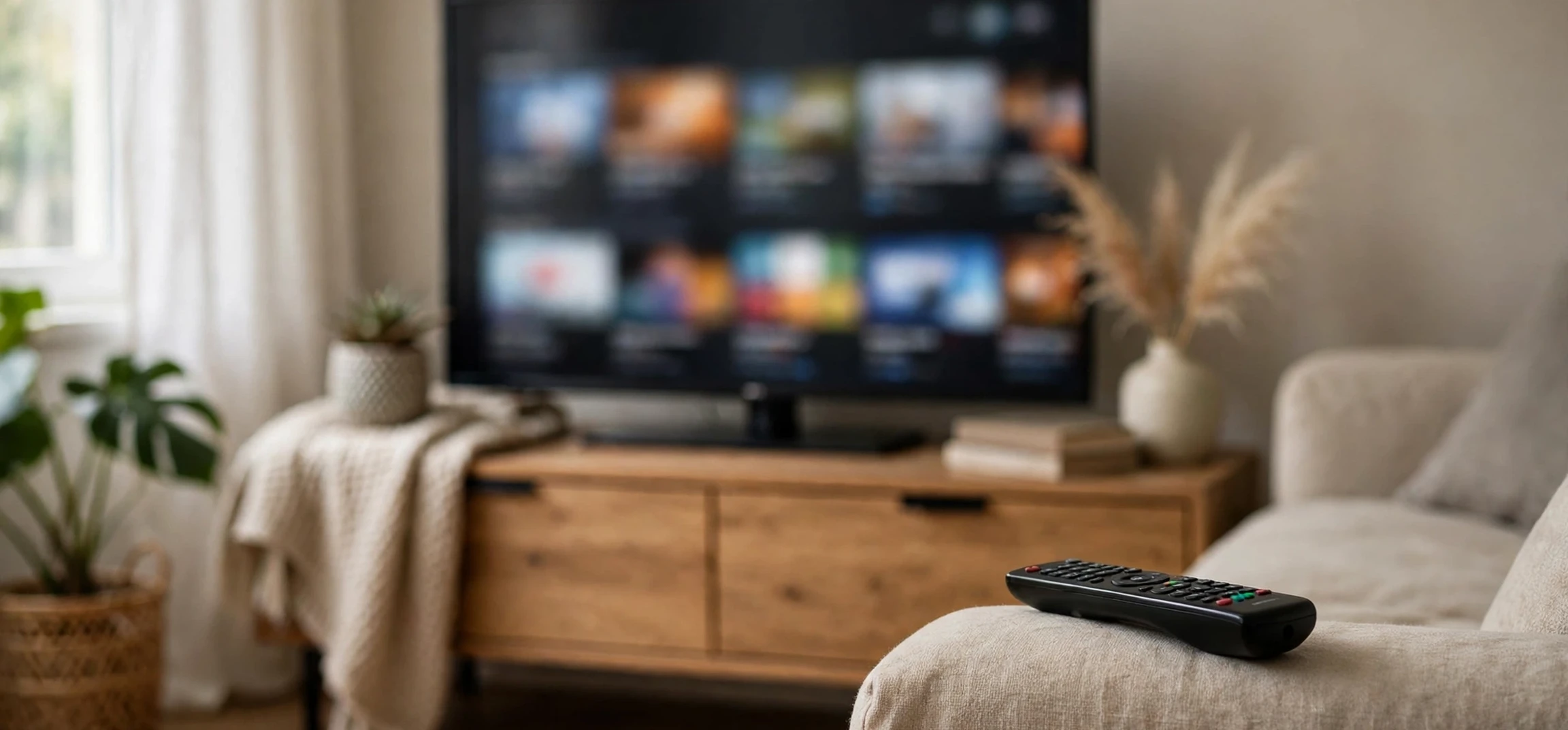
Using voice on roku is the quickest way to find something to watch without typing on a television remote. In simple terms, voice on roku means speaking a command into a Roku voice remote, or into the Roku mobile app, and letting the device search, open an app, or control playback for you. Instead of tapping letter by letter on an on-screen keyboard, you can say the name of a film, a show, an actor, or a genre, and Roku will search across the channels installed on your device. This guide explains how voice on roku works, what you can say, how to set it up, and how to fix common problems, so you can get more from your Roku TV or streaming player.
Voice control has become a standard part of modern television because typing with a remote is slow and awkward. Roku’s voice features are designed to remove that friction: one button press, one spoken phrase, and the search is done. Whether you want to find a comedy for tonight, jump straight into a streaming app, turn the volume up, or pause what you are watching, voice on roku can usually do it faster than navigating menus by hand. The rest of this guide shows exactly how.
Voice on Roku: The Basics
Voice on roku works through a microphone built into a compatible Roku voice remote, or through the microphone on your phone when you use the Roku mobile app. On most voice remotes, you press and hold the microphone button, speak your command, and release the button. The remote sends your speech to Roku, which converts it to text, matches it against its search catalogue, and shows the results on your television. On the mobile app, you tap the microphone icon and speak in the same way, and the results appear on the TV screen if your phone is connected to the same Roku device.
Not every Roku remote includes a microphone. The simplest Roku remotes, sometimes called simple remotes, have no voice button and cannot accept voice commands on their own. If your remote has no microphone button, you can still use voice on roku through the free Roku mobile app on your phone, or by upgrading to a compatible voice remote for your model. Checking for a microphone icon on the remote is the fastest way to tell which situation applies to you.
Setting Up Voice on Roku
Setting up voice on roku is normally automatic once your device is connected. First, make sure your Roku TV or streaming player is set up, connected to the internet, and signed in to your Roku account. If you have a voice remote, pair it by following the on-screen instructions during setup, or by holding the pairing button in the battery compartment until the pairing screen appears. Once paired, press the microphone button and try a simple search, such as the name of a popular film, to confirm that voice search is working.
For the mobile app route, install the Roku app on your phone, sign in to the same Roku account, and connect to the same Wi-Fi network as your Roku device. The app should detect your device automatically. Tap the microphone icon, allow the app to access your phone’s microphone when prompted, and speak your command. If the app cannot find your device, check that both devices are on the same network, restart the app, and restart the Roku device from its settings menu. In most cases, one of those steps resolves the connection.
Microphone Permissions and Privacy
Voice on roku only listens while you press and hold the microphone button, or while the mobile app’s microphone screen is active. It does not listen continuously in the background. Your spoken commands are sent to Roku to be processed, in the same way that voice assistants on phones process spoken requests. If you prefer not to use voice features, simply do not press the microphone button; all of Roku’s menus and search functions remain available through the remote’s buttons and on-screen keyboard. You can also review Roku’s privacy settings on your account if you want to understand how voice data is handled.
Voice on Roku Commands You Can Use
The most common use of voice on roku is search. You can search by title, by actor or director, or by genre. For example, you can say a film title, an actor’s name, or a phrase such as “comedy films” or “nature documentaries.” Roku searches across the channels installed on your device and shows where the title is available, which helps you avoid opening each app separately to check. This cross-channel search is one of the main advantages of voice on roku over searching inside a single app.
Beyond search, voice on roku supports app launching and playback control on many models. Saying the name of an app, such as a streaming service you have installed, will usually open that app directly. During playback, commands such as pause, play, rewind, and fast forward are supported in many channels, as are volume commands on Roku TVs and on remotes with volume buttons. You can also say “go home” to return to the home screen, or ask for a genre to browse recommendations. Support for specific commands varies by device model, remote, and channel, so if a command does not work in one app, try it on the home screen or in another app.
| What you want to do | Example voice command | Notes |
|---|---|---|
| Find a film or show | Say the title | Searches across installed channels |
| Find an actor’s work | Say the actor’s name | Shows films and shows featuring that actor |
| Browse a genre | Say a genre, e.g. comedies | Results depend on installed channels |
| Open an app | Say the app name | App must be installed on the device |
| Control playback | Pause, play, rewind | Support varies by channel |
| Return home | Go home | Returns to the Roku home screen |
Getting Better Results from Voice on Roku
A few habits make voice on roku noticeably more accurate. Speak clearly and at a normal pace, holding the remote a short distance from your mouth rather than pressing it against your face. Keep background noise low where possible, especially television audio, because the microphone can pick up the programme you are watching. If a title is unusual or a name is hard to pronounce, try a shorter version: the name of the lead actor, or the first few words of the title, is often enough for Roku to offer the right result among its suggestions.
It also helps to know how Roku handles results. When you search by voice, Roku shows matching titles and, where available, the channels that offer them, sometimes with price or subscription information. If a title is not installed or not available in your region, it may not appear, or it may appear with limited options. In that case, try searching with different wording, or check the channel store for the app that carries the title. Voice on roku is a search tool, not a guarantee of availability, and regional licensing still determines what you can actually watch.
For households that watch a lot of television, voice search can also simplify browsing for other viewers. Older relatives and children often find speaking a title easier than navigating menus, and guests can find a film without learning the remote layout. That accessibility is one reason voice features have become standard on newer Roku remotes. Readers who follow television and streaming guides may also enjoy the site’s broader viewing material, such as the round-up of streaming TV options and the guide to TV viewing guides, which complement voice search with browsing ideas.
Troubleshooting Voice on Roku
If voice on roku stops working, work through the common causes in order. First, check the remote’s batteries: a low battery can weaken the microphone and the wireless connection before the buttons themselves fail. Second, confirm the remote is paired: go to the Roku settings menu, check the remote section, and re-pair if necessary. Third, restart the Roku device from its settings menu or by unplugging it for a few seconds and plugging it back in. Fourth, check your internet connection, because voice search needs to reach Roku’s servers to process the command and return results.
If the mobile app is the problem, check that the phone and the Roku device are on the same Wi-Fi network and signed in to the same account. Some routers separate devices into different bands or guest networks, which can block the app from finding the TV even though both devices are online. Moving both devices to the same network usually fixes this. If problems persist, removing and reinstalling the mobile app, or resetting the remote pairing, are the next steps, and Roku’s own support pages carry model-specific instructions for each device. Those interested in television service offers may also find the guide to TV streaming promotions useful background, although offers change frequently and should be checked at the time of use.
When Voice Is Not Available
There are a few situations where voice on roku will not work even when everything is set up correctly. Very old Roku models may not support voice remotes at all, and some channels limit voice playback commands inside their own players. Voice search also requires an internet connection, so it will not work during an outage, even though locally stored or already-loaded content may still play. In all of these cases, the standard remote controls and on-screen search remain available as a fallback, so you are never locked out of your device by a voice problem.
Frequently Asked Questions
What is voice on roku?
Voice on roku is the feature that lets you speak commands into a Roku voice remote or the Roku mobile app to search for titles, open apps, and control playback, instead of typing on an on-screen keyboard.
Does every Roku remote support voice?
No. Only voice remotes with a microphone button support voice commands directly. Simple remotes without a microphone button cannot accept voice input, but you can still use voice through the Roku mobile app.
Can voice on roku search across all my channels?
Voice search searches across the channels installed on your device and shows where a title is available. Titles on channels you have not installed, or that are not available in your region, may not appear in results.
Does voice on roku listen all the time?
No. The microphone is active only while you press and hold the microphone button on the remote, or while the mobile app’s voice screen is active. It does not listen continuously in the background.
Why is voice on roku not working?
The most common causes are low remote batteries, an unpaired remote, a Wi-Fi or account mismatch with the mobile app, or an internet outage. Check batteries, pairing, network, and account first, then restart the device.
Conclusion
Voice on roku turns the slowest part of using a television, typing with a remote, into the fastest: press a button, say what you want, and let Roku do the searching. It works for titles, actors, genres, apps, and playback, it is available through both voice remotes and the mobile app, and it only listens while you activate it. With clear speech, a paired remote, and a stable internet connection, voice on roku makes finding something to watch quicker and easier for everyone in the household. If your current remote has no microphone, the mobile app gives you the same voice search today, and a compatible voice remote is an easy upgrade when you are ready.



