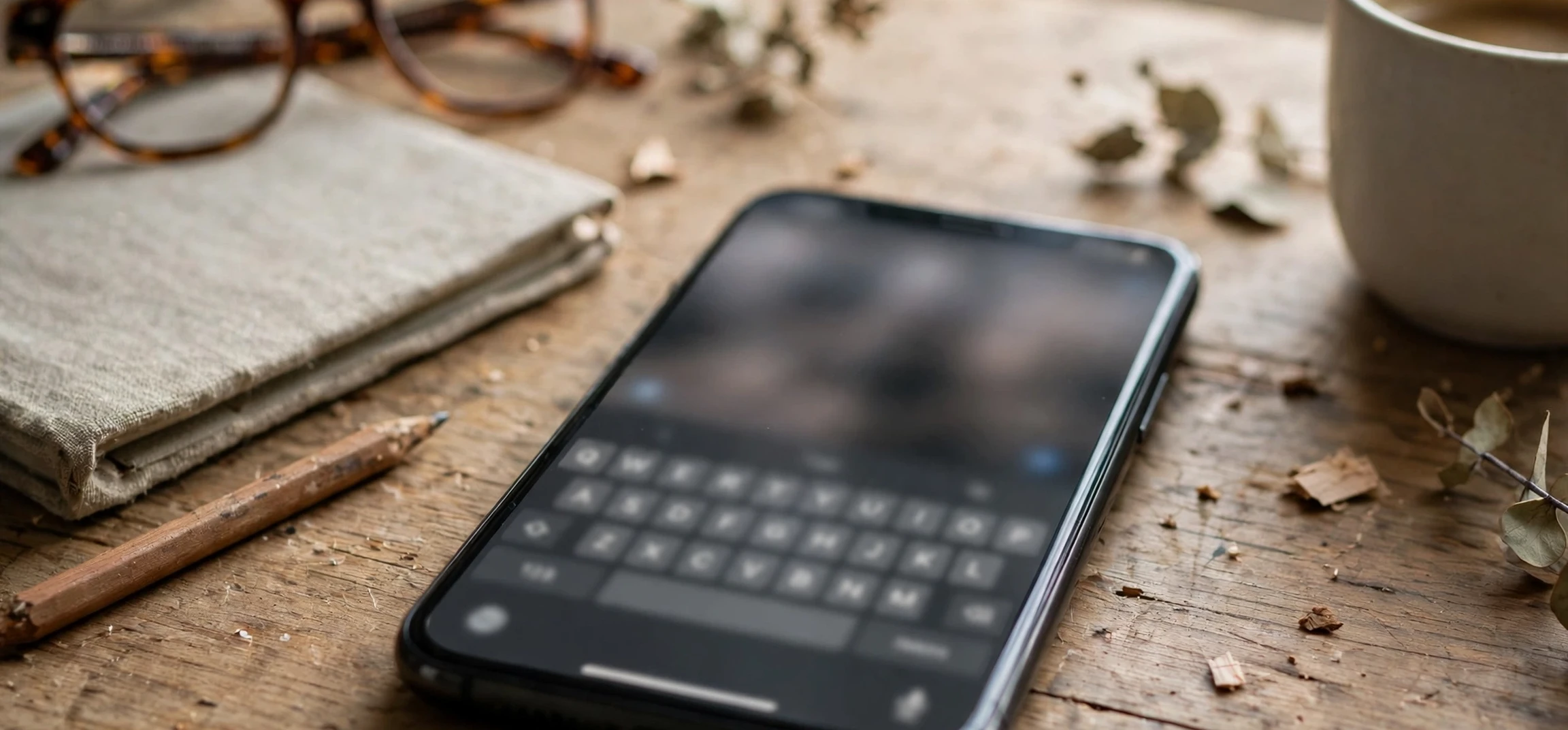
If your iPhone keeps suggesting words you do not want, learning how to turn predictive text off iphone devices is a quick fix that takes less than a minute once you know where the setting lives. Predictive text is the row of suggested words that appears above the keyboard as you type, and it is designed to speed up typing by guessing the next word. For many people it is helpful, but for others it is distracting, it suggests the wrong word at the wrong moment, or it keeps offering words from a previous conversation that no longer fit. Turning it off does not remove the keyboard, it does not delete your messages, and it does not affect autocorrect unless you change that setting separately. It simply stops the suggestion bar from appearing, giving you a cleaner keyboard and full control over every word you type.
This guide explains the exact steps, the difference between predictive text and related settings such as autocorrect, spell checking, and text replacement, and how to customise the keyboard so it behaves the way you prefer. It also covers what to do if the setting seems to turn itself back on, how to manage predictive text in different apps, and how to turn the feature back on if you change your mind. Whether you type long work messages, short replies to friends, or careful notes for study, a keyboard that matches your habits makes typing faster and less frustrating, and the controls to achieve that are already built into the iPhone.
How to Turn Predictive Text Off iPhone: The Main Steps
To turn off predictive text, open the Settings app on your iPhone, then tap General, then tap Keyboard. On the Keyboard screen you will see a list of toggles for different typing features. Find the option labelled Predictive Text or Predictive, and tap the switch to turn it off. When the switch changes from green to grey, predictive text is disabled, and the suggestion bar will no longer appear above the keyboard. You can test the change immediately by opening any app that uses the keyboard, such as Messages or Notes, tapping into a text field, and typing a few words. If no suggestion bar appears, the setting has worked.
The path is deliberately simple, but it is easy to miss if you look in the wrong place. Predictive text is a keyboard setting, not a setting inside Messages or another individual app, so changing it in Settings affects the system keyboard everywhere it is used. That is good news, because you only need to change it once rather than repeating the step in every app. If you use a third-party keyboard, however, that keyboard may have its own prediction settings inside its own app or settings panel, and you may need to adjust those separately. The built-in Apple keyboard follows the system toggle described here, and that covers the keyboard most iPhone users type with every day.
If you want to explore other iPhone typing topics after this fix, our guide to iPhone photo and editing tips and our overview of iPhone message display questions cover different parts of the iPhone experience, but the keyboard steps in this article remain the central fix for unwanted word suggestions.
How to Turn Predictive Text Off iPhone Without Changing Autocorrect
Many people confuse predictive text with autocorrect, but they are different features, and understanding the difference helps you get the exact typing experience you want. Predictive text suggests words before you finish typing them, showing them in a bar above the keyboard for you to tap. Autocorrect, by contrast, changes a word after you type it, usually when you press space or punctuation, if it believes you made a spelling mistake. Turning off predictive text stops the suggestions, but autocorrect may still change words you type. If autocorrect also frustrates you, you can turn it off on the same Keyboard settings screen by switching off Auto-Correction, but many users prefer to keep autocorrect on while removing only the suggestion bar.
Other nearby settings are worth knowing about as well. Check Spelling underlines possible spelling errors without changing your words, which some writers prefer to full autocorrect. Text Replacement lets you create shortcuts that expand into longer phrases, such as a shortcut for your full address or a frequently used sentence, and it works independently of predictive text. Smart Punctuation changes straight quotes and dashes into curved or formatted versions, which matters for formal writing but not for casual messages. By adjusting each toggle separately, you can build a keyboard that suggests nothing, corrects nothing, or does a little of both, depending on what suits your typing style. Take a moment to review the whole Keyboard screen rather than changing only one switch, because a single visit can solve several small typing annoyances at once.
Keyboard Settings Explained in Plain Terms
Predictive Text controls the suggestion bar above the keyboard. Auto-Correction controls whether typed words are changed automatically. Check Spelling controls whether possible errors are underlined. Text Replacement controls your personal shortcuts. Slide to Type, where available, controls whether you can swipe across letters to form words. Each setting is independent, so turning one off does not turn the others off, and turning one on does not force the others on. That independence is useful, but it also explains why a keyboard can still feel unpredictable after one change: another related setting may still be active and need its own adjustment.
Predictive Text in Different Apps and Keyboards
The system keyboard setting applies across most apps, but a few situations need extra attention. Some apps include their own suggestion or completion features inside the app itself, separate from the iPhone keyboard. A writing app, a browser search bar, or a chat app may show its own suggestions even after you disable the keyboard prediction bar, because those suggestions come from the app, not from the keyboard. If suggestions persist in only one app after you change the system setting, check that app settings for autocomplete, search suggestions, or smart compose features, and disable them there if you prefer a clean typing field.
Third-party keyboards are another exception. If you have installed a keyboard from the App Store and set it as your active keyboard, its prediction behaviour is controlled by that keyboard provider settings, not by the Apple keyboard toggle alone. Open the keyboard app or its settings panel and look for prediction, suggestions, or autocomplete options. You can also switch back to the standard Apple keyboard by long-pressing the globe or keyboard switch key and choosing the built-in keyboard, then confirming that predictive text is off in Settings. For most users, the built-in keyboard plus the system toggle is the simplest combination, and it avoids the extra settings layers that third-party keyboards introduce.
Why People Choose to Turn Predictive Text Off
People turn off predictive text for practical reasons, not just preference. Writers who use technical terms, names, or words from another language often find that suggestions interrupt their flow with common words that do not fit the sentence. People who type quickly may accidentally tap a suggestion instead of the space bar, inserting a wrong word that changes the meaning of a message. Privacy-conscious users may prefer not to see suggestions drawn from recent typing, even though those suggestions are generated on the device. Others simply find the moving suggestion bar visually distracting, especially when typing long passages where the bar changes with every keystroke.
Turning the feature off can also improve accuracy for certain kinds of writing. Legal, medical, academic, and creative writing often rely on precise wording, and a suggested word that looks plausible but is slightly wrong can slip into a draft unnoticed. Without suggestions, every word is typed deliberately, which slows typing slightly but reduces the chance of an unintended substitution. For short, casual messages, the difference is small, but for important messages, the extra control is worth the trade. The good news is that the choice is reversible in seconds, so you can experiment without commitment: turn predictions off for a week, notice whether typing feels calmer and more accurate, and turn them back on if you miss the speed.
Troubleshooting When Predictive Text Will Not Stay Off
If predictive text reappears after you turned it off, work through a short checklist before assuming a fault. First, confirm that you changed the setting for the keyboard you are actually using, and that you did not accidentally change a different keyboard in a multi-keyboard setup. Second, check whether the suggestions you see are coming from an app rather than the keyboard, as described above, because app suggestions need an app-level fix. Third, restart the iPhone and retest, since a temporary software glitch can occasionally leave a keyboard display out of sync with its settings. Fourth, check for a software update, because keyboard behaviour is sometimes refined in system updates, and an update can resolve a stuck setting.
Another possibility is that a different device or profile is involved. If the iPhone is managed by a workplace or school, some keyboard settings may be controlled by a device management profile, and changes may revert. In that case, ask the organisation IT support whether keyboard prediction can be adjusted on that device. For personal devices, a reset of keyboard settings is a last resort: the Keyboard screen includes options related to learned words and dictionaries, and resetting them can clear stored typing data that influences suggestions. Only use a reset if simpler steps fail, and be aware that it may also remove custom text replacements or learned words you wanted to keep. In most cases, however, the single toggle in Settings solves the problem immediately and permanently.
| Setting | What It Does | Turn Off If You Want |
|---|---|---|
| Predictive Text | Shows suggested words above the keyboard | No suggestion bar while typing |
| Auto-Correction | Changes typed words it thinks are misspelled | No automatic word changes |
| Check Spelling | Underlines possible spelling errors | No spelling underlines |
| Text Replacement | Expands shortcuts into longer phrases | No shortcut expansions |
Frequently Asked Questions
Does turning off predictive text delete my messages or typing history?
No. Turning off predictive text only hides the suggestion bar. It does not delete messages, notes, or saved documents, and it does not erase your keyboard dictionary unless you separately choose a reset option.
Can I turn predictive text back on later?
Yes. Return to Settings, then General, then Keyboard, and switch Predictive Text back on. The suggestion bar will reappear immediately the next time you open the keyboard.
Does this setting affect other Apple devices?
Keyboard settings are generally per device, so changing predictive text on your iPhone does not automatically change it on another device. Adjust the same setting on each device where you want the same typing behaviour.
Why does my iPhone still change words after I turn predictions off?
That is autocorrect, a separate setting on the same Keyboard screen. Switch off Auto-Correction as well if you want no automatic word changes, while keeping Check Spelling on if you still want spelling hints.
Conclusion
Knowing how to turn predictive text off iphone keyboards is a small skill with a noticeable payoff: a cleaner keyboard, fewer accidental word insertions, and more deliberate typing. The fix lives in Settings, under General and then Keyboard, where a single toggle removes the suggestion bar across the system keyboard. Understanding the difference between predictive text, autocorrect, and other keyboard features lets you fine-tune the result instead of settling for an all-or-nothing change. If suggestions reappear, check for app-level suggestions, third-party keyboards, or a managed device profile, and work through the troubleshooting steps in this guide. And remember that the change is fully reversible, so you can enjoy a quieter keyboard today and restore suggestions in seconds whenever you want them back. For another handy keyboard topic, see our guide to keyboard shortcuts for working with text, which pairs well with a customised typing setup.



