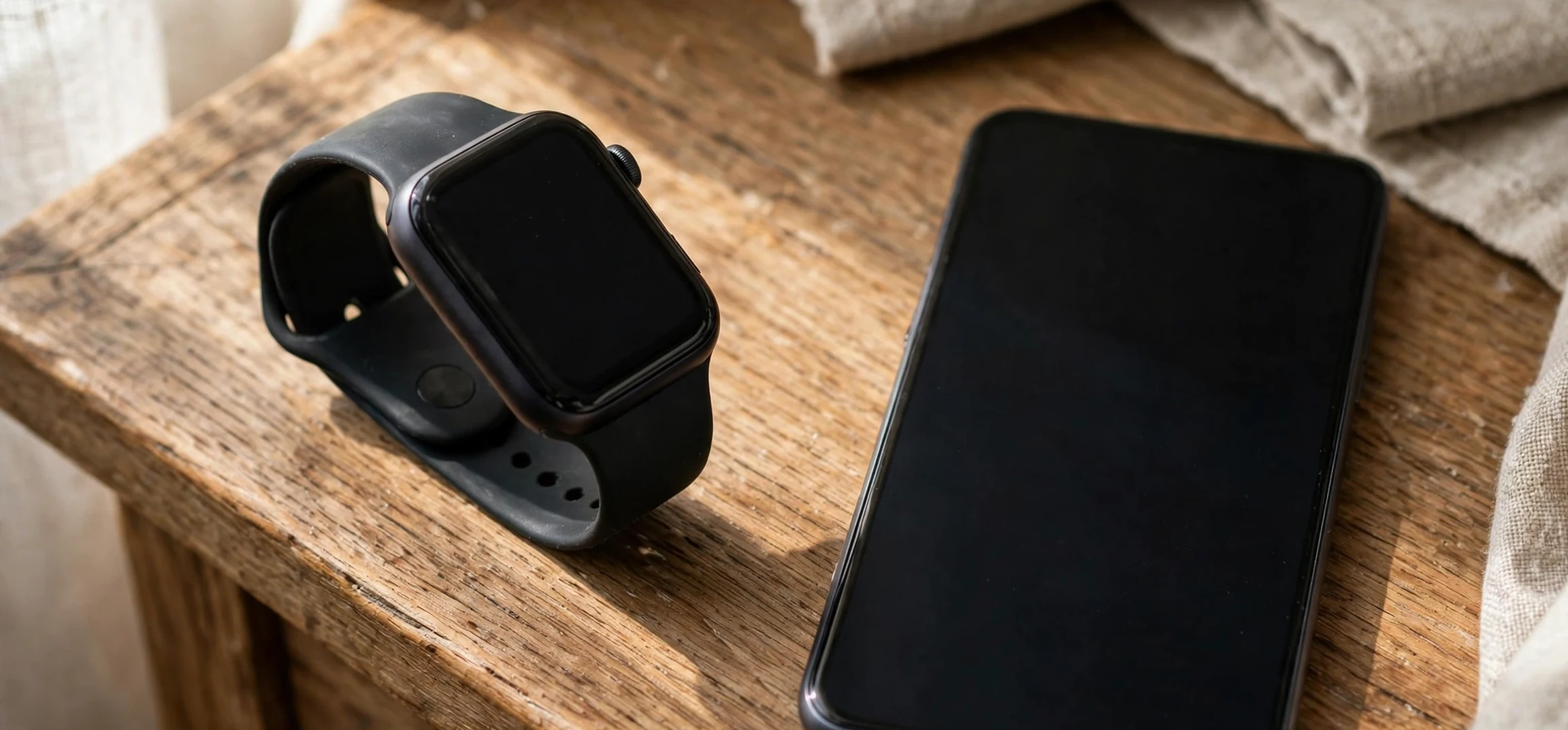
If you are not getting text messages on Apple Watch, the problem is usually a small settings mismatch rather than a broken device. Your watch mirrors notifications from your paired iPhone, so when a message arrives on the phone but never buzzes your wrist, something in that chain has been interrupted. The good news is that most causes of not getting text messages on Apple Watch can be fixed in a few minutes, without resetting anything or visiting a repair shop. This guide walks you through every common cause in order, from the simplest checks to the deeper fixes, so you can find the one that applies to your own device and get your wrist notifications working again.
Before you change anything, it helps to understand how messages reach your watch. When your iPhone receives a text or an iMessage, it forwards a notification to your Apple Watch over Bluetooth or Wi-Fi, provided the watch is unlocked, worn, and connected. If you are actively using your iPhone at that moment, the notification stays on the phone by design and does not buzz the watch. That behaviour surprises many people who are not getting text messages on Apple Watch, because they expect both devices to alert at the same time. Apple designed the system so that only the device you are currently using alerts you, which reduces duplicate buzzing. So the first thing to check is whether your phone was unlocked and in use when the message arrived.
Why You Are Not Getting Text Messages on Apple Watch
There are several distinct reasons for not getting text messages on Apple Watch, and they often combine. The most common is a notification setting: either Messages notifications are turned off for the watch, or a Focus mode such as Do Not Disturb is silencing them. Another frequent cause is a lost connection between the watch and the phone, which can happen after a software update, a Bluetooth glitch, or simply because the devices drifted too far apart. Less often, the issue is that the watch is locked, not on your wrist, or in Airplane Mode or Theatre Mode, all of which suppress alerts. Working through these in order saves time, because the fix is usually in the first few checks rather than the last ones.
It is also worth distinguishing between two different problems that feel identical. In one case, you are not getting text messages on Apple Watch at all, meaning no buzz, no banner, and no red dot. In the other case, notifications arrive but the message content is hidden, or messages appear in the Messages app on the watch but without an alert. The first points to notification or connection settings, while the second often points to wrist detection, notification previews, or the alert style chosen for Messages. Knowing which version you have narrows the search considerably, so take a moment to open the Messages app on your watch and see whether recent conversations are listed there even though no alert arrived.
Check the Basics When Not Getting Text Messages on Apple Watch
Start with the physical basics. Make sure your Apple Watch is charged, unlocked, and snug on your wrist, because wrist detection must confirm you are wearing it before it delivers alerts. If the watch is sitting on a table, notifications go to your iPhone instead, which is exactly how the system is meant to work. Next, swipe up on the watch face to open Control Centre and look for the red Do Not Disturb crescent, the theatre masks icon, or the Airplane Mode plane. Any of these will silence message alerts, and they are easy to switch on accidentally, especially Theatre Mode, which is a single tap away in Control Centre.
Then check the connection. On your iPhone, open the Watch app and confirm that your watch shows as connected at the top of the screen. On the watch itself, open Control Centre and look for the green iPhone icon, which means the watch is connected to your phone. A red iPhone icon with a slash means the connection is lost, and that alone explains not getting text messages on Apple Watch. If the connection is lost, bring the devices close together, make sure Bluetooth is on for the iPhone, and toggle Bluetooth off and back on if needed. In most cases the watch reconnects within a minute, and queued notifications then arrive together.
Fix Message Notification Settings on iPhone and Watch
If the basics look fine, the next place to look is notification settings. On your iPhone, go to Settings, then Notifications, then Messages, and confirm that Allow Notifications is switched on, with Lock Screen, Notification Centre, and Banners all enabled. If Messages notifications are off on the iPhone, there is nothing for the watch to mirror, and you will keep not getting text messages on Apple Watch no matter what you change on the watch itself. Also check that the alert style is set to Banners or Persistent rather than None, and that Sounds and Badges are on if you want the full alert experience.
Next, open the Watch app on your iPhone, tap Notifications, and find Messages. The setting should be set to Mirror my iPhone, which means the watch follows whatever you chose on the phone. If it is set to Custom, review the custom choices carefully, because a custom setting can silently disable alerts, sounds, or haptics for the watch alone. Switching back to Mirror my iPhone is the simplest way to rule out a custom-setting problem. While you are in the Watch app, also check that the Messages app itself is installed and visible on the watch, since a missing or offloaded app cannot receive mirrored alerts at all.
Do not forget Focus modes. A Focus mode such as Do Not Disturb, Sleep, Work, or Driving can silence Messages on both devices, and Focus settings can sync from your iPhone to your watch automatically. Open Settings, then Focus, on your iPhone, and check each active Focus for its allowed notifications. If Messages is not in the allowed list, messages will arrive silently while that Focus is active. You can either add Messages as an allowed app, add specific contacts as allowed people, or turn the Focus off entirely to test. Many people discover that not getting text messages on Apple Watch began the night they enabled a Sleep schedule, and the fix is simply adjusting that schedule.
Connection and Software Fixes That Restore Alerts
When settings look correct but alerts still do not arrive, try the classic connection reset. Restart both devices: power off the Apple Watch, restart the iPhone, then power the watch back on and wait for it to reconnect. This clears temporary Bluetooth and notification glitches that survive a simple settings change. If the problem persists, unpairing and re-pairing the watch is the stronger option, although it takes longer because the watch restores from a backup afterwards. Only use unpairing after the simpler steps, since it is rarely needed for a pure notification problem.
Software updates matter too. An outdated version of watchOS or iOS can introduce notification bugs that were fixed in a later release, and mismatched versions sometimes break the mirroring chain. On your iPhone, go to Settings, then General, then Software Update, and install any available update. Then open the Watch app, go to General, then Software Update, and do the same for the watch. After updating, test with a message from a friend or from another device you own. If you are still not getting text messages on Apple Watch after an update and a restart, the next step is to check whether the problem affects only one contact, which would point to a muted conversation or a blocked number rather than a device fault.
Muted Conversations, Blocked Contacts, and iMessage Issues
A muted conversation is one of the sneakiest causes of missing alerts. If you swiped left on a conversation in Messages and tapped the bell with a slash, that thread stops alerting you on every device, and it is easy to forget you did it. Open Messages on your iPhone, look for conversations with a crossed-out bell icon, swipe left, and tap the bell again to unmute. Similarly, a blocked contact cannot reach you at all, so check Settings, then Messages, then Blocked Contacts if messages from one person never arrive anywhere. These checks explain many cases where someone reports not getting text messages on Apple Watch when in fact only one sender is affected.
iMessage activation can also play a role. If iMessage is deactivated on your iPhone, or if your Apple ID sign-in has expired, blue-bubble messages may fail or fall back to SMS in unexpected ways. Go to Settings, then Messages, and confirm that iMessage is on and that Send and Receive lists your phone number and Apple ID correctly. If you see an activation error, toggling iMessage off and on, or signing out and back into your Apple ID in Messages settings, usually resolves it. Remember that SMS and MMS messages need a cellular or Wi-Fi connection on the iPhone to arrive in the first place, so a phone with no signal cannot forward anything to the watch.
| Symptom | Likely cause | First fix to try |
|---|---|---|
| No alerts at all on the watch | Do Not Disturb, Theatre Mode, or Focus | Turn off the mode in Control Centre |
| Watch shows a red phone icon | Bluetooth connection lost | Bring devices together and toggle Bluetooth |
| Messages appear but never buzz | Custom notification setting on the watch | Set Messages to Mirror my iPhone |
| Only one contact is silent | Muted conversation or blocked number | Unmute the thread and check blocked contacts |
| Alerts stopped after an update | Software glitch or mismatched versions | Restart both devices and install updates |
Frequently Asked Questions About Not Getting Text Messages on Apple Watch
Why does my watch only alert when my phone is locked?
This is by design. Apple sends the notification to the device you are actively using. If your iPhone is unlocked and in your hand, the alert stays there. Lock your phone or put it down, and the watch takes over alerting. If you are not getting text messages on Apple Watch while your phone sits locked and untouched, then a setting or connection issue is the real cause.
Can a cellular Apple Watch receive texts without the iPhone nearby?
Yes, a cellular model with an active plan can receive messages over its own connection when the phone is out of range, provided the watch is set up for cellular and your carrier supports it. A GPS-only model, however, depends on the phone or a known Wi-Fi network, so distance from the phone will stop alerts. Check your model and cellular setup if messages vanish whenever you leave your phone behind.
Should I unpair my watch to fix missing messages?
Unpairing is a last resort, not a first step. Most cases of not getting text messages on Apple Watch resolve with a settings check, a Focus adjustment, or a restart of both devices. Unpair only after those steps fail, and let the watch back up first so your data restores cleanly when you pair it again.
For more device and messaging help, see our guides on spotting scam text messages and iPhone availability news, plus our examples of unwanted text messages and how to handle them.
Conclusion
If you are still not getting text messages on Apple Watch after the checks above, do not assume the device is broken: the cause is almost always fixable with a systematic check of modes, connections, notification settings, and Focus schedules. Start with Control Centre and wrist detection, confirm the watch is connected, set Messages to mirror your iPhone, and review any active Focus mode. If those steps do not work, restart both devices, update the software, and check for muted or blocked conversations before considering unpairing. Work through this guide in order, test with a fresh message after each change, and you should have reliable wrist alerts again without needing a repair or a replacement. And if a friend reports not getting text messages on Apple Watch too, share this checklist: the same Focus, connection, and notification checks resolve not getting text messages on Apple Watch in most households.