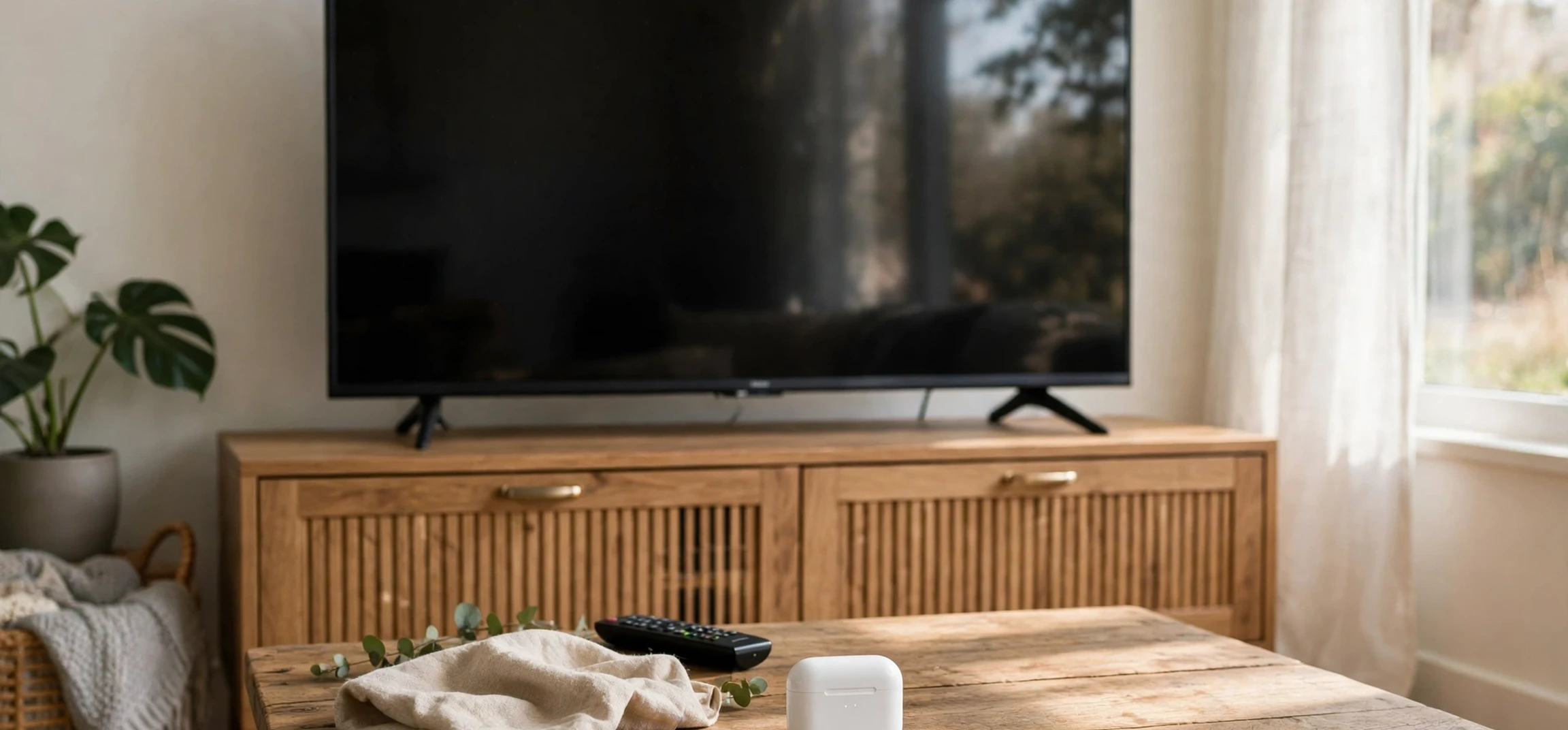
Learning how to connect AirPods to TV is one of the simplest ways to enjoy late-night shows, movies, and sports without disturbing anyone else in the house. AirPods use Bluetooth, the same wireless technology built into most modern televisions, streaming boxes, and game consoles, so in many cases you can pair them directly with your TV in under a minute. When your TV does not have Bluetooth built in, a small transmitter or a streaming device can bridge the gap. This guide walks through every common setup, explains what to do when pairing fails, and answers the questions people ask most often about sound quality, delay, and switching AirPods back to a phone.
Before you start, it helps to know which generation of AirPods you own and what kind of TV you have. All AirPods models, including AirPods, AirPods Pro, and AirPods Max, support standard Bluetooth audio, which is the key requirement. Your television needs either built-in Bluetooth audio support or a connected device that provides it, such as an Apple TV, Amazon Fire TV, Roku, or a Bluetooth transmitter plugged into the headphone jack or optical audio output. Checking your TV manual or settings menu for a Bluetooth or sound output section will tell you quickly which route applies to you.
How to Connect AirPods to TV Using Bluetooth
The most direct way to connect AirPods to TV is through the television’s own Bluetooth menu. On most smart TVs, open Settings, look for Sound or Remotes and Accessories, and choose Bluetooth Speaker List, Bluetooth Audio, or a similarly named option. Put your AirPods into pairing mode by opening the charging case lid and pressing and holding the setup button on the back of the case until the status light flashes white. On AirPods Max, press and hold the noise control button until the light flashes white. Your AirPods should then appear in the TV’s list of available devices. Select them, confirm the pairing, and the TV audio should switch to your earbuds.
Once paired, your TV will usually remember the AirPods, so future connections are faster. Open the case near the TV, and the earbuds may reconnect automatically, or you may need to select them again from the Bluetooth device list. If the TV keeps playing through its speakers, check the sound output setting and make sure Bluetooth audio is selected rather than TV speakers or an external soundbar. Some TVs mute their built-in speakers automatically when a Bluetooth headset connects, while others require you to change the output manually each time.
Connect AirPods to TV: Samsung, LG, and Other Brands
On Samsung smart TVs, the path is usually Settings, then Sound, then Sound Output, then Bluetooth Speaker List. Put the AirPods in pairing mode first, then scan for devices on the TV and select your AirPods from the list. Samsung TVs often show a confirmation message once the connection succeeds, and you can adjust the volume with the TV remote. If your Samsung model only lists Bluetooth for accessories such as keyboards rather than audio, it may not support Bluetooth headphones directly, in which case a transmitter is the better option.
On LG TVs, go to Settings, then Sound, then Sound Out, and choose Bluetooth. LG’s WebOS interface lists available Bluetooth devices, and selecting your AirPods pairs them. Sony Android TVs and Google TVs typically place the option under Settings, then Remotes and Accessories, then Pair Accessory. TCL, Hisense, and Vizio models vary, but the pattern is consistent: find the Bluetooth or audio output menu, put the AirPods in pairing mode, and select them from the list. If you cannot find a Bluetooth menu at all, your TV may not include Bluetooth audio, and the transmitter method below will still let you listen wirelessly.
Connect AirPods to TV Through Apple TV, Fire TV, and Roku
Streaming devices are often the easiest route, because their Bluetooth menus are more reliable than those on many televisions. On Apple TV, open Settings, then Remotes and Devices, then Bluetooth, and put your AirPods in pairing mode. Apple TV pairs especially smoothly with AirPods signed into the same account, and audio controls appear in the control center during playback. You can also switch quickly between TV speakers and AirPods without digging through deep menus.
On Amazon Fire TV, go to Settings, then Controllers and Bluetooth Devices, then Other Bluetooth Devices, and select Add Bluetooth Devices. Put the AirPods in pairing mode and choose them when they appear. On Roku, the process differs: Roku devices generally do not pair Bluetooth headphones directly, but the Roku mobile app offers private listening, which routes TV audio to earbuds connected to your phone. That is a useful workaround if your Roku TV lacks Bluetooth audio. For a related look at streaming options, see our guide to best streams for TV viewing and our overview of Apple TV plans and prices.
Using a Bluetooth Transmitter When Your TV Has No Bluetooth
If your television has no Bluetooth audio support, a Bluetooth transmitter solves the problem for a modest cost. These small adapters plug into the TV’s 3.5 mm headphone jack, RCA audio outputs, or optical digital audio output, and broadcast sound over Bluetooth to your AirPods. Plug in the transmitter, set it to transmit mode, put your AirPods in pairing mode, and wait for the transmitter’s light to confirm the connection. Optical connections usually deliver the cleanest sound, while the headphone jack is the simplest to set up.
When shopping for a transmitter, look for support for low-latency codecs such as aptX Low Latency. AirPods themselves use the AAC codec, so perfect lip-sync is not guaranteed with every adapter, but many modern transmitters keep delay small enough that most viewers barely notice it. Avoid transmitters that only receive Bluetooth, since those are designed for speakers rather than headphones, and check whether the adapter needs USB power from the TV or a separate charger. Once connected, the TV remote may no longer control volume, so use the volume controls on your AirPods or the transmitter itself.
Troubleshooting: When You Cannot Connect AirPods to TV
Pairing problems are common and usually easy to fix. If the AirPods do not appear in the TV’s device list, make sure the case lid is open and the status light is flashing white, which confirms pairing mode. If the light flashes amber instead, the AirPods may still be connected to your phone; disconnect them from the phone’s Bluetooth menu or turn the phone’s Bluetooth off temporarily. Also check that the AirPods are charged, since low battery can interrupt pairing.
If the AirPods pair but produce no sound, confirm the TV’s sound output is set to Bluetooth audio and raise the volume on both the TV and the AirPods. If sound plays only through one earbud, place both earbuds back in the case, close the lid for ten seconds, then try again. If audio lags behind lip movements, try switching the TV’s digital audio output format from Dolby to PCM or stereo, which often reduces delay. Restarting both the TV and the AirPods clears many stubborn glitches. As a last resort, forget the AirPods on the TV, reset the AirPods by holding the setup button until the light flashes amber then white, and pair again from scratch.
| Setup method | Best for | What you need |
|---|---|---|
| TV Bluetooth menu | Modern smart TVs | TV with Bluetooth audio support |
| Apple TV or Fire TV | Streaming households | Streaming box or stick with Bluetooth |
| Roku app private listening | Roku users | Phone with Roku app and AirPods paired to phone |
| Bluetooth transmitter | Older TVs without Bluetooth | Transmitter plus headphone or optical port |
Sound Quality, Delay, and Everyday Tips
Sound quality over Bluetooth is generally very good for television, especially with AirPods Pro, which add active noise cancellation that blocks household noise during quiet scenes. You may notice a slight delay between lips and speech on some setups, because Bluetooth audio takes a moment to encode and transmit. Most viewers adapt quickly, and switching digital audio to PCM often tightens sync. For live sports or gaming, where timing matters more, a wired connection or a low-latency transmitter will feel more responsive.
Sharing is another consideration. Two people can listen together on Apple TV, which supports sharing audio to two pairs of AirPods at once, while most TVs support only one Bluetooth audio device at a time. Battery life is rarely an issue for a movie, since AirPods typically last several hours per charge, and the case provides extra charges between sessions. When you finish watching, put the AirPods back in the case so they disconnect, and your TV should return to its speakers automatically. To switch them back to your phone, simply select them in the phone’s Bluetooth settings.
Frequently Asked Questions
Can I connect AirPods to any TV? Any TV can work with AirPods if it has Bluetooth audio or if you add a Bluetooth transmitter or a streaming device with Bluetooth. Very old TVs without audio outputs beyond built-in speakers may need a different solution.
Do AirPods work with Samsung and LG TVs? Yes, most recent Samsung and LG smart TVs support Bluetooth audio, and the pairing steps are similar: open the sound output menu, put the AirPods in pairing mode, and select them from the device list.
Why is there a delay between audio and video? Bluetooth encoding adds a small delay. Switching the TV’s digital audio output to PCM or stereo and using a low-latency transmitter can reduce it.
Can two people use AirPods on one TV? Apple TV supports two pairs of AirPods at once through audio sharing. Most other TVs support one Bluetooth audio device at a time.
Connect AirPods to TV: Switching Back to Your Phone
One detail people often overlook when they connect AirPods to TV is how to switch back afterwards. AirPods pair with one active device at a time for audio, so when you finish watching, open the case to disconnect from the TV, then select the AirPods in your phone’s Bluetooth menu to reconnect them there. If your phone and TV are both nearby, the AirPods may try to reconnect to the last-used device automatically, so checking the active connection on your phone takes only a few seconds. Keeping the TV’s Bluetooth device list tidy also helps: remove old or duplicate entries if your TV lists the AirPods more than once, since a stale entry can cause confusion on the next pairing attempt.
Conclusion
To connect AirPods to TV, start with the television’s Bluetooth menu, try a streaming device if the TV menu falls short, and use a Bluetooth transmitter for older sets without wireless audio. The process takes only a few minutes once you know where the Bluetooth settings live, and the payoff is private, clear sound for every show and film. If you run into trouble, check pairing mode, confirm the sound output setting, and reset the connection before assuming anything is broken. For more television setup ideas, explore our Apple TV movies guide. With the right method for your setup, your AirPods can become your favorite way to watch television.



