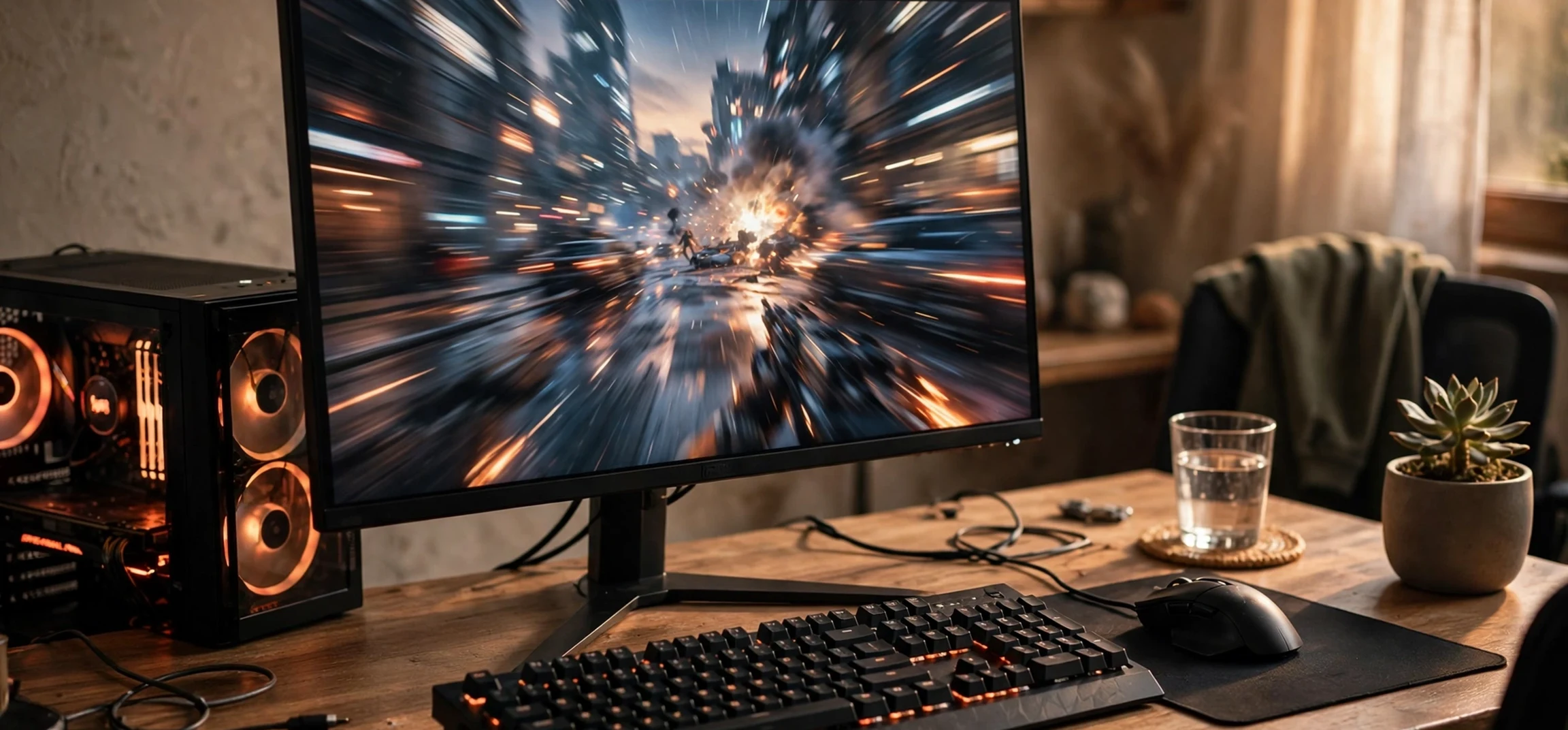
Deadlock is a fast, team-based shooter with MOBA elements, and smooth performance makes a real difference to how it feels. At 60 frames per second, movement looks steady, aiming feels responsive, and team fights stay readable instead of turning into a blur. This guide explains, in plain language, how to reach a stable 60fps in Deadlock, how to keep it stable during busy fights, and how to fix the most common problems without changing settings at random.
You do not need an expensive computer to enjoy Deadlock at 60fps, but you do need the right balance of settings. Many players lose frames because a few demanding options are set too high, or because background programs compete with the game. Others lose smoothness not from low frames, but from stutter: the frame rate jumps up and down, which feels worse than a steady lower rate. This guide focuses on stability first, and on high numbers second.
Follow the steps in order. Start with the quick wins, test the game, and only then move to advanced tweaks. That way, if something makes performance worse, you will know which change caused it and you can undo it quickly.
What Smooth 60fps Really Means
Frames per second, or fps, is how many images your computer shows each second. At 60fps, a new image appears about every 16.7 milliseconds. That is fast enough for motion to look fluid and for your mouse movements to feel connected to what happens on screen. Below 60fps, motion can look choppy, and aiming can feel slightly delayed, especially in close fights.
Smoothness is not just about the average number. A game that averages 60fps but often drops to 30fps during fights will feel worse than a game locked at a steady 60fps. The drops are what break your aim and your timing. For that reason, this guide treats a stable 55 to 60fps as a better result than a jumping 70 to 40fps. Your goal is a flat line, not a high peak.
FPS And Refresh Rate In Plain Language
Your monitor also has a refresh rate, measured in hertz. A 60Hz monitor shows up to 60 images per second, so 60fps matches it well. A 120Hz or 144Hz monitor can show more, but 60fps still looks smooth on those screens. If your monitor supports a higher rate and your computer can reach it, you can aim higher later. For now, 60fps is a sensible, widely achievable target that keeps the game playable and pleasant.
Quick Wins Before You Change Game Settings
Before touching graphics options, close programs you do not need. Web browsers with many tabs, video streaming, and large downloads can all use memory and processing power. Close them, restart your computer if it has been running for days, and then launch Deadlock on its own. This simple step solves more stutter problems than most players expect.
Next, check that your computer is not overheating or running in a low-power mode. Laptops often slow down when they are on battery power or when vents are blocked. Plug in your laptop, place it on a hard surface, and use the high-performance power plan if your system offers one. On a desktop, make sure fans are not blocked by dust or by objects pushed against the case. Heat causes a computer to slow itself down to protect its parts, and that slowdown appears in games as sudden frame drops.
Update Drivers Safely
Graphics drivers are the software that lets your graphics card work with games. Outdated drivers can cause poor performance or crashes, while the latest stable driver usually includes fixes for popular games. Update through your graphics card maker’s official software or website, restart your computer, and then test Deadlock. Avoid downloading drivers from unfamiliar websites, and do not install several driver tools at once. One official source is enough.
Best Settings For A Stable 60fps
Open Deadlock’s video settings and start from a medium preset if one is available. A medium preset is a good middle ground: it keeps characters and maps clear without asking your computer to render every fine detail. From there, lower the most demanding options first. Shadows, reflections, and anti-aliasing often cost many frames while adding little to gameplay clarity. Lowering shadows to medium or low, for example, can recover a large amount of performance in busy scenes.
Resolution matters more than almost any other setting. Running the game at your monitor’s native resolution is ideal, but if you cannot hold 60fps, lowering the render resolution slightly is more effective than turning off many small options. Try 90 percent render scale before you drop to a lower resolution, because it keeps text and the interface sharp while easing the load on your graphics card. Test after each change and play for a few minutes, including a team fight, before deciding whether the change helped.
Settings That Help Aiming, Not Just Speed
Some settings affect how clearly you see enemies. Very high visual effects can look beautiful, but they can also hide characters behind particles and glow. Medium effects often make enemies easier to spot, which is a gameplay advantage as well as a performance win. Similarly, a stable frame rate helps your aim more than extra background detail ever will. Choose clarity over spectacle when the two conflict, and your results in matches will usually improve.
If the game offers an fps limit or a frame-rate cap, set it to 60. A cap stops your computer from working harder than it needs to in quiet scenes, which keeps temperatures lower and reduces the size of drops when action starts. It also makes performance easier to judge, because you are aiming for one steady number instead of chasing a moving target.
Fixing Stutter, Freezes, And Sudden Drops
Stutter has several common causes. The first is a full storage drive or a slow drive. If your game is installed on a nearly full drive, free up space and, if possible, keep at least 15 to 20 percent of the drive free. The second cause is background updates: game launchers, operating system updates, and cloud sync tools can start downloading while you play. Pause updates before a session and let them run afterwards.
The third cause is a mismatch between settings and hardware. If your graphics card is older, high texture quality can force the game to swap data in and out of memory, which causes brief freezes. Lower texture quality one step and test again. The fourth cause is network lag, which can feel like stutter even when your frame rate is fine. If characters teleport or actions register late, check your connection separately from your graphics settings, because no graphics tweak will fix a network problem.
How To Test Properly
Test in a real match, not only in a menu or a quiet practice area. Menus are easy for a computer to render, so they hide problems. Play at least one full match after a settings change, including early laning and at least one large team fight. Note when drops happen: at the start of a fight, when many abilities are used at once, or when you move into a new area. That pattern tells you which setting to adjust next. Keep a short note of each change and its result, so you do not repeat failed tweaks.
Recommended Settings Table
The table below is a safe starting point for most mid-range computers. Adjust up or down based on your test results, one setting at a time.
| Setting | Recommended Starting Point | Why It Helps |
|---|---|---|
| Display mode | Fullscreen | Usually gives the game full access to the display |
| Resolution | Monitor native resolution | Keeps text and interface sharp |
| Render scale | 100 percent, then 90 percent if needed | Big performance lever with small visual cost |
| Shadows | Medium or Low | One of the most demanding options |
| Effects quality | Medium | Keeps fights readable |
| Anti-aliasing | Low or Medium | Smooths edges without heavy cost |
| Texture quality | Medium, High only with plenty of video memory | Avoids stutter from memory swapping |
| FPS limit | 60 | Steady target and lower heat |
| VSync | Off unless you see screen tearing | Can add input delay when on |
If your computer is stronger than average, raise settings slowly from this baseline. If it is weaker, lower shadows and effects first, then render scale. Avoid changing everything at once, because you will not learn which option made the difference.
Tips For Lower-End Computers
On a lower-end computer, prioritise the game itself over background beauty. Close the browser, close chat overlays you do not need, and disable recording software while you play. Recording and streaming use the same resources as the game, and they can easily cost you the frames you need for 60fps. If you want to record highlights, use a lightweight replay tool and test its cost separately.
Also check your in-game resolution and your Windows display scaling. Some systems render at a higher resolution than expected because of display scaling settings. Setting the game to fullscreen at native resolution usually avoids that problem. If you play on a laptop with two graphics processors, make sure Deadlock is set to use the dedicated graphics processor rather than the power-saving one. That setting is found in your graphics control panel or in your operating system’s graphics settings, and it is a common cause of surprisingly low performance on laptops.
When An Upgrade Is Worth Considering
If you have applied every step in this guide and still cannot hold 60fps at low settings, your hardware may simply be below the game’s comfortable range. Before spending money, check that your memory is not full and that your storage is not nearly full, because those are cheaper fixes. If an upgrade is needed, a graphics card or additional memory usually helps games most, but check compatibility with your computer first or ask a knowledgeable technician. Do not buy parts based on a single game’s requirements alone.
For a break between matches, you can explore other how-to content on this site, such as our guide to another popular online topic or a related tools overview. Returning to Deadlock after a short break often helps you notice whether a settings change really improved smoothness, because fresh eyes notice stutter more easily than tired ones.
Frequently Asked Questions
Is 60fps Enough For Deadlock?
Yes, for most players 60fps is enough to play well and enjoy the game. Higher frame rates can feel smoother, especially on high-refresh monitors, but a stable 60fps is far better than an unstable higher rate. Learn the game at 60fps first, and only chase higher rates once stability is solved.
Why Does My FPS Drop Only In Team Fights?
Team fights combine many characters, abilities, particles, and effects at once, so they demand more from your graphics card and processor than quiet moments. Lower shadows and effects quality first, because those options matter most when the screen is busy. A frame-rate cap can also help, by keeping quiet scenes from running far above 60fps and then falling sharply.
Should I Turn VSync On Or Off?
Start with VSync off. VSync can remove screen tearing, which is a visible split in the image, but it can also add a small delay to your inputs. If you notice tearing and it bothers you, try VSync on and test whether aiming still feels responsive. Choose the option that feels better in a real match, not the one that looks better on paper.
Do Background Apps Really Affect FPS?
Yes, especially browsers, video players, and update tools. They use memory, processor time, and sometimes network bandwidth. Closing them before a match is a free performance improvement, and it also reduces the chance of a sudden stutter caused by an update starting mid-game.
Conclusion
Reaching a smooth 60fps in Deadlock is mostly about stability, clarity, and testing in real matches. Close background programs, start from medium settings, lower shadows and effects first, use render scale carefully, and cap your frame rate at 60. Test each change in a full match, note the result, and undo anything that makes things worse. With that methodical approach, most mid-range computers can deliver a steady, enjoyable 60fps, and your aim and game sense will benefit from the smoother picture.
If you still see drops after following this guide, work through the stutter checklist once more: free drive space, pause updates, check temperatures, and confirm the game is using the right graphics processor on a laptop. Small, patient adjustments beat dramatic setting changes every time. For more practical guides in the same plain style, see our step-by-step viewing guide, and then return to Deadlock and enjoy the difference a stable 60fps makes.



