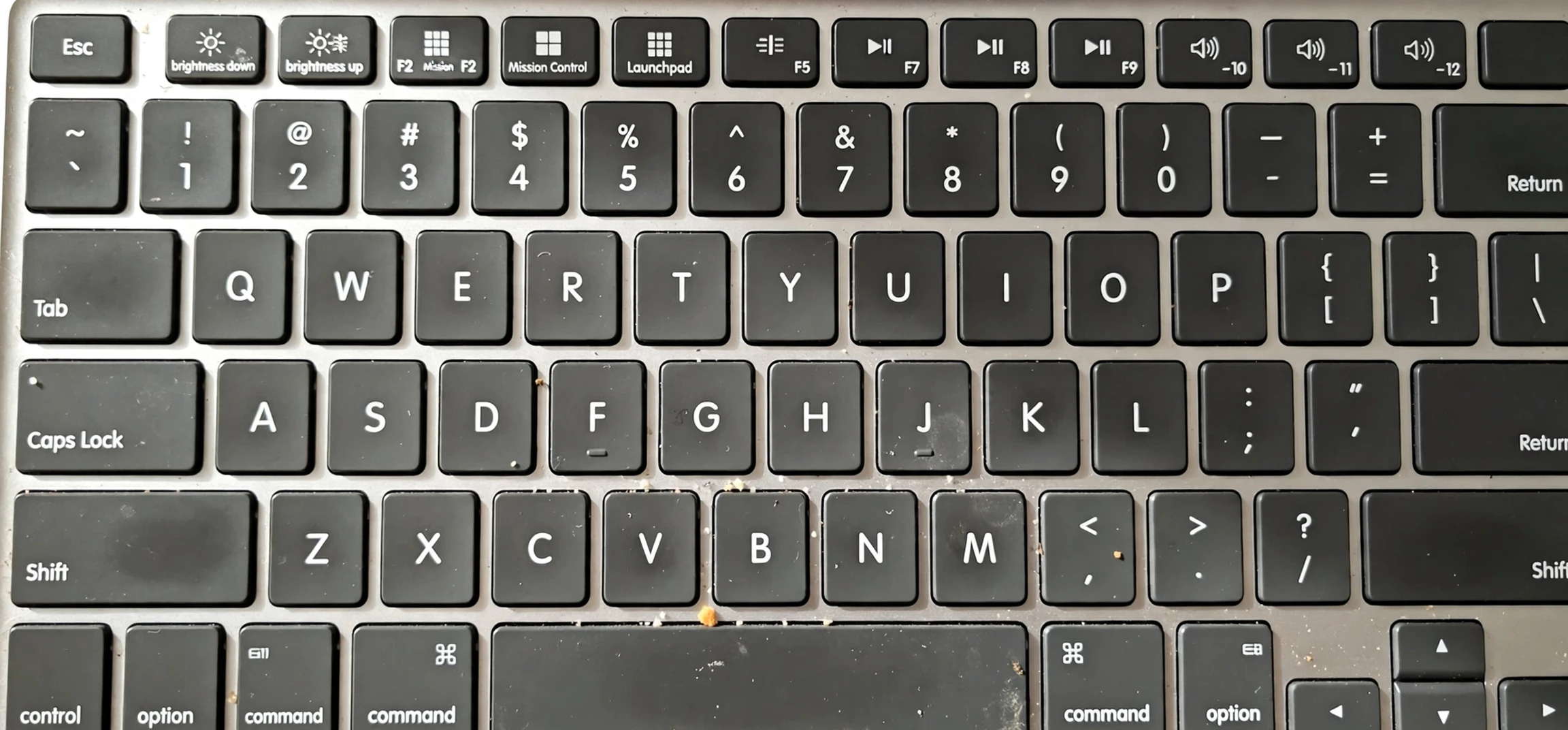
If you are looking for the keystroke for strikethrough, the short answer depends on the app you are using, because there is no single universal shortcut that works everywhere. In many programs, strikethrough has no default keyboard shortcut at all, so you either use a menu command, a formatting toolbar button, or a custom shortcut you set yourself. In other programs, a simple combination does the job instantly. This guide gives you the keystroke for strikethrough in the most common apps, on Windows and Mac, explains what to do when no shortcut exists, and shows you how to create your own shortcut so you can strike through text without reaching for the mouse.
Strikethrough is the formatting that draws a horizontal line through the middle of text, like this in spirit: a word with a line through it. Writers use it to show deleted or superseded text, to mark completed items in a list, to show a price reduction, or to indicate a correction while keeping the original words visible. It is different from underlining, which draws a line below the text, and from highlighting, which colours the background. Because it is used less often than bold or italic, many apps do not give it a prominent default shortcut, which is why so many people search for one.
This guide covers Microsoft Word, Google Docs, and other common tools, with separate steps for Windows and Mac where they differ. It also covers workarounds for apps with no built-in shortcut, and it explains how to check whether a shortcut is already assigned on your own device before you assume it is missing. All steps here are for your own documents on your own device, using standard app menus and settings.
Keystroke for Strikethrough in Microsoft Word
In Microsoft Word, there is no single default keystroke for strikethrough that works out of the box in all versions in the same way as Ctrl plus B for bold or Ctrl plus I for italic. That surprises many users, because strikethrough feels like a basic formatting option. In Word, the standard route is to select the text, then open the Font dialog or use the strikethrough button on the Home tab, if it is visible. The Font dialog shortcut is Ctrl plus D on Windows, or Command plus D on Mac, which opens a panel where you can tick the Strikethrough box and confirm. That is not a direct strikethrough shortcut, but it is the fastest keyboard-only route without customisation.
To use the Font dialog route on Windows, select the text you want to strike through, press Ctrl plus D, use the keyboard to move to the Strikethrough checkbox, tick it, and press Enter. On a Mac, select the text, press Command plus D, and follow the same steps in the Font panel. If you need to remove strikethrough, repeat the process and untick the box. This method is reliable across Word versions, and it works even if the toolbar button is hidden or if you are using a version where the ribbon layout differs.
Many Word users prefer to create a custom keystroke for strikethrough, and Word makes that possible. On Windows, you can open the Customize Keyboard options from the Word settings, find the strikethrough command, and assign a combination that is not already in use, such as Alt plus Shift plus 5, which is a combination some other apps use for strikethrough. On a Mac, you can also assign a shortcut through the system keyboard settings for a specific app, or through Word’s own customisation options where available. Once assigned, that shortcut will work consistently in your documents, and it is worth writing it down until it becomes muscle memory. Always check that your chosen combination does not conflict with an existing shortcut you rely on, such as a system shortcut or a shortcut for another formatting command.
Word Toolbar and Ribbon Method
If you prefer the mouse, or if you are setting up Word for someone else, the toolbar method is straightforward. Select the text, go to the Home tab, and look in the Font group for the strikethrough button, which shows the letters “abc” with a line through them. Clicking it applies strikethrough to the selection, and clicking it again removes it. If the button is not visible, you can add it to the ribbon or to the Quick Access Toolbar through Word’s customisation settings. That one-time setup makes strikethrough a single click in future, even if you never assign a keyboard shortcut.
Keystroke for Strikethrough in Google Docs
Google Docs is one of the friendliest apps for strikethrough, because it does provide a direct keystroke for strikethrough. On Windows and ChromeOS, the shortcut is Alt plus Shift plus 5. On a Mac, the shortcut is Option plus Shift plus 5. Select the text first, then press the combination, and a line will appear through the selected text. Press the same combination again on the same selection to remove it. This shortcut is consistent, easy to remember, and widely documented in Google’s own help pages.
If Alt plus Shift plus 5 does not work on your device, check a few common causes before assuming the shortcut is broken. First, make sure text is actually selected; the shortcut applies to the selection, and with no selection it may appear to do nothing. Second, check whether your keyboard layout or language setting changes the position of the number 5 key or the behaviour of Alt and Shift. Third, check whether another app, browser extension, or system utility has claimed the same combination. If a conflict exists, you can use the Format menu instead: select the text, open Format, go to Text, and choose Strikethrough. That menu route always works, even when the shortcut is intercepted elsewhere.
Google Docs also lets you see all its shortcuts in one place. Press Ctrl plus forward slash on Windows, or Command plus forward slash on Mac, to open the keyboard shortcuts panel, then search for strikethrough. That panel is useful not only for confirming the shortcut but also for discovering other formatting shortcuts you may not know, such as shortcuts for headings, lists, and text alignment. Learning a small set of shortcuts, rather than trying to memorise all of them, is usually the most practical approach.
Keystroke for Strikethrough in Other Common Apps
Beyond Word and Google Docs, the keystroke for strikethrough varies widely, and in many apps there is no default at all. In Google Sheets, for example, strikethrough is a cell formatting option rather than a text shortcut in the usual sense, and the menu route is the reliable path. In many note-taking apps, strikethrough is applied through markdown syntax, by typing two tildes before and after the text, rather than through a keystroke. In presentation apps, the formatting panel or toolbar is often the primary route, with custom shortcuts available through the app’s settings where supported.
On a Mac, many apps that use the standard macOS text system share similar formatting menus, and you can often assign a custom shortcut through System Settings, under Keyboard, then Keyboard Shortcuts, then App Shortcuts. There, you can add an entry for a specific app, type the exact menu name “Strikethrough”, and assign a combination of your choice. That system-level customisation is powerful, because it works across any app that exposes strikethrough in its menus with that exact name. The key is to type the menu name exactly as it appears, including capitalisation, or the shortcut will not be recognised.
On Windows, custom shortcuts are more app-specific. Some apps allow you to assign shortcuts in their settings, while others do not. If your app does not offer custom shortcuts, the practical alternatives are the toolbar button, the format menu, or, in some cases, the ribbon customisation that lets you add strikethrough to a prominent position. A toolbar button that is always visible can be nearly as fast as a shortcut, especially if you use strikethrough only occasionally.
| App | Windows shortcut | Mac shortcut | Notes |
|---|---|---|---|
| Google Docs | Alt plus Shift plus 5 | Option plus Shift plus 5 | Direct shortcut, widely supported |
| Microsoft Word | No direct default; Ctrl plus D opens Font dialog | No direct default; Command plus D opens Font panel | Custom shortcut can be assigned |
| Google Sheets | Menu: Format, then Text, then Strikethrough | Menu: Format, then Text, then Strikethrough | Cell formatting, not a text shortcut |
| Many note apps | Two tildes before and after text | Two tildes before and after text | Markdown style, varies by app |
| macOS text apps | Not applicable | Custom shortcut via System Settings | Menu name must match exactly |
How to Create Your Own Keystroke for Strikethrough
Creating your own shortcut is the best long-term solution if you use strikethrough often and your app has no default. The steps differ by app and operating system, but the principle is the same: find the strikethrough command in the app’s customisation settings, choose a combination that is free, assign it, and test it on a sample selection. A good custom shortcut is easy to press with one hand or with a simple two-hand combination, memorable, and not already used for a common command such as copy, paste, undo, or save.
Before assigning a new shortcut, test whether your preferred combination is already taken. Press it in the app with no text selected and see whether anything happens, or check the app’s shortcut list. If it is taken, choose another combination. Common candidates that are often free include Alt plus Shift plus 5 on Windows, where it is not already claimed, or a combination involving Ctrl, Shift, and a letter that is not used for bold, italic, or underline. Avoid combinations that your operating system reserves for system functions, such as switching windows or opening system menus, because those will not reach the app.
After assigning a shortcut, test it in three situations: applying strikethrough to a selection, removing strikethrough from the same selection, and applying it to a selection that spans multiple paragraphs or includes punctuation. If it works in all three, you have a reliable shortcut. If it fails in one case, check whether the app treats multi-paragraph selections differently, or whether the shortcut is being intercepted by another program running in the background. Document your custom shortcut in a note, especially if you work on more than one computer, because custom shortcuts do not always transfer automatically between devices.
Troubleshooting When Strikethrough Does Not Work
If a shortcut that should work does nothing, work through a simple checklist. First, confirm that text is selected and that the app window is active, not a dialog box or a different program. Second, try the menu route to confirm that strikethrough itself works in the document; if the menu route also fails, the issue may be document permissions, a read-only file, or a protected view. Third, check your keyboard: a stuck modifier key, a different keyboard layout, or a laptop function-key setting can change what combination is actually sent. Fourth, close or disable browser extensions, utilities, or other apps that might claim the same shortcut, then try again.
Another common issue is applying strikethrough to a heading style or a table cell where formatting behaves differently. In some apps, strikethrough applied to a whole paragraph can look different from strikethrough applied to a few words, and in tables it may require selecting the cell contents rather than the cell itself. If the line appears but looks faint or broken, check the font size and colour: strikethrough in a very light colour or a very small font can be hard to see, even though it is technically applied. Increasing the font size temporarily can confirm whether the formatting is present.
When to Use Strikethrough, and When Not To
Strikethrough is most useful when you want to show change while preserving history. In a draft, it shows what was removed without deleting it, so collaborators can see the edit. In a to-do list, it marks completed items while keeping them visible for reference. In a price list, it shows an old price next to a new one, making a reduction clear. In each case, the value lies in visibility: the reader can see both the old and the new, and understand what changed.
Strikethrough is less useful in final, published documents, where deleted text can confuse readers or look unprofessional. In a final report, a published article, or a formal letter, it is usually better to delete the unwanted text cleanly and present only the final version. Strikethrough is a drafting and revision tool first, and a presentation tool second. The exception is deliberate stylistic use, such as showing a corrected price or a playful correction in informal writing, where the visible change is part of the message.
Accessibility is another consideration. Some screen readers announce strikethrough, while others do not, so a reader using assistive technology may miss the meaning if strikethrough is the only signal. When the change matters, pair strikethrough with a clear word, such as “removed”, “replaced by”, or “completed”, so the meaning survives even if the formatting is not conveyed. That practice makes your documents clearer for everyone, not only for assistive technology users.
Frequently Asked Questions About Strikethrough Shortcuts
What is the keystroke for strikethrough in Google Docs?
In Google Docs, the keystroke for strikethrough is Alt plus Shift plus 5 on Windows and ChromeOS, and Option plus Shift plus 5 on a Mac, applied to selected text.
Does Microsoft Word have a strikethrough shortcut?
Word has no single default direct shortcut in the way Google Docs does. Use Ctrl plus D on Windows or Command plus D on Mac to open the Font dialog and tick Strikethrough, or assign a custom shortcut through Word’s customisation settings.
How do I remove strikethrough?
Select the struck-through text and press the same shortcut again, or use the same menu or toolbar button to toggle it off. In Word’s Font dialog, untick the Strikethrough box.
Can I apply strikethrough on a phone or tablet?
Yes, through the formatting menu in most mobile document apps, though the exact steps vary by app. Look for the text formatting options, often under a formatting icon, and choose strikethrough from the list. Keyboard shortcuts require an external keyboard.
Conclusion: Pick the Shortcut That Fits Your App
The keystroke for strikethrough is not one universal combination, but a small set of app-specific answers: Alt plus Shift plus 5 in Google Docs, the Font dialog route or a custom shortcut in Word, and menu or markdown routes elsewhere. Once you know which answer fits the app you use most, strikethrough becomes a quick, reliable tool for showing edits, marking completed items, and making changes visible without deleting history. If you use strikethrough often, take a few minutes to assign a custom shortcut in your main app; that one-time setup will save you many mouse trips in the future.
Remember the core habit: select first, then apply. Whether you press a shortcut, click a toolbar button, or use a menu, the selection is what the formatting acts on. With that habit and the shortcuts in this guide, you can strike through text confidently on any device you use. For related formatting help, see keyboard shortcuts for highlighting text and how to move a text box in Canva.



