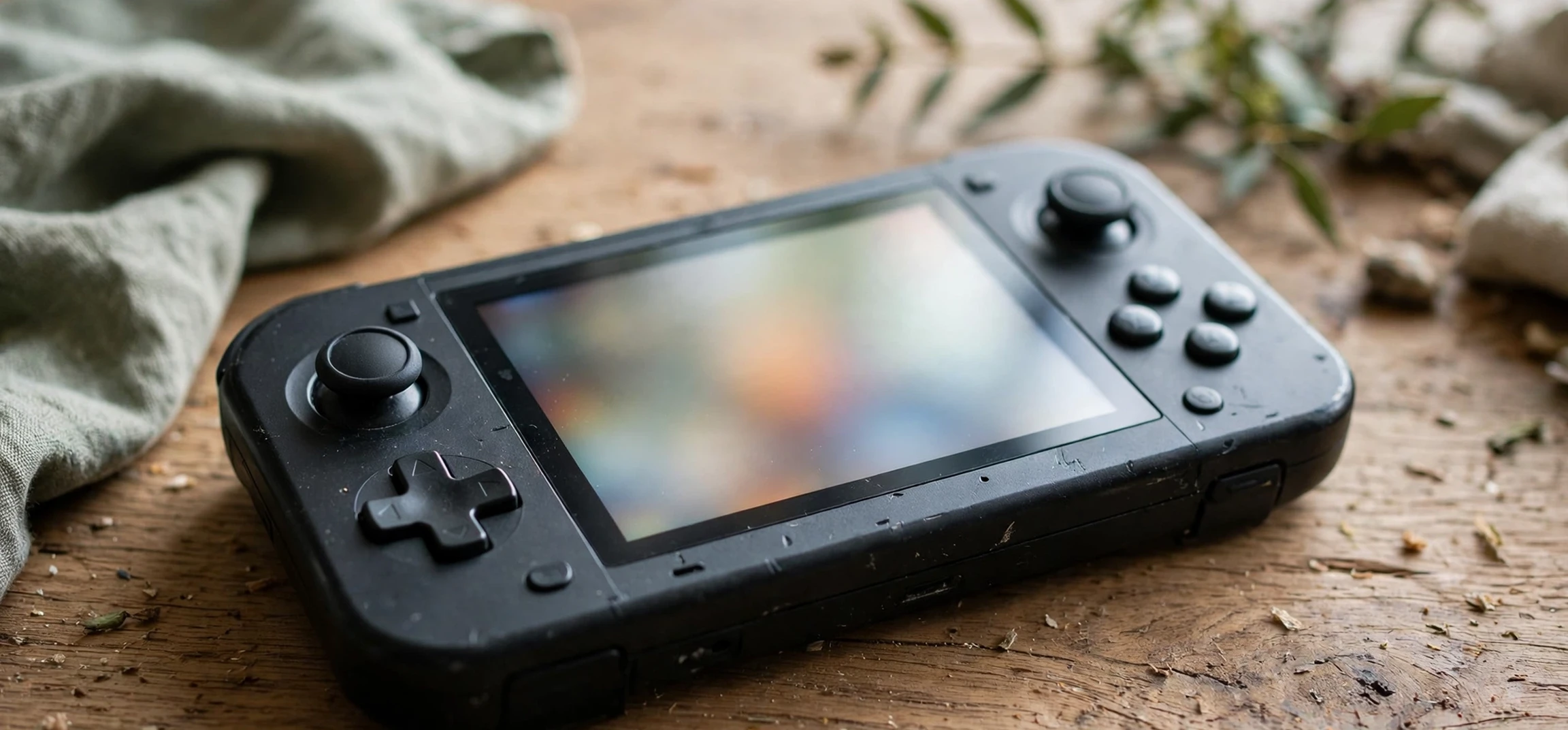
Learning how to find nintendo switch mac address details for your own console is a simple task once you know where to look, and this guide walks you through it step by step. A MAC address is a unique hardware identifier built into your console’s wireless or wired network adapter, and it is sometimes needed when you set up your own home network, for example when your router uses a list of allowed devices. This guide covers only your own device and your own account. It gives no instructions for obtaining another person’s device address or network data, and it explains how to keep your own address private once you have found it.
Before you start, it helps to know what you are looking for. A MAC address is usually shown as six pairs of characters separated by colons or hyphens, such as AA:BB:CC:DD:EE:FF in form, though your own console will show its own unique combination. It is different from an IP address, which can change as your console connects to different networks. The MAC address stays with the hardware, which is why routers and network tools use it to recognise a device. Your Nintendo Switch may show a wireless MAC address and, when a wired adapter is used, a wired MAC address as well, so check which one your router or network setting is asking for.
How to Find Nintendo Switch MAC Address on Your Own Console
To find your own console’s MAC address, start from the HOME menu of your Nintendo Switch. Select System Settings, which is the gear-shaped icon, and scroll down to the Internet section. Inside the Internet settings, look for the entry that displays the console’s MAC address. On current system software, the address is shown within the Internet settings area, and you may need to scroll within that section to see it. Menu layouts can vary slightly between system software versions, so if the entry is not immediately visible, look carefully through the Internet section rather than guessing at other menus.
Once you can see the address, write it down carefully, exactly as shown, including every character and separator. A single mistyped character will cause a router or network tool to fail to recognise your console, which is the most common reason these setups do not work first time. If your router asks for the address without separators, or with hyphens instead of colons, adjust only the separators, never the characters themselves. If you are unsure which format your router wants, check its own help screens or manual, since different routers present the same address in different ways.
There is also a second way to confirm the address on your own console. If your Switch is connected to your own home network, your router’s own device list, viewed after signing in to your own router, will usually show connected devices, and your console should appear there with its name and MAC address. This is useful as a cross-check, but only use your own router and your own network for this. Never use someone else’s router, account, or network to look up device information, and never attempt to identify devices on a network you do not own or manage.
Wireless and wired MAC addresses: which one do you need?
Most Switch owners need the wireless MAC address, since the console normally connects over Wi-Fi. If you use a wired LAN adapter with a docked console, the wired adapter has its own MAC address, which is different from the wireless one. A router that filters by MAC address will only recognise the address for the connection type you actually use, so a wireless address will not authorise a wired connection, and vice versa. Check which connection your console is using before entering anything into your router, and if you switch between wired and wireless play, note both addresses for your own records.
If your menu looks different
System software changes over time, and Nintendo may move or rename settings between versions. If your Internet settings screen does not match the description above, first update your console’s system software through its normal update route, then look again. You can also check the official Nintendo support site for the current layout for your console model and software version. Do not download tools, apps, or files from unofficial sources that claim to reveal your console’s address; the built-in settings are the safe and reliable route, and unofficial tools can put your console and account at risk.
How to Find Nintendo Switch MAC Address for Your Own Router Setup
Many people look up their console’s MAC address because their own router uses MAC filtering, a feature that only allows listed devices to connect. If that is your situation, the steps are straightforward. First, find the address on your console using the method above. Second, sign in to your own router’s settings using your own administrator credentials. Third, find the allowed-devices or MAC filtering section and add your console’s address exactly as shown. Finally, save the change and reconnect your console to your network to confirm it works.
If the console still does not connect after adding the address, work through the simple checks before changing anything else. Confirm that you entered the wireless address for a wireless connection, or the wired address for a wired connection. Confirm that every character is correct, since a single error is the most common cause of failure. Confirm that the router saved the change and that filtering is applied to the right network, since some routers have separate settings for different bands or guest networks. Restarting your console and router, in that order, can also help the new setting take effect.
Keep in mind that MAC filtering is only one layer of home network security, and it is not a substitute for a strong Wi-Fi password and up-to-date router software. It is most useful in households that want an extra check on which devices can join, or where a school, workplace, or shared housing network asks residents to register their own devices. If you are registering a device on a network run by someone else, such as a university or employer, register only your own console through their official process, and follow their instructions for what information they need.
Keeping Your Nintendo Switch MAC Address Private
Your MAC address identifies your hardware, so treat it like other device details: useful for your own network setup, but not something to share publicly. Avoid posting it in forums, screenshots, or social media, and avoid sending it to anyone who does not need it for your own network setup. Screenshots of settings screens are a common accidental leak, so crop or cover the address before sharing any image of your console’s settings. If you ever suspect your address has been shared more widely than intended, remember that it is mainly useful on your own local network, but caution is still sensible.
The same privacy principle applies in reverse, and it is worth stating clearly. Do not attempt to obtain, guess, or use another person’s device address or network data, whether that person is a stranger, a neighbour, or someone whose network you can see from your home. Accessing a network or device without permission can breach the network owner’s rights and may break the law where you live. This guide is written for your own console, your own account, and your own network only, and any network task beyond that should be left to the network’s owner or to a qualified professional with proper authorisation.
| Item | What it is | Where to find it on your own console |
|---|---|---|
| Wireless MAC address | Identifier for Wi-Fi adapter | System Settings, Internet section |
| Wired MAC address | Identifier for LAN adapter | Shown when a wired adapter is in use |
| IP address | Network address, can change | Internet settings, connection details |
| Console nickname | Name you gave your console | System Settings, System section |
For related how-to guides on your own devices, see how to find a MAC address on an iPad, which follows the same own-device principle, how to turn on Wi-Fi on an LG smart TV for another home device setup, and network operating system meaning for background on how home networks are organised.
Frequently Asked Questions About the Nintendo Switch MAC Address
What is a Nintendo Switch MAC address?
It is a unique hardware identifier for your console’s network adapter, shown as six pairs of characters. It is different from an IP address, which can change between networks.
Where do I find it on my own console?
From the HOME menu, open System Settings, go to the Internet section, and look for the entry that displays the console’s MAC address. Layouts can vary slightly by system software version.
Is the wired MAC address the same as the wireless one?
No. A wired LAN adapter has its own MAC address, different from the wireless adapter’s address. Use the one that matches how your console connects.
Should I share my MAC address online?
No. Keep it private and avoid posting it in screenshots or forums. Share it only where your own network setup genuinely requires it, such as your own router settings.
Can I look up someone else’s console address?
No. This guide covers your own device only. Do not attempt to obtain another person’s device address or network data.
Conclusion
Finding your Nintendo Switch MAC address is a quick job once you know the route: HOME menu, System Settings, Internet section, and the displayed address for your own console. Write it down exactly, use the wireless or wired address that matches your connection, and keep it private once you have it. Used on your own network, the address is a handy tool for router setup and device registration. Used responsibly, and only ever for your own device, it keeps your home network organised without crossing into anyone else’s privacy.



