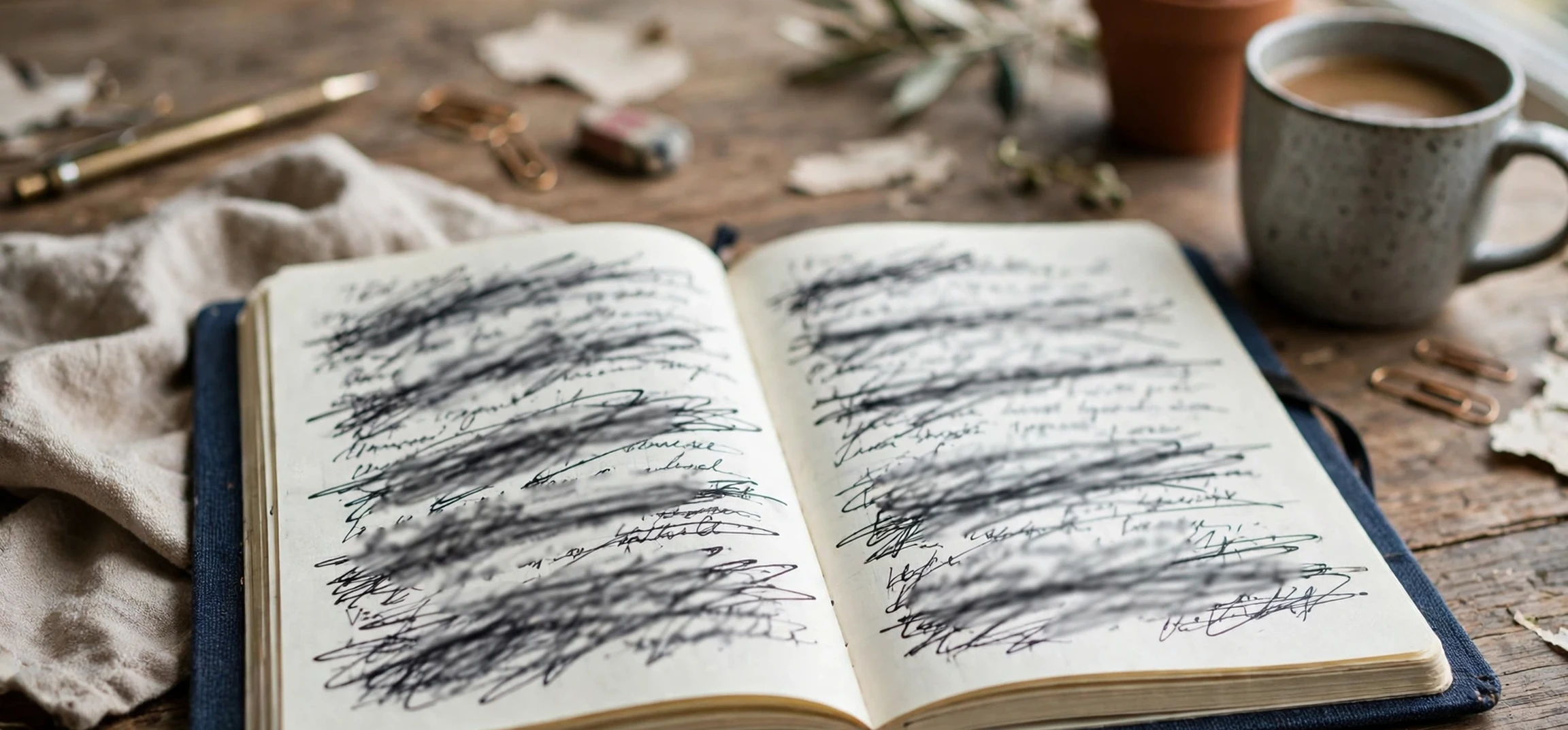
If you need to scratch text out of a document, the tool you want is usually called strikethrough, and learning to use it well will save you from messy, confusing edits. The phrase ‘scratch text’ describes exactly what many people do when they revise on paper: they draw a line through words they no longer want, so the original remains visible while the change is clear. In digital documents, scratch text works the same way, with an important advantage: you can apply it precisely, remove it cleanly, and combine it with comments, tracked changes, and version history. This guide explains how to scratch text in word processors and note apps, when strikethrough is the right choice, and when a different method — such as deletion, commenting, or proper redaction — is safer for your own documents.
Strikethrough is one of the most misunderstood formatting tools. Beginners often treat it as decoration, or they confuse it with deleting text, underlining, or highlighting. In fact, scratch text has a specific job in editing: it shows that words have been removed or superseded, while keeping them readable for review. That visibility is valuable during drafting, collaboration, and proofreading, because reviewers can see what changed and why. It is less suitable for a final document, where crossed-out words can look unfinished, and it is never a substitute for redaction when sensitive information must truly be removed. Understanding that distinction is the key to using scratch text professionally.
What ‘scratch text’ Means in Document Editing
In editing language, to scratch text means to mark words as removed without deleting them outright. On paper, that means a horizontal line through the words. On screen, strikethrough formatting draws the same line, usually through the middle of each character. The original words remain legible underneath the line, which is the whole point: a reader can compare the old version with the new one, a collaborator can approve or reject the change, and an author can reconsider a deletion before committing to it. Scratch text is therefore a drafting and review tool, not a publishing format.
It helps to distinguish scratch text from several lookalikes. Deletion removes words entirely, so there is nothing to review unless you use tracked changes or version history. Highlighting draws attention to words without suggesting they should go. Underlining adds emphasis or, in some contexts, indicates a link. Commenting adds a note beside the text without changing the text itself. Each tool has its place, and experienced editors often combine them: they scratch text to propose a deletion, add a comment explaining the reason, and let a colleague accept or reject the change. Used on its own, scratch text can be ambiguous — a reader may wonder whether the crossed-out words are a joke, a mistake, or a deliberate edit — so a brief comment often improves clarity.
Scratch text also appears in everyday writing beyond formal editing. Shopping lists, to-do lists, and study notes often use strikethrough to mark completed items, which gives a satisfying visual record of progress. Price lists use it to show a previous price beside a new one. Writers use it in drafts to preserve a sentence they might want to restore later. In each case, the principle is the same: the line signals a change of status while preserving the original for reference. That versatility explains why almost every word processor and note app includes a strikethrough option, even if it is sometimes hidden in a menu.
Why ‘scratch text’ Is Useful for Your Own Documents
The first benefit of scratch text is reversibility. When you delete a paragraph, recovering it depends on undo history or a saved version, both of which can be lost. When you scratch text instead, the words stay in the document until you decide to remove them permanently. That safety net encourages bolder editing: you can try cutting a section, live with the shorter version for a day, and restore the original if the cut weakens the argument. Many writers find that their drafts improve when deletion feels less final.
The second benefit is transparency in collaboration. If you send a colleague a document with deletions already applied and no record of what was removed, they cannot judge whether the cuts were wise. If you send the same document with scratch text visible, they can see exactly what you propose to remove and discuss it. That transparency reduces misunderstandings and speeds up approval, especially when several people are editing the same document. It also creates a useful record: months later, you can still see what was considered and rejected, which can prevent the same debate from recurring.
The third benefit is clarity during revision. A draft full of additions, deletions, and rearrangements can be hard to read, but scratch text gives deletions a consistent visual language. Readers learn quickly that crossed-out words are outgoing, while unmarked words are staying. That consistency matters in long documents, where a reviewer may be working through dozens of pages. Combined with a clear heading structure and short paragraphs, scratch text helps a reviewer focus on substance rather than hunting for changes.
How to ‘scratch text’ in Word Processors
In Microsoft Word, the simplest route is to select the words you want to scratch out, then use the strikethrough button on the Home ribbon, in the Font group. If the button is not visible, the Font dialogue box offers the same option, along with double strikethrough, which draws two lines instead of one. The keyboard shortcut is also worth learning: on Windows, select the text and press Alt, H, then 4 in sequence for the ribbon shortcut, or use the Font dialogue for a more reliable route. On a Mac, the shortcut is Command plus Shift plus X in many versions. Once applied, strikethrough can be removed by selecting the same text and applying the command again, which toggles the formatting off.
In Google Docs, select the text, open the Format menu, choose Text, and then choose Strikethrough. The keyboard shortcut is Alt plus Shift plus 5 on Windows and ChromeOS, and Command plus Shift plus X on a Mac. Google Docs also supports suggested edits, which is a more powerful collaboration mode: when suggesting mode is on, deletions appear as struck-through text automatically, and the document owner can accept or reject each suggestion. For shared documents, suggested edits are usually better than manual scratch text, because they record who made each change and when, and they can be resolved one by one.
In Apple Pages, select the text, open the Format sidebar or the Format menu, and choose Strikethrough under Font. In LibreOffice Writer, select the text and use Format, then Text, then Strikethrough, or use the toolbar button if it is enabled. The exact menu names vary slightly between versions, but the pattern is consistent: select first, then apply the character formatting. If you apply strikethrough and nothing appears to happen, check that you actually selected the words — applying formatting with no selection changes only the formatting of newly typed text, which is a common source of confusion.
Scratch Text on Mobile and in Note Apps
Mobile word processors usually hide strikethrough behind a formatting menu. In the Google Docs app, select text, tap the formatting icon, and look under Text for the strikethrough option. In Microsoft Word for mobile, select text, open the formatting bar, and tap the strikethrough button, which may be grouped with bold, italic, and underline. In note apps, the method depends on the app’s design. Apple Notes offers strikethrough through its formatting menu on Mac and through the text-style controls on iOS. Microsoft OneNote includes a strikethrough button on its Home ribbon. Notion users can apply strikethrough with a keyboard shortcut or by selecting text and choosing it from the formatting menu. Markdown-based apps use double tildes around words, like this: two tilde characters before and after the text produce a struck-through effect when the note is rendered.
Double Strikethrough and Other Variations
Double strikethrough draws two parallel lines through text. Some writers use it to distinguish a second round of deletions from a first, or to mark text that has been deleted and then reconsidered. It is less widely supported than single strikethrough, and it can look cluttered on screen, so it is best reserved for situations where the distinction genuinely helps. Other variations include red strikethrough, where the line is coloured to stand out, and strikethrough combined with a different text colour, where deleted words are shown in grey or red. Colour can improve readability in a review copy, but it should be removed before a document is finalised, since coloured crossed-out text looks unprofessional in a published document.
When ‘scratch text’ Is Not Enough: Redaction
There is one situation where scratch text must never be used: when information must be genuinely hidden. Strikethrough does not remove text. Anyone who receives the file can remove the formatting, copy the words underneath, or read them in the document’s underlying data. If you need to share a document but hide a name, an address, a financial figure, or any other sensitive detail, you need proper redaction, not scratch text. That distinction protects both you and the people named in the document.
Proper redaction depends on the file type. In a PDF, use a dedicated redaction tool that removes the text and any hidden layer underneath it, then verify the result by copying text from the redacted area and by searching the document for the hidden words. Simply drawing a black rectangle over text in a PDF editor is not redaction, because the text underneath can often still be selected and copied. In a word-processor document, the safe route is to delete the sensitive words entirely, save a separate copy for sharing, and check that tracked changes, comments, and version history do not still contain the original wording. When in doubt, create a clean copy from scratch for external sharing, rather than trying to clean a working draft.
The same caution applies to screenshots and printed pages. A photograph of a document with words crossed out by hand may still be legible if the image is enlarged, and a scanned page with a marker pen over text can sometimes be read through the ink. For genuinely sensitive material, use a redaction process designed for that purpose, test the result, and keep the unredacted original in a secure location with restricted access. Scratch text is for editing your own drafts; redaction is for protecting information you share.
| Method | What it does | Best for | Never use for |
|---|---|---|---|
| Scratch text (strikethrough) | Marks words as removed, keeps them readable | Drafts, reviews, proposed deletions | Hiding sensitive information |
| Deletion | Removes words entirely | Finalising a document | Review where changes must be visible |
| Tracked changes / suggestions | Records edits with author and date | Collaboration and approval | Sharing a clean final copy |
| Comment | Adds a note without changing text | Explaining a proposed edit | Replacing the edit itself |
| Proper redaction | Permanently removes hidden content | Sharing documents with sensitive details removed | Drafting or reversible editing |
A Practical Workflow for ‘strikethrough formatting’ Editing
A reliable workflow starts with a copy. Before making major revisions, save the document under a new name or duplicate it in your cloud drive, so the original remains intact. Then work through the document section by section, scratching text you propose to remove and adding brief comments where the reason might not be obvious. Avoid scratching out large blocks without explanation: a reviewer who encounters three crossed-out pages with no comment will struggle to approve the change confidently. Short, specific comments — “repeats the point made above” or “outdated figure, to be replaced” — make approval much faster.
Next, share the marked-up version for review, ideally using tracked changes or suggestions if your app supports them, so each deletion can be accepted or rejected individually. When feedback returns, accept the deletions you agree with, which removes the struck-through words permanently, and restore any strikethrough formatting you decide to keep, by removing the strikethrough formatting. Finally, run a clean-up pass: search for any remaining strikethrough formatting, check that headings, tables, and lists still read sensibly after deletions, and proofread the document as a whole. A document that has been heavily edited often contains leftover transition words, duplicated phrases, or references to removed sections, and only a full read-through catches those.
For longer projects, version discipline helps. Name versions clearly, with dates, and keep a brief change note at the top of a working draft or in a separate log. That habit prevents the familiar confusion of multiple files named “final”, “final2”, and “final really final”. When a document is ready to publish or share externally, export a clean copy and check it separately from the working draft. Related guides on this site include converting a table to text in Word, how words are counted in documents, and four writing tips from a published author.
Frequently Asked Questions About ‘strikethrough formatting’
Does strikethrough formatting delete words?
No. strikethrough formatting, or strikethrough, only draws a line through words. They remain in the document and can be restored by removing the formatting. To delete words permanently, accept the change in tracked-changes mode or delete the text and save the document.
Can I strikethrough formatting in a PDF?
Most PDF readers allow you to add a strikethrough annotation, which marks text for review without changing the underlying content. That annotation is a review mark, not an edit, and it is not redaction. For a permanent change, edit the source document and create a new PDF.
Why does my strikethrough not appear?
Usually because no text was selected when the command was applied, or because the formatting was applied to a style that overrides it. Select the exact words first, apply strikethrough again, and check whether a document theme or template is interfering.
Should a final document contain strikethrough formatting?
Generally no. Crossed-out words in a final document look unfinished and can confuse readers. Resolve all proposed deletions before sharing a final version, and keep the marked-up draft as a separate working file if you need the record.
Conclusion
Learning to strikethrough formatting properly is a small skill with an outsized effect on the quality of your editing. Strikethrough lets you propose deletions without losing the original wording, gives collaborators a clear record of what changed, and makes revision feel reversible rather than risky. Used in drafts and reviews, it brings clarity and confidence to the editing process. Used in place of redaction, however, it creates a false sense of security, so keep the two jobs separate: scratch text for editing your own documents, and proper redaction for anything that must truly be hidden. With that distinction in mind, and a tidy workflow of copies, comments, and clean-up passes, scratch text becomes one of the most reliable tools in any writer’s or editor’s kit.