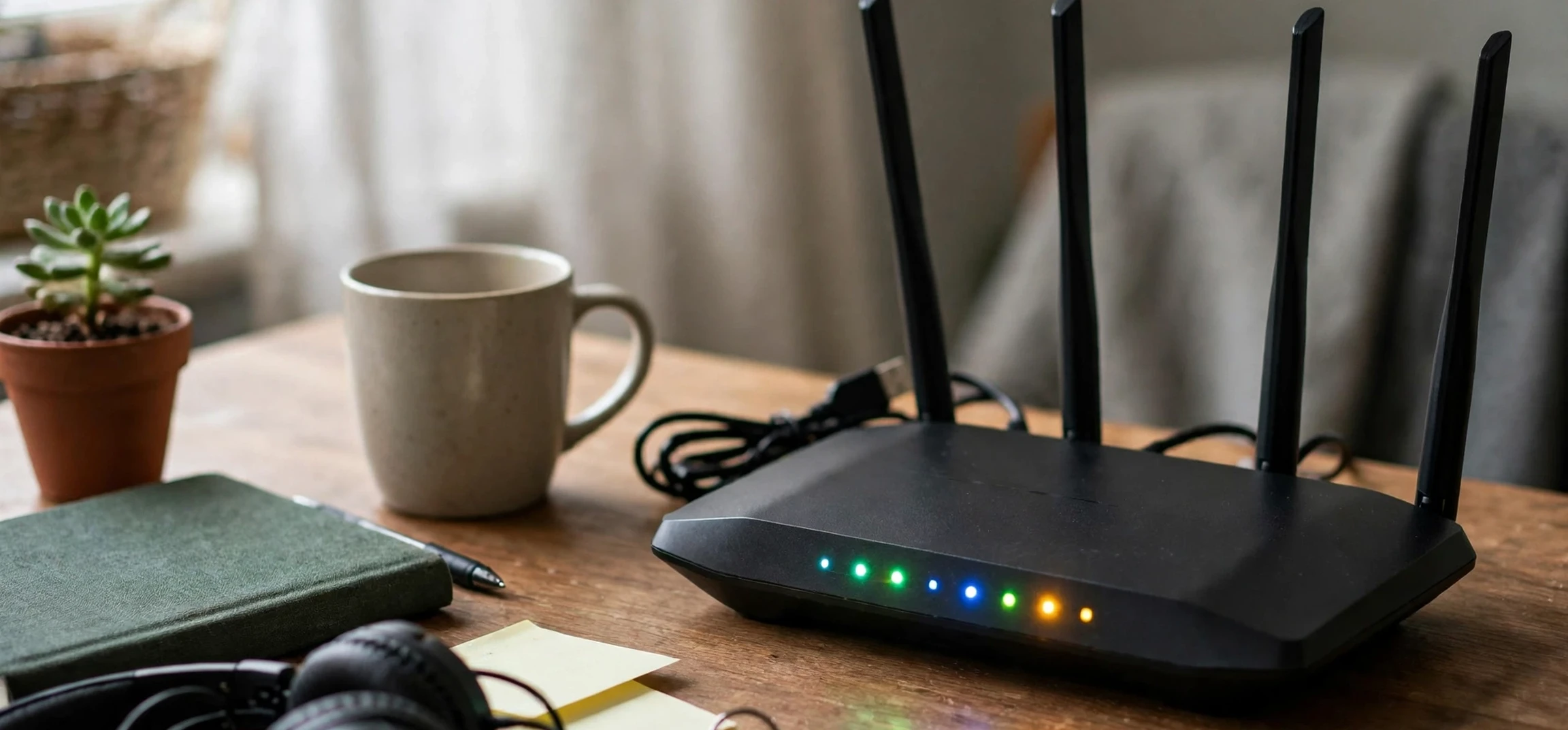
If you have looked through your own router settings and found a section labelled MAC filtering, you may wonder what it does and whether you should turn it on. In plain terms, mac address filtering on router settings is a feature that lets you control which devices are allowed to connect to your home wireless network, based on each device hardware identifier. This guide explains the feature for your own router and your own household devices only, and everything here about mac address filtering on router settings assumes you are managing equipment you own. It does not cover anyone else device or network, and it is not a guide to accessing, changing or bypassing another person network. Used properly on your own equipment, MAC filtering is a small, useful layer of home network organisation, but it is not a complete security solution on its own.
To understand mac address filtering on router controls, start with what a MAC address is. Every network device, such as a phone, laptop, tablet, smart television or games console, has a Media Access Control address, which is a unique hardware identifier assigned by its manufacturer. It is usually shown as six pairs of characters, and it identifies the device network hardware rather than its owner. Your router can read the MAC address of a device when that device tries to join your wireless network, and that reading step is the foundation of mac address filtering on router controls. MAC filtering uses that identifier to decide whether to allow the connection, which makes it different from a Wi-Fi password, which anyone who knows the password can use on any device.
How mac address filtering on router settings works
MAC address filtering on router settings generally works in two modes, and understanding mac address filtering on router modes is the first step before switching anything on. An allow list, sometimes called a whitelist, permits only the devices you have listed, and blocks everything else, even if the device knows your Wi-Fi password. A deny list, sometimes called a blacklist, blocks only the devices you have listed, and allows everything else that knows the password. Most home users who enable the feature choose an allow list, because it gives tighter control, but it also requires more maintenance, which is a practical trade-off of mac address filtering on router allow lists. Every time a friend visits, or you buy a new device, you may need to add that device to the list before it can connect.
The process on your own router usually follows a familiar pattern, although the exact menus differ by brand and model. You sign in to your own router administration page from a device already connected to your home network, find the wireless or security section, and locate the MAC filtering option. You then add the MAC addresses of your household devices, choose allow or deny mode, save the settings, and test each device to confirm it still connects. Keep a note of your own router login details and the list of devices you added, because if you make a mistake, you could lock your own devices out and need to reset the router to recover access. That risk is one reason to change settings carefully and one device at a time.
Benefits of mac address filtering on router controls
The main benefit of mac address filtering on router controls is control over which devices can use your home network, and that control is the main reason people research mac address filtering on router features. If a neighbour guesses or is given your Wi-Fi password, an allow list still prevents their device from connecting, because its MAC address is not on the list. Parents also use the feature to manage household devices, for example by removing a device from the allow list at certain times, although dedicated parental controls and scheduling features are usually better suited to that purpose. For a small household with a stable set of devices, an allow list can be a simple way to keep the network tidy and to spot an unfamiliar device quickly.
MAC filtering can also help you understand your own network better, because setting up mac address filtering on router lists forces you to inventory every household device. When you list every device in your home, you may discover old phones, tablets or smart devices you had forgotten about, or a device that is using bandwidth in the background. That inventory is useful in itself, because it helps you decide which devices still need access and which can be removed. A tidy device list also makes troubleshooting easier: if a device cannot connect, you can check whether its MAC address is on the list before assuming there is a fault with the device or the broadband connection.
| Mode | How it works | Best for |
|---|---|---|
| Allow list | Only listed devices can connect | Small, stable households |
| Deny list | Only listed devices are blocked | Blocking one known device of your own |
| Filtering off | Password alone controls access | Busy homes with frequent guests |
Limitations: why it is not full security
Despite its usefulness, mac address filtering on router settings should not be treated as strong security on its own, and overestimating mac address filtering on router protection is a common mistake. MAC addresses are not secret, and they are transmitted when a device connects to a network, which means a determined person nearby could observe them. It is also technically possible to change, or spoof, a device MAC address, so filtering alone will not stop someone who is deliberately trying to bypass it. For that reason, security experts describe MAC filtering as a layer of organisation and mild deterrence, not as a replacement for a strong Wi-Fi password, modern encryption, and up-to-date router firmware.
The practical limitations matter too. Many modern phones and laptops now use randomised MAC addresses for privacy, changing the identifier they present to different networks or over time. That feature is good for privacy when you join public networks, but it can conflict with a strict allow list at home, causing a trusted device to be blocked unexpectedly. If that happens on your own network, you may need to adjust the device privacy setting for your home network, or add the new address, depending on your device. These frictions are why many households choose to rely on a strong password and guest network instead, and use MAC filtering only when they have a specific reason.
Stronger basics to use alongside filtering
Whatever you decide about filtering, a few basics matter more. Use a long, unique Wi-Fi password that you do not reuse elsewhere, and make sure your router uses modern wireless encryption, such as WPA2 or WPA3, rather than older, weaker standards. Keep your router firmware updated, change the default administration password on your own router, and consider a separate guest network for visitors, so guests do not need your main password at all. Those steps protect your network far more than filtering alone, and they work even when devices change or guests come and go.
Should you enable it on your own router?
Whether you should enable MAC filtering depends on your household, and your answer to mac address filtering on router questions should reflect how often your devices change. It makes most sense if you have a small number of devices that rarely change, you are comfortable managing router settings, and you want an extra layer of control. It makes less sense if you have frequent visitors, many smart home devices, children with changing devices, or limited patience for troubleshooting connection problems. In a busy household, an allow list can quickly become a source of frustration, with family members locked out after a phone update or a new device purchase. In that case, a strong password plus a guest network is usually the simpler and more reliable approach.
If you do enable it, do so methodically, because a careful approach to mac address filtering on router setup prevents locking your own devices out. List your devices first, add them one at a time, and test each one before moving on. Keep a backup of the list, and make sure at least one device that can access the router settings remains allowed, so you can fix mistakes without a full reset. If you ever need to reset your own router, remember that filtering settings will be lost along with other custom settings, and you will need to set them up again. A calm, documented approach turns a potentially fiddly feature into a manageable part of your home network routine.
Finding your own devices addresses safely
Finding a MAC address for your own device is usually straightforward, and the option is found in network settings under a name such as Wi-Fi address, hardware address or physical address, which is the information you need for mac address filtering on router lists. The exact location varies by operating system, but it is generally listed alongside the device IP address and connection details. Only look up addresses for devices you own or manage in your own household, and do not share those addresses publicly, because they identify your hardware. There is no need to memorise them: a written list kept safely at home is enough for router management, and you can update it when a device is replaced.
Be careful not to confuse a MAC address with an IP address. An IP address is assigned by your router and can change, while a MAC address is tied to the hardware and normally stays the same, except where a device uses randomisation for privacy. That distinction is why filtering uses MAC addresses: they are more stable identifiers for a specific piece of hardware. For related network reading, see another name for network, network operating system meaning, and Harry Potter Wi-Fi names for a lighter look at naming your own home network.
Frequently asked questions about MAC filtering
Does MAC filtering replace a Wi-Fi password?
No. You should keep a strong Wi-Fi password even if filtering is enabled, because filtering alone can be bypassed and because the password remains the main barrier for casual connections.
What if I lock my own device out?
Connect a device by cable if your router allows it, or use a device that is still allowed, and remove or correct the entry. As a last resort, resetting your own router restores defaults, but it also removes other custom settings, so keep a note of them.
Can guests still use my Wi-Fi with filtering on?
Yes, if you add their device to the allow list, or if you provide a separate guest network. A guest network is often the easier option for visitors, because it avoids changing your main allow list.
Conclusion: a useful layer, not a lock
MAC address filtering on router settings is best understood as a helpful organisational layer for your own home network, not as a security lock in its own right. It gives you control over which devices can connect, helps you keep an inventory of your household equipment, and can deter casual use by someone who happens to know your password. Its limits, including randomised addresses, maintenance effort and the possibility of spoofing, mean it should sit alongside a strong password, modern encryption, updated firmware and a guest network for visitors. Used with those basics, and only on your own router and devices, it can be a sensible part of a tidy, well-managed home network.