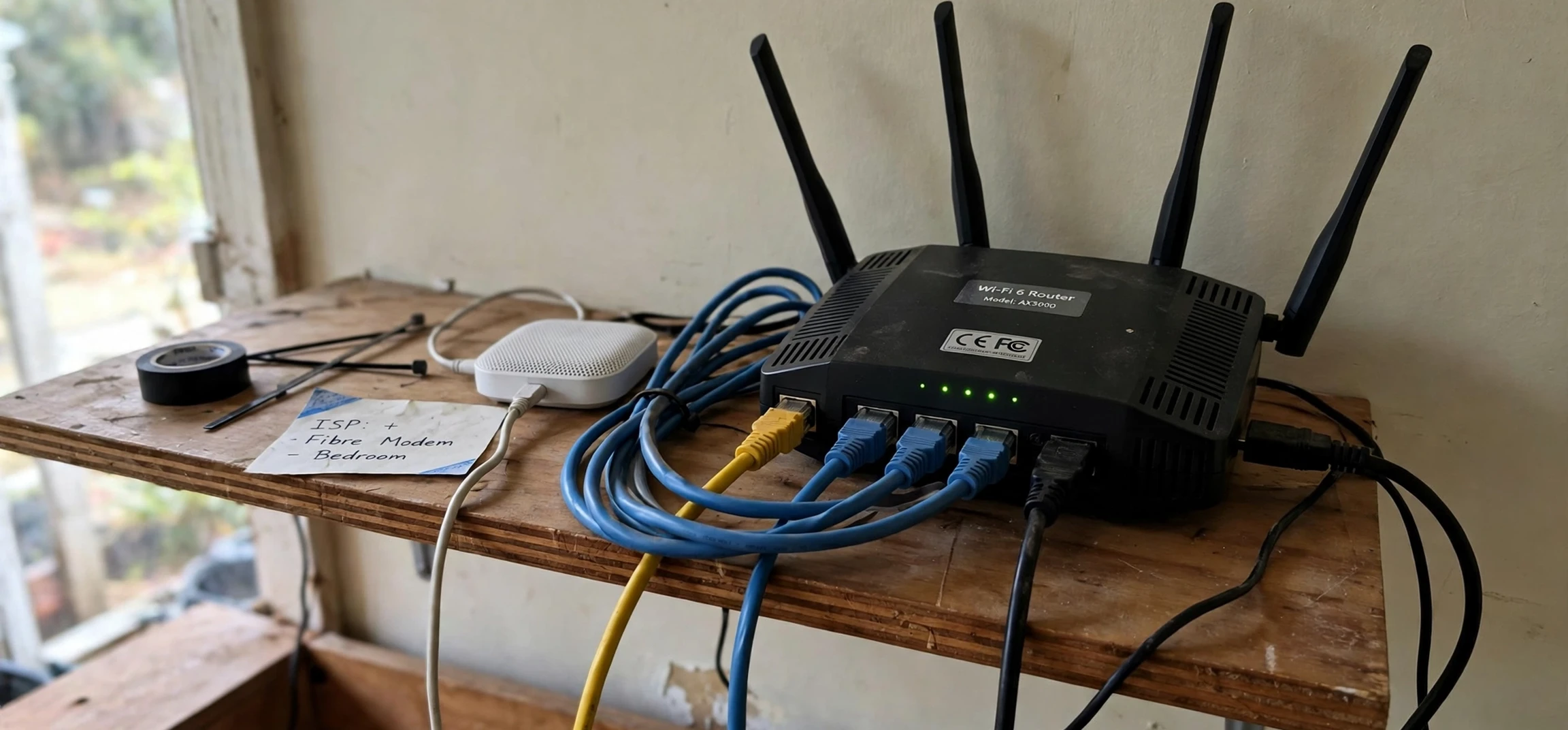
Understanding a router and ip address setup is one of the most useful skills for anyone who runs a home network, because the router is the device that connects everything in your home to the internet, and the addresses it uses decide how traffic finds each device. When people ask about a router and ip address, they are usually asking two related questions at once: what is the address of the router itself on the local network, and what is the public address that the rest of the internet sees. This guide explains both ideas in plain language, using only your own equipment and your own network, so you can check settings, fix a connection problem, or set up a new device with confidence.
Your router sits between your home devices and your internet provider. Each phone, laptop, television, and smart speaker on your network gets a local address from the router, while the router itself presents a single public address to the wider internet. Knowing which address you are looking at matters, because the two types of address serve different purposes and are found in different places. A local address is useful inside your home, for example when you open the router settings page, while a public address is what websites and online services see when your household connects.
Router and IP Address Basics Explained Simply
A router and ip address relationship starts with a simple idea: every device on a network needs a label so data can be delivered to the right place. Think of your local network like a small apartment building. The building has one street address that outsiders use, and each apartment has its own number for deliveries inside the building. In this picture, the router is the building entrance, the public address is the street address, and the local addresses are the apartment numbers. Data arriving from the internet reaches the router first, and the router then forwards it to the correct device inside your home. That distinction is the foundation of good router and ip address knowledge.
Most home routers assign local addresses automatically using a system called DHCP, which stands for Dynamic Host Configuration Protocol. When a device joins your Wi-Fi network or is plugged in with a cable, it asks the router for an address, and the router hands one out from a private range it manages. These private addresses are not reachable directly from the internet, which is part of why a router also acts as a layer of protection for your household devices. If you restart your router, devices may receive different local addresses, and that is normal behaviour rather than a fault. Keeping this in mind makes any router and ip address task easier.
Local addresses and public addresses
Local addresses usually begin with familiar patterns that many readers will recognise, such as addresses in the ranges reserved for private networks. Your router itself normally holds one of these local addresses, often ending in a low number, and that address is the one you type into a browser to reach the router settings page on your own network. Public addresses, by contrast, are assigned by your internet provider to your connection as a whole, and they can change from time to time depending on how your provider manages its network. This is exactly the kind of router and ip address check worth doing first.
The distinction is important for troubleshooting. If a device cannot reach the internet but can still see other devices at home, the problem may sit between the router and the provider. If a device cannot even reach the router settings page, the problem is more likely to be local, such as a wrong Wi-Fi password, a cable that has come loose, or a device that has not properly joined the network. Keeping these two ideas separate saves time and prevents you from changing settings that were never the cause of the fault. A clear router and ip address routine prevents most avoidable confusion.
How to Find Your Router and IP Address on Your Own Network
Finding your router and ip address details on your own network is straightforward, and you do not need any special software to do it. On most computers, the network settings page shows a value labelled as the gateway or router, and that value is the local address of your router. On a phone, the same information usually appears in the details page for the Wi-Fi network you are currently connected to, under a heading such as router or gateway. Write this address down somewhere safe at home if you expect to open the router settings more than once. That habit alone improves your router and ip address confidence at home.
Once you know that local address, you can open it in a web browser while connected to your own home network. Your browser will show the router sign-in page, where you enter the administrator username and password for your own device. Those credentials are often printed on a sticker on the router itself, or in the setup guide that came in the box. If you changed them during setup and cannot remember them, check your own notes or the password manager you use at home, rather than guessing repeatedly, since repeated failed sign-ins can temporarily lock some router settings pages. This step belongs in every sensible router and ip address checklist.
Checking the public address safely
To see the public address of your own connection, you can use your router settings page, which often displays the internet-facing address on its status or overview screen, or use a reputable address-checking tool in your browser while connected at home. Either route shows the same public address for your household connection. Treat that public address as semi-private information: there is no need to share screenshots of it online, post it in forums, or send it to people who do not need it, even though it identifies a connection rather than a person by itself. Understanding this point deepens your router and ip address skills.
A useful habit is to check both addresses together when something goes wrong. First confirm the local router address and that your device is connected to the right network, then check the router status page to see whether the router itself has an active internet connection. This two-step check separates a home Wi-Fi problem from a provider outage, and it gives you clear information to pass on if you later contact your own provider support team for help with your own account. That approach keeps router and ip address troubleshooting calm and methodical.
Router Settings Worth Knowing on Your Own Device
Inside your own router settings, a few screens cover most everyday needs. The wireless settings page controls your Wi-Fi network name and password, the connected-devices page lists the equipment currently on your network, and the status page shows whether the internet connection is active. The DHCP or local network page shows the range of local addresses the router hands out, and it may let you reserve a fixed local address for a particular device, such as a home server or a printer that you want to find at the same address every time. This is a practical router and ip address lesson for any household.
Reserving a local address for your own device is different from changing anything about someone else, and it is a common, safe home-network task. For example, if your home printer keeps moving to a new local address and your computer loses track of it, reserving one address for the printer on your own router solves the annoyance without any wider consequences. The same idea applies to a network drive or a media device that other equipment in your home needs to find reliably. Make one change at a time, note what you changed, and test the device afterwards so you can undo the step if it does not help. Good router and ip address habits start with small, careful steps like this.
| What you are checking | Where to find it on your own network | What it is used for |
|---|---|---|
| Router local address | Device network details, listed as gateway or router | Opening your own router settings page |
| Device local address | Device network details or router connected-devices page | Identifying your own phone, laptop, or printer at home |
| Public address | Router status page or an address-checking tool in your browser | What the internet sees for your household connection |
| Wi-Fi network details | Router wireless settings page | Connecting new devices in your own home |
Fixing Common Connection Problems at Home
When a device will not connect, work through the simplest checks first. Confirm the device is on the correct Wi-Fi network, especially in homes where a neighbour network name looks similar, and confirm the password has been entered correctly, since a single mistyped character is a common cause of repeated failures. If the device connects to Wi-Fi but has no internet, restart that device first, then restart the router by switching it off, waiting briefly, and switching it on again, giving it a minute or two to reconnect to your provider before testing again. That summary captures the essentials of router and ip address care.
If only one device is affected while others work normally, the fault is almost certainly with that device rather than with the router or the connection as a whole. Check whether the device has accidentally joined the wrong network, whether its Wi-Fi is switched off, or whether a recent software update changed a setting. Forgetting the network on that device and joining it again from scratch often clears a stale setting. If every device is affected at the same time, check the router lights against the guide for your own model, and check your provider service status page before changing deeper settings. With this in place, router and ip address problems become far less daunting.
When to reset and when not to reset
A factory reset should be a last resort, not a first step, because it erases your Wi-Fi name, password, and any custom settings you made on your own router, and you will need to set the device up again from the beginning. Try a simple restart first, then check cables and individual devices, and only consider a reset if the router settings page is unreachable after those steps or the device behaves in a way that no simpler fix explains. Before any reset, note your current Wi-Fi name and password and any custom settings you want to restore, so the recovery is quick and painless.
Security also belongs in this conversation. Change the default administrator password on your own router if you have never changed it, keep the router software updated through the official update option in its own settings, and use a strong, unique Wi-Fi password for your home network. These three steps protect your own household far more effectively than any exotic setting, and they take only a few minutes. If your router offers a guest network, consider using it for visitors, so guests can reach the internet without joining the same network as your personal devices and files.
Router and IP Address Security for Your Household
Good router and ip address hygiene is mostly about boundaries: your local addresses stay inside your home, your public address is shared only when necessary, and your router settings are protected by a password only you know. Avoid posting screenshots of router settings pages online, since they can reveal network names, device names, and addresses that are better kept private. The same caution applies to support forums: describe the symptom and the steps you have tried, rather than pasting full settings pages or lists of connected devices.
Another sensible step is to review the connected-devices list on your own router from time to time. You should recognise the devices listed there as your own household equipment, and an unfamiliar name is worth investigating calmly before assuming the worst, since many devices report generic manufacturer names that are hard to recognise at first glance. If you find a device you genuinely do not recognise on your own network, change your Wi-Fi password, restart the router, and check again. That simple sequence removes access for anything that was using an old password, and it is entirely within your control as the owner of the network.
For readers who want to go further, learning how to read a basic network guide for a related topic can deepen the picture. A guide to finding a device address on a computer, for example, builds on the same gateway idea explained here, and a guide to locating a printer on a network shows the same local-address logic applied to one specific device. The following internal resources cover those companion topics in more detail: how to find an IP address on a Mac and where to find a printer IP address. For background on the software that manages networks, see what a network operating system means.
Router and IP Address FAQ
Is my router address the same as my public address?
No. Your router local address is used inside your home to reach the router settings page, while your public address is the address your internet provider assigns to your household connection as a whole. They serve different purposes, and confusing them is one of the most common sources of trouble when people follow online setup guides.
Why does my local address change sometimes?
Most home routers assign local addresses dynamically, so a device may receive a different local address after a restart or after being away from the network for a while. This is normal. If a particular device needs a stable address, you can reserve one for it in your own router settings, as described above.
Can I find someone else address from my router?
No, and you should not try. Your router only shows information about your own home network and your own connected devices. This guide covers your own equipment only, and any question about another household connection belongs to that household and its own provider.
What should I do if I cannot open the router settings page?
First confirm you are connected to your own home network and that you are using the correct gateway address from your device network details. Then try a different browser or device on the same network, check the cable if you are wired in, and restart the router. If the page still will not open, consult the setup guide for your own router model before considering a reset.
Conclusion
A clear understanding of a router and ip address setup turns a confusing topic into a short checklist: find the gateway address on your own device, use it to open your own router settings, distinguish the local address from the public address, and change one setting at a time when you troubleshoot. Keep your administrator password strong, keep the router software updated, and treat your public address as information to share sparingly. With those habits in place, most home-network problems become quick fixes rather than long frustrations, and you will know exactly where to look the next time a device refuses to connect.



