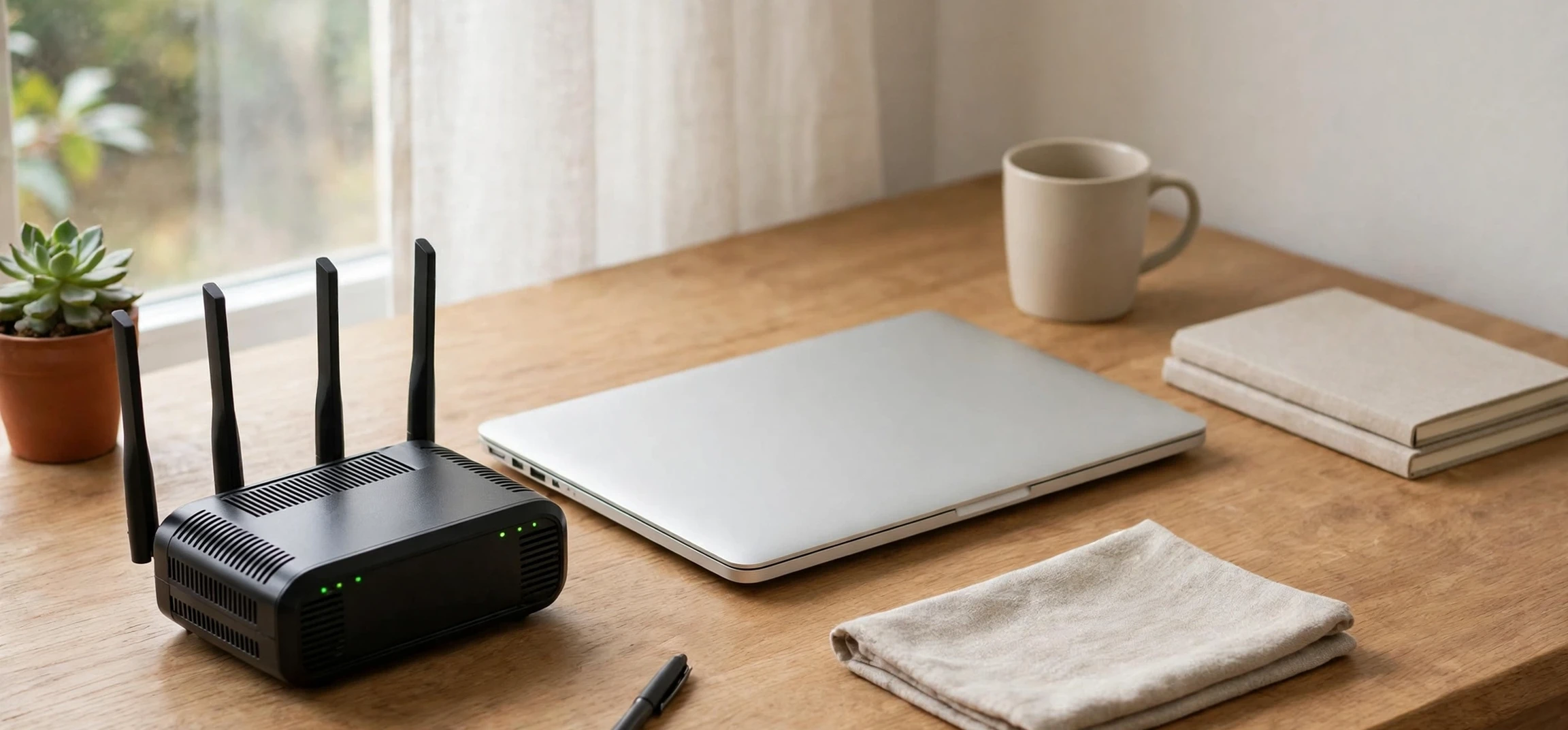
A class c internet address is something you already own a piece of, even if you have never looked for it: it is the internal address your home router gives to your own phone, laptop, or television. This article is a practical, hands-on guide to finding and understanding your own device’s address on your own home network. Everything here concerns only devices you own and a router you administer. It never involves looking up, tracing, or obtaining anyone else’s address, which is neither necessary for fixing your own connection nor appropriate to attempt.
Why would you want to find your own address at all? The most common reasons are everyday ones: a printer that has stopped responding, a smart television that cannot find the media server, a game console that needs a stable connection, or a support conversation in which you are asked what address your own device currently holds. In each case, knowing where to look on your own device, and knowing how to read what you find, turns a confusing problem into a short checklist. This guide walks through those steps on the devices most people have at home. This guide treats a class c internet address as a household tool, something you check on your own equipment when something needs fixing.
Finding Your Class C Internet Address on Your Own Device
On a Windows computer, the quickest route is through Settings. Open Settings, go to Network and Internet, then choose Wi-Fi or Ethernet depending on how your own computer connects, and open the properties of your active connection. The IPv4 address shown there is your device’s own address on your home network, and in most homes it will begin with 192.168, which marks it as a class c internet address from your router’s private range. Note also the gateway address shown beside it: that is your router’s own address, usually 192.168.1.1 or 192.168.0.1. Windows shows your class c internet address in the properties of your active connection, next to the gateway that leads to your router.
On a Mac, open System Settings, choose Network, and select your active Wi-Fi or ethernet connection. Your own IP address appears in the details for that connection, alongside the router address. On an iPhone or iPad, open Settings, tap Wi-Fi, and tap the information icon beside your connected network name to see your own address for that network. On an Android phone, open Settings, go to Network and Internet or Connections, tap Wi-Fi, then tap your connected network to see its details, including your own device address. In every case you are viewing information about your own device on a network you are authorised to use, which is exactly the right scope for this kind of check. On a Mac or a phone, your class c internet address appears in the same place: the details of the network you are currently joined to.
When you find it, read the address in four parts. Using 192.168.1.36 as an example, the first three numbers, 192.168.1, identify your home network, and the final number, 36, identifies your own device within that network. If another of your own devices shows 192.168.1.37, the two are neighbours on the same network, which is why they can share files or stream to each other when your apps allow it. If a device instead shows an address beginning with 169.254, it has failed to obtain an address from your router at all, which points you straight at a Wi-Fi or router problem rather than an app problem. Reading a class c internet address in four parts tells you the network in the first three numbers and your device in the last.
Your Class C Internet Address and Your Own Router Settings
Your router’s settings page is the control room of your home network, and reaching it uses your own gateway address. From a device connected to your own home network, type the gateway address, such as 192.168.1.1, into a browser’s address bar. You will be asked for the router’s admin username and password, which are printed on a sticker on the router itself unless you have changed them. Once signed in, you will see a status or overview page listing your internet connection, your router’s own addresses, and usually a list of connected devices. Your router’s own class c internet address is the gateway your devices use, and it is also how you open your own settings page.
The connected-devices list is genuinely useful, because it shows your own household’s equipment in one place: phones, laptops, televisions, printers, and smart speakers, each with a name and an internal address. Use it to confirm that a device you expect to see is actually connected, and to spot a device you do not recognise, in which case changing your Wi-Fi password and reviewing sharing settings are sensible next steps for your own network’s security. The list belongs to your own router and your own home; it is not a tool for examining anyone else’s network. The device list in your router shows every class c internet address it has handed out in your home, which makes missing devices easy to spot.
Within the router settings you will also find the DHCP section, which controls automatic address assignment. This is where your router’s address pool is defined, for example from 192.168.1.2 to 192.168.1.254, and where you can reserve a fixed address for one of your own devices. Reserving an address is helpful for a home printer or a media server that other household devices need to find reliably. Make the reservation, save the setting, and restart the device so it picks up its reserved address. For background on how fixed addresses are configured elsewhere, see this guide to a Debian static IP address setup. The DHCP pool defines which class c internet address values your router may assign automatically, and reservations sit inside that system.
| What you see | What it means | What to do |
|---|---|---|
| 192.168.1.x on your device | Connected to your home network | Nothing; this is normal |
| 169.254.x.x on your device | Failed to reach your router | Reconnect Wi-Fi or restart your router |
| Gateway 192.168.1.1 | Your router’s own address | Use it to open your own router settings |
| Same address on two of your devices | Address conflict on your network | Restart both devices to get fresh addresses |
| Unknown device on your list | Possibly an uninvited guest | Change your Wi-Fi password |
Troubleshooting Your Own Class C Internet Address Connection
Your own address is a surprisingly effective diagnostic tool. Suppose your laptop cannot load web pages but your phone can. Check the laptop’s address first. If it shows a normal 192.168 address and the correct gateway, the Wi-Fi link is probably fine and the problem lies elsewhere, perhaps in the browser or in a VPN setting. If it shows a 169.254 address, the laptop is not communicating with your router, so focus on Wi-Fi: move closer to the router, forget and rejoin the network, or restart the laptop’s Wi-Fi. If every device in the house is offline at once, the problem is almost certainly the router or the broadband connection itself, not any individual device. Diagnosis often starts by comparing your class c internet address with the gateway, because a mismatch points straight at the fault.
Restarting equipment in the right order also helps, and it is safe to do on your own network. Turn off your devices’ Wi-Fi or restart the affected device first, then restart the router by switching it off for about thirty seconds and back on, giving it a minute or two to reconnect. When the router returns, your devices will request fresh addresses automatically. This simple sequence resolves a large share of home-network complaints, including stale addresses, conflicts, and a router that has stopped handing out addresses correctly. After a router restart, each device requests a fresh class c internet address, which clears most stale or conflicting assignments.
For a device that must keep the same address, such as a network printer, use your router’s reservation feature rather than typing an address into the device by hand. A reservation keeps the router in charge, so it will never hand that address to another device by mistake. If you do set an address manually on a device, choose one inside your router’s network range but outside its automatic pool, and write down what you chose. Keeping a short note of your own network’s gateway, range, and any reservations saves real time the next time something needs attention. A related guide to how to turn on Wi-Fi on an LG smart TV covers the television side of getting a household device onto your network. A reservation guarantees one device the same class c internet address every time, which is ideal for a printer or media server.
Dynamic vs Static Addresses at Home
Most home devices use dynamic addresses, assigned automatically and renewed by the router. Dynamic addressing is effortless and suits phones and laptops that join and leave the network constantly. Static or reserved addresses suit equipment that stays put and must always be findable, such as printers, storage drives, and cameras. Neither type is better in absolute terms; they serve different roles, and a healthy home network usually mixes them, with dynamic addresses for everyday gadgets and reservations for the few devices that need stability. Dynamic assignment means a class c internet address can change over time, and that is normal for phones and laptops.
One caution applies when experimenting. Only change settings on a router you own or administer, and note the original values before you change them. If a change breaks connectivity, restoring the original setting or resetting the router to its printed defaults will recover the situation, although a reset will also erase any custom Wi-Fi name and password you had set. Keeping a photo or note of your router’s sticker and your custom settings is a small habit that prevents a great deal of frustration. Before changing anything, note your current class c internet address and gateway, so you can undo a change that does not help.
Privacy: Your Address, Your Network, Your Business
It is worth stating the privacy boundary plainly, because it shapes everything in this guide. Your private internal address is visible only inside your own home, and it is not your public identity online. Websites and apps see your router’s public address, not the 192.168 address of your individual device. That separation protects you, and it also means there is no legitimate home-networking reason to seek out someone else’s private or public address. Troubleshooting your own printer, checking your own router, and confirming your own phone’s connection are the whole scope of this guide, and that scope is more than enough to solve real problems. Privacy advice around a class c internet address is reassuring: the address is internal, and outsiders see only your public address.
Equally, be careful with screenshots. If you share a screenshot of your network settings in a support forum, crop out anything beyond what the helper needs, and never share your router’s admin password or your Wi-Fi password publicly. Your internal addresses alone are not sensitive in the way passwords are, since they are reused in millions of homes, but your passwords and your public address deserve more care. Good practice here is simple: share the minimum, with people you trust, for a specific problem. When sharing a screenshot for support, your class c internet address alone is low risk, but your passwords should always be cropped out.
Frequently Asked Questions About Your Home Network Address
How do I find my own IP address at home?
On your own device, open its network settings for the active Wi-Fi or ethernet connection. The IPv4 address shown is your device’s own address on your home network, usually beginning with 192.168. Support staff may ask for your class c internet address because it confirms your device is actually on your own home network.
Why do all my devices start with 192.168?
Because your router assigns private Class C addresses from the 192.168 range to every device on your home network. The shared beginning identifies the network; the final number identifies each device.
What is the gateway address?
The gateway is your router’s own address on your network, commonly 192.168.1.1 or 192.168.0.1. Your devices send traffic for the wider internet through the gateway, and it is also the address you use to open your own router settings. The gateway is itself a class c internet address, usually the first address in your router’s private range.
Should I give my printer a fixed address?
Yes, a reservation in your router settings is a good idea for a home printer or media server, because other household devices can then find it reliably at the same address every time.
What does a 169.254 address mean?
It means your device could not obtain an address from your router and assigned itself a fallback address. Reconnect to your Wi-Fi, move closer to the router, or restart the router to fix it.
Conclusion
A class c internet address stops being mysterious the moment you find your own: it is the private address your router gives your own device, beginning with 192.168, with your router itself as the gateway at the start of the range. From there, everything else follows naturally. Your network settings show your own address, your router’s device list shows your household’s equipment, and simple checks such as spotting a 169.254 fallback or an address conflict will solve many common problems without any outside help. Keep your attention on your own devices and your own router, keep a note of your gateway and any reservations, and your home network will stay understandable, stable, and firmly under your control. For a lighter piece of related reading, this collection of Harry Potter Wi-Fi names is a fun reminder that even router settings can have personality.



